
What it is
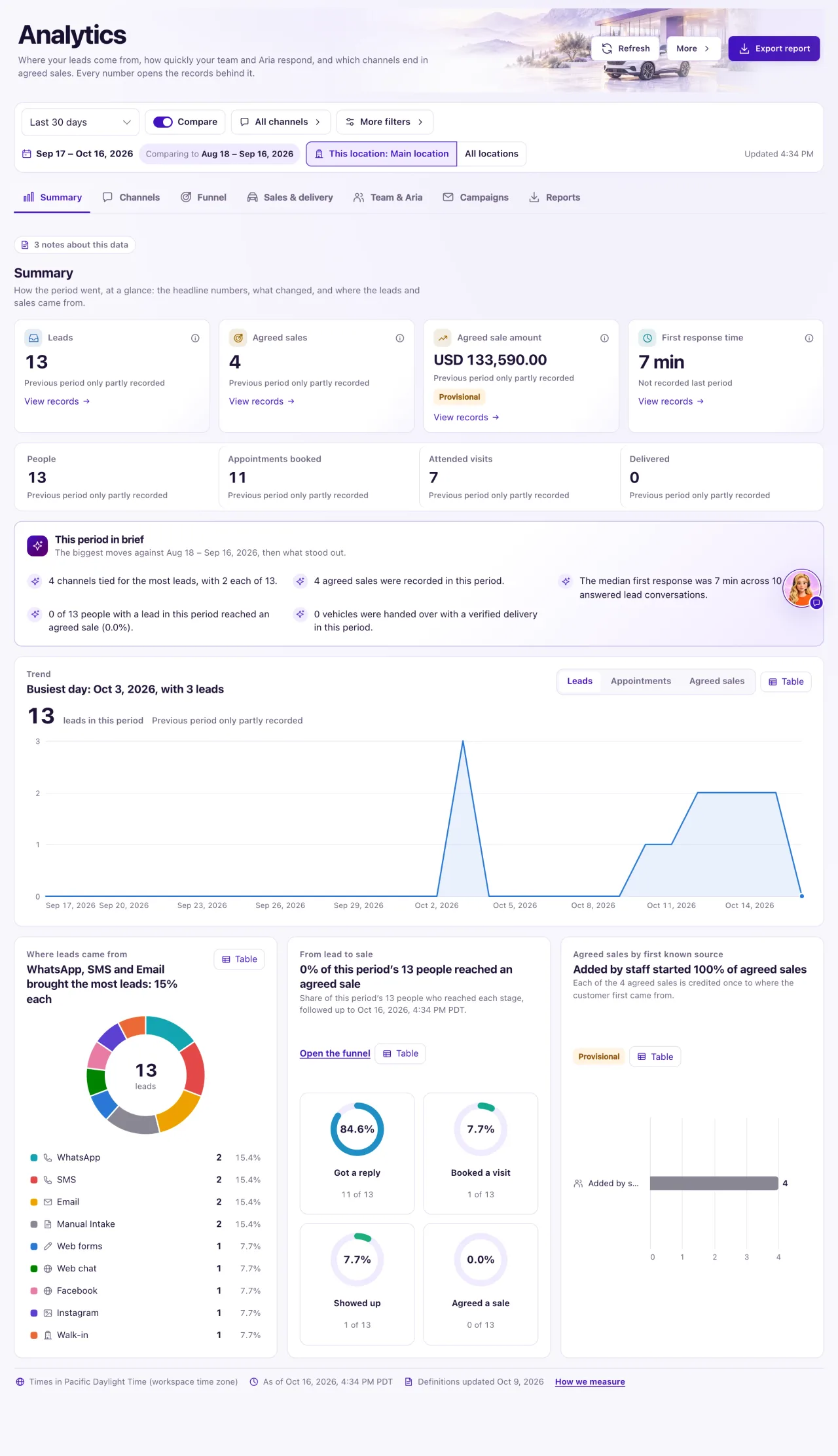
Analytics is your measured history: where leads come from, how quickly your team and Aria respond, what happened to those leads and which channels end in agreed sales. Every number opens the records behind it, and only real customer records count. Test conversations and Aria Lab practice never appear.
Analytics is the one place every area's numbers come together. The tabs are Summary, Channels, Chatbot, Forms, Campaigns, Journeys, Calls, Sales & visits (the funnel), Sales & delivery, Team & Aria, Questions, Advanced and Reports. One date bar at the top sets the period for every tab. The article Analytics for Chatbot, Forms, Campaigns, Journeys and Calls explains the area tabs.
Owners see everything. A Staff member opens Analytics only when their Owner gave them Analytics View in Settings → Team & roles (the Manager and Read-only starting points include it). They then see Summary, Channels, Forms, Campaigns, Journeys, Sales & visits and Sales & delivery for their own locations; Chatbot, Calls, Team & Aria, Reports, Export report, the CSV download and the Lead score vs outcome card stay Owner-only. Without access, Staff see "Ask your Owner for access" and Analytics is hidden in the sidebar.
How to use it
- Select Analytics in the sidebar. It opens on Summary.
- Choose the Period: Today, Last 7 days, Last 30 days (the default), Last 90 days, This month, Last month, Last quarter, Year to date or Custom. For Custom, set From and To (up to 366 days, ending no later than today) and select Apply dates.
- Leave Compare on to see the change against an earlier period, or turn it off.
- To narrow the numbers, open All channels, tick channels and select Apply. More filters offers Team member, Opportunity stage and Journey on the tabs that use them.
- With more than one location, switch between This location and All locations.
- Remove a filter with the × on its chip, or select Reset to go back to Last 30 days, compare on, this location and no filters.
- On Summary, read Across QualiFlow: one tile per area (Leads, Conversations, Aria replies, Bookings, Agreed sales, Calls, Chatbot chats, Form submissions, Campaign sends and Campaign opens), each with its change against the previous period and a small trend. Select a tile to open its tab. People, First response time, Attended visits, Delivered and Agreed sale amount are in the strip below.
- Select a tile's info button to see how it is measured, or View records to open the records behind it. Click a bar or ring slice to do the same.
- Select How we measure at the bottom of the page for every definition.
- Select Refresh to load the numbers again.
What the data means
| Shown | Meaning |
|---|---|
| +12.5% / −4% | Change against the comparison period. Green is good and red is bad for that measure |
| No activity last period | Nothing last period, something now |
| Previous period only partly recorded | QualiFlow began recording during the comparison period, so no percentage is shown |
| Not recorded | QualiFlow does not capture this value. It is never shown as 0 |
| Not applicable | There was nothing to divide by |
On Summary, From lead to sale shows the share of this period's people who Got a reply (your team or Aria replied), Booked a visit, Showed up and Agreed a sale. Open the funnel opens the Sales & visits tab (the funnel). Amounts are staff-entered, shown per currency and never added across currencies.
The records panel lists the 50 most recent records behind a number. Chart badges: Workspace-wide means the measure ignores the location choice; Provisional means QualiFlow may refine how it is counted. A chip marked "· not used on this tab" doesn't change that tab's numbers.
Possible issues and fixes
Analytics says "No leads or sales in this period"
Symptom: Every number is 0, or the Summary shows No leads or sales in this period.
Why: A filter is narrowing the numbers, nothing real happened in the period, no channel is connected, or the only activity was test conversations.
Fix: Select Reset, then try Show the last 90 days or Show all locations under the message. If it is still empty, connect a channel in Settings → Connections.
How to check: The Leads tile is above 0 and the filter line shows "Updated time".
Analytics couldn't load right now
Symptom: The page says Analytics couldn't load right now, or "Showing results for the previous filters."
Why: The numbers took too long or the connection dropped. Nothing was changed.
Fix: Select Try again, or Go back to those filters. If it repeats, choose a shorter period or clear filters.
How to check: The tiles appear and the filter line shows a recent "Updated time".
A Staff member can't open Analytics, or can't find a tab
Symptom: They see "Ask your Owner for access", or Team & Aria and Reports are missing.
Why: They have no Analytics access, or they have View: then Team & Aria, Reports and exports stay Owner-only.
Fix: An Owner gives them Analytics → View in Settings → Team & roles and selects Save access.
How to check: Analytics shows in their sidebar with the other tabs.
