
What it is
Visits has two tabs. Calendar shows every appointment booked in QualiFlow's own calendar: Showroom visit, Test drive, Service visit and Vehicle pickup. Visits lists recorded visits (walk-ins and visit outcomes). Closed days and public holidays are marked on the calendar.
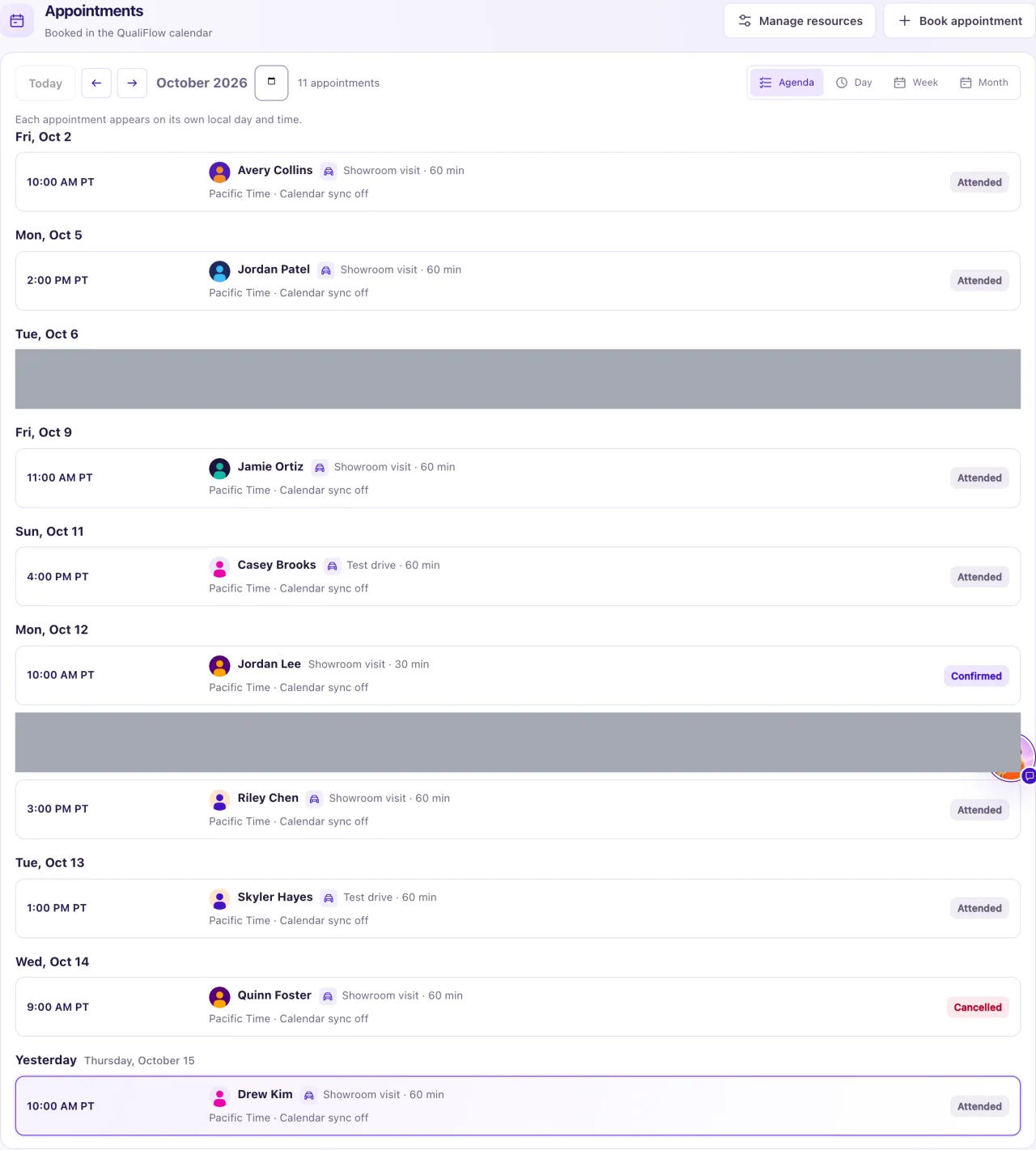
The QualiFlow calendar is the one that counts; the one Google or Outlook calendar you connect only receives copies. Everyone with Visits change access can use the calendar. An Owner books straight away; other team members choose Prepare for review, and the booking waits for approval. Staff with Approve Aria replies approve booking requests in My Work → Needs attention.
How to use it
- Select Visits in the sidebar and open the Calendar tab.
- Choose a view: Week (where it opens), Day, Month or List. QualiFlow remembers the view you chose last on this browser.
- Use Today, the arrows and the date picker to move. In Week, select a day's heading to open that day; in Month, select a date (or +N more) to open it.
- Select an appointment to open its panel with Appointment controls: Reschedule, Cancel appointment and Record outcome.
- To reschedule or cancel, give the reason. The change goes through the same approve-and-confirm steps as a new booking.
- Use Book appointment to add one: pick the customer, the type, an optional salesperson and a free time. QualiFlow chooses the place by itself.
- Booking hours, holidays and how many visits can happen at once are set in Settings → Booking.
What the data means
| Badge | What it means |
|---|---|
| Confirmed | Booked in the QualiFlow calendar |
| Cancelled | The appointment was cancelled |
| Attended | The outcome was recorded and the customer came |
| No-show | An evidence-backed no-show was recorded after it ended |
| Outcome recorded | An outcome was recorded |
Calendar sync shows on each appointment: Calendar sync off, Sync pending, Synced, Sync failed or Sync status unknown. The Day and Week grids show only Sync failed.
Opening hours and closed days: Day and Week show the opening hours, with an hour either side lightly shaded. A closed day is tinted light rose and says Closed or the holiday's name (Christmas Day); in Day view a closed day with nothing booked shows Closed — Sunday instead of empty hours, and an open day with nothing booked says No visits booked. Closed days come from what bookings use, so the calendar and the booking form agree: the business hours, public holidays and extra closed days in Settings → Booking, or with your own resources, days when none of your places is open. Today has a filled date; on a phone, Week becomes a list by day.
Time zones: Day and Week show times in the selected location's zone ("Times in zone · location"). Agenda and Month show each appointment in the zone it was booked in. A location with no time zone falls back to your browser's zone and says so.
Possible issues and fixes
My Staff can't see the calendar
Symptom: A Staff member opens Visits and sees only Recorded visits.
Why: The calendar, booking and resources are for Owners only. Staff with Approve Aria replies can still approve Aria's booking requests.
Fix: An Owner books and moves appointments. Staff use Recorded visits or the contact's Dealership activity to see a customer's visits, and My Work → Needs attention to approve Aria's requests.
How to check: The Staff member sees the visit under Recorded visits.
I prepared a booking, but it isn't on the calendar
Symptom: You used Prepare for review (Staff), but no appointment shows.
Why: Preparing only prepares it. Nothing is booked until it is approved and confirmed, within 30 minutes. An Owner's Book appointment books in one step; if that step was refused, it also waits in Action review.
Fix: In Action review, select Approve exact action, then Confirm execution. If it expired, prepare it again.
How to check: The appointment shows Confirmed.
A button on an appointment can't be used
Symptom: "Only a confirmed appointment can be rescheduled, cancelled or given an outcome." or a similar note.
Why: A cancelled appointment can't be moved or given an outcome, and one with a recorded outcome can't be rescheduled or cancelled.
Fix: Book a new appointment instead.
How to check: The new appointment shows Confirmed.
The calendar shows "Only the first 500 in this range are shown"
Symptom: The count stops at 500.
Why: A period with more than 500 appointments is cut short.
Fix: Choose a shorter view, such as Week or Day.
How to check: The count drops below 500 and the missing appointments appear.
