
What it is
Visits, Sales & delivery, Ownership and Service record what really happened with each customer, with evidence. They share one layout: number cards at the top, a search box and status list, a list of 20 records per page, and a panel that opens on the right when you select a record.
Saving a record never sends a message or places a call. Nothing is deleted: every change is added to the record's History. Owners record and change; Staff with access to a page can read it and see "View only. Ask your Owner for access."
How to use it
- Open the page from the sidebar and use the search box (it finds record titles and customer names) or the status list.
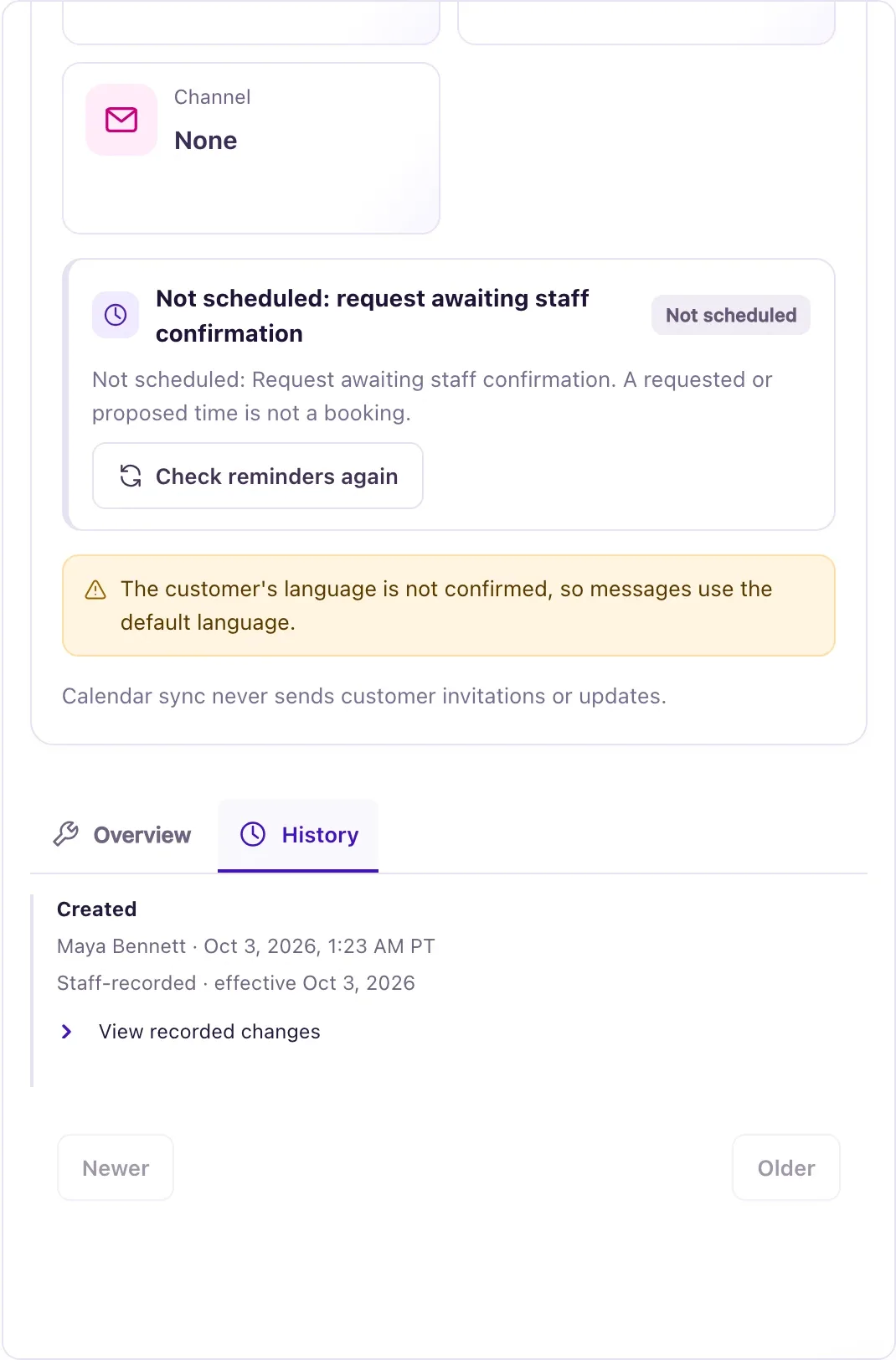
- Select a record to open its panel. Overview shows the saved fields; History lists every change with who made it, when and its source, with View recorded changes.
- To create or edit, fill in Title, Contact (locked once saved) and Responsible owner, then the connected records. Linked records must belong to the same Contact.
- Under Source & evidence, choose the Source (Staff-recorded, Customer-reported, Estimated or Verified), the Effective date and a Source / reference such as "phone call with the customer on Oct 5".
- If you choose Verified, describe how you verified the facts in Verification evidence.
- When editing, also fill in Reason for change, then save. The list opens with the record selected and "Record saved."
What the data means
Source = Verified matters. Delivery check-ins, ownership check-ins, feedback requests and service retention start only from a record whose source is Verified with evidence. A Staff-recorded record is kept and shown, but those journeys don't start for it.
Every dated record has a time zone. Dates are typed and shown in the record's Timezone. Around clock changes the form refuses a skipped hour and asks Earlier or Later for a repeated one.
Folded groups: Review request consent (who asked the customer, how, when and what they agreed to) lets the feedback request ask how it went. Retention evidence sets a different moment for a journey to plan from; leave it empty unless you need it. Mileage needs its unit, date and source. Fill in a whole group or none of it.
The number cards ignore search and filters. Each says whether it counts the whole workspace or the newest records. Some filters work only on the 20 records on the current page.
Possible issues and fixes
I can't find a customer's record in the list
Symptom: Searching the customer finds nothing.
Why: The record may be on another location, or its title and customer name don't contain what you typed.
Fix: Open the customer in Contacts and use Dealership activity: it lists their visits, sales, ownerships and service requests. Or narrow the list with the status list.
How to check: The customer's records appear under Dealership activity.
The form won't save and shows a message under a field
Symptom: For example "Linked records must belong to the selected Contact.", "Choose one of: …" or "A mileage reading also needs its unit (Miles or Kilometers) and source. Fill them in, or clear the mileage."
Why: The form checks the facts before saving. A group such as review consent, retention evidence or mileage is half filled, a value isn't one of the field's choices or in its format, or a linked record belongs to someone else. Each message sits under its own field and says what that field accepts.
Fix: Fix the field named in the message. Leave a group completely empty unless you have all its facts.
How to check: "Record saved." appears.
"This record changed. Your draft is preserved."
Symptom: Saving stops with this message.
Why: Someone else saved the record while you had it open.
Fix: Select Reload saved version, then Load latest record to see their change and make yours again, or Keep my draft.
How to check: The form saves and the record shows your change.
A journey I expected didn't start
Symptom: The customer is not in a journey's Activity tab.
Why: Most often Source was left on Staff-recorded.
Fix: Open the record, select Edit, set Source to Verified, add the evidence and save. The journeys check the record again.
How to check: The customer shows in the journey's Activity tab on Journeys.
