
What it is
Your team calls customers from their own phones. Log a call records what happened, so the customer's history, lead score and next steps stay right. Schedule a call plans a call for a named person, who gets an alert when its time window starts. Logging, scheduling and the Dialer are for Owners.
Calls made from your own phone are never recorded or transcribed. To call from the dealership number instead, open the contact and select Call (see Call a contact from QualiFlow).
How to use it
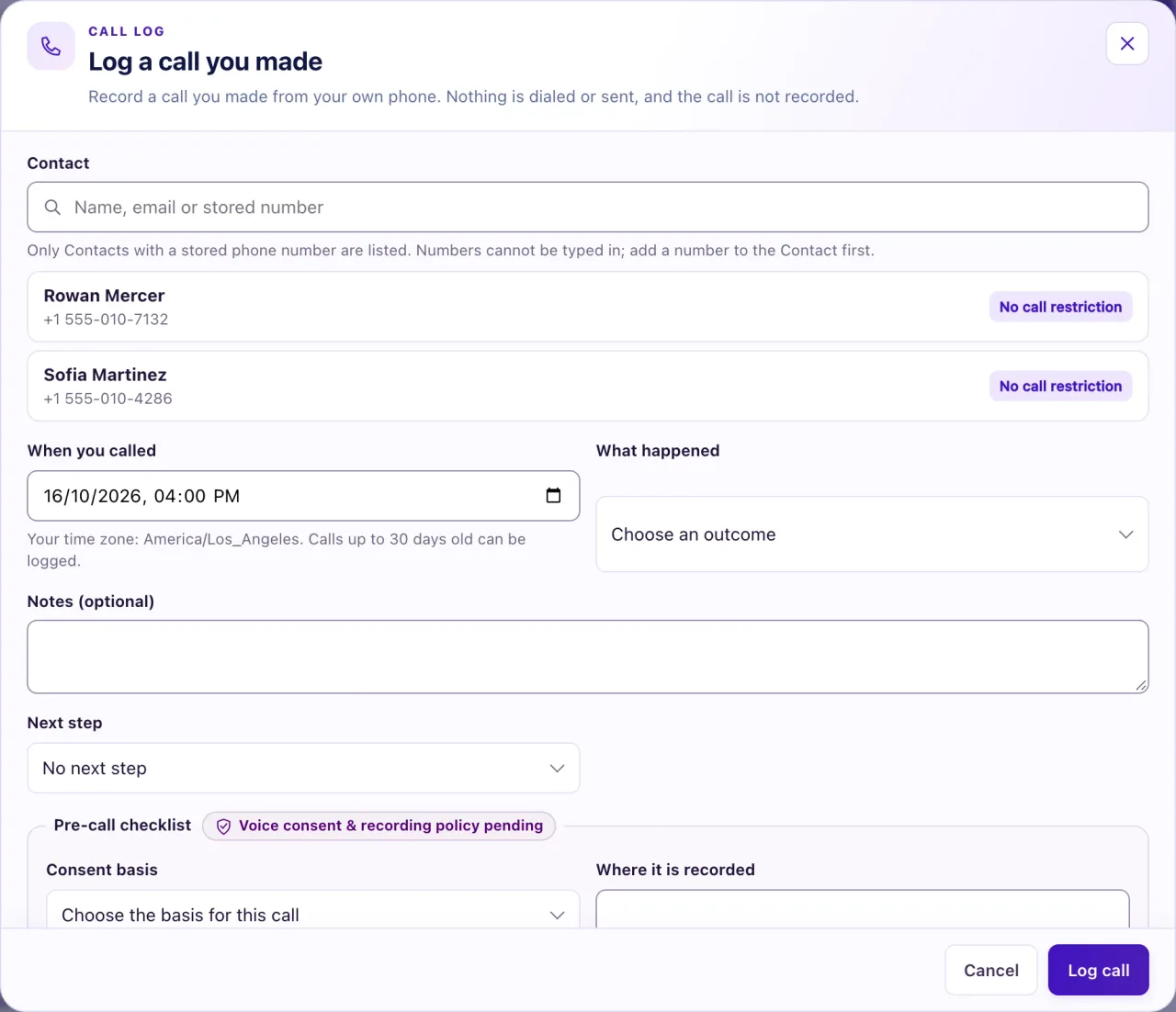
- Open Calls and select Log a call.
- Pick the Contact and the Number, and set When you called.
- Choose What happened: Spoke with the customer, Left a voicemail, No answer, Line busy, Wrong number or Call did not go through. Add notes if useful.
- Choose the Next step and describe it.
- Complete the Pre-call checklist: the Consent basis, where it is recorded, and whether you read the disclosure. Then select Log call.
- To plan a call, select Schedule a call (or Schedule a follow-up call on a logged call). Choose the contact, the number, why and who will call, and the call window.
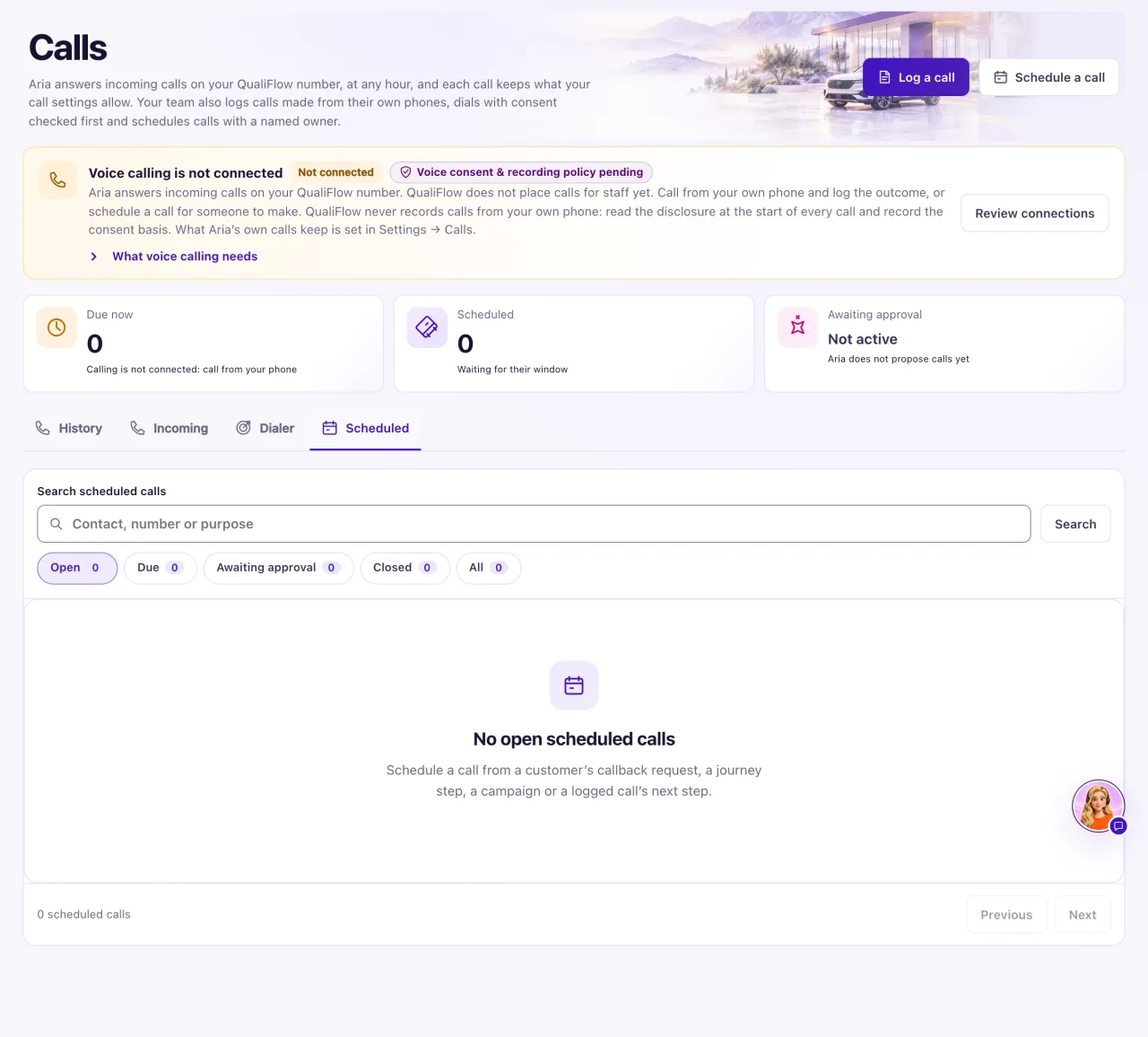
- Open the Scheduled tab to see Open, Due, Awaiting approval, Closed and All calls. On a call, use Approve and assign, Reject proposal, Move window, Reassign or Cancel call.
- The Dialer tab checks the contact and shows the disclosure to read. To place the call from the dealership number, open the contact and select Call; or use Log a call you made or Schedule this call.
What the data means
| Scheduled status | What it means |
|---|---|
| Scheduled | Waiting for its time window |
| Due — calling is not connected | The window has started. Call from your own phone and log it |
| Awaiting approval | Proposed and waiting for an Owner |
| Completed, Cancelled, Rejected | Closed |
The count cards at the top of Calls show Due now, Scheduled and Awaiting approval. Select one to open Scheduled filtered to those calls.
A logged call shows in History with the source Logged by staff, and Recording is always Off. Contacts who opted out of calls or reported a wrong number can't be called or scheduled.
Possible issues and fixes
"A logged call cannot be in the future"
Symptom: Log call is refused with this message.
Why: When you called is later than now.
Fix: Set When you called to the real time of the call and select Log call again.
How to check: The call shows in History marked Logged by staff.
The Dialer says calling is not connected
Symptom: The Dialer ends with Voice calling is not connected, and its Call button doesn't ring anyone.
Why: The Dialer tab only checks a call. Calls from the dealership number start from the contact.
Fix: Open the contact and select Call. Or call from your own phone, then select Log a call you made, or select Schedule this call for someone to make later.
How to check: The call shows in History, or under Scheduled.
A scheduled call was cancelled by itself
Symptom: A call you scheduled shows Cancelled, or a badge such as Do not call, Contact in Trash or Number retired.
Why: A scheduled call is cancelled automatically when the contact opts out, is moved to Trash or loses the number.
Fix: Check the contact. Schedule again only if you are still allowed to call them.
How to check: The new call shows Scheduled with no warning badge.
I can't log or schedule a call
Symptom: Log a call and Schedule a call are missing, and the page says "View only. Ask your Owner for access."
Why: Staff can view Calls but not log, schedule or dial.
Fix: Ask an Owner to log or schedule the call.
How to check: The call shows in History or Scheduled.
