
What it is
A proposal is a priced offer for one vehicle, linked to an open opportunity. There are three kinds:
- Cash price quotation: a price with figures your team entered. No payment terms.
- Finance illustration: payments worked out from a price, rate and term. Not credit approval.
- Lease illustration: lease payments from the cap cost, residual and money factor. Not a lender commitment.
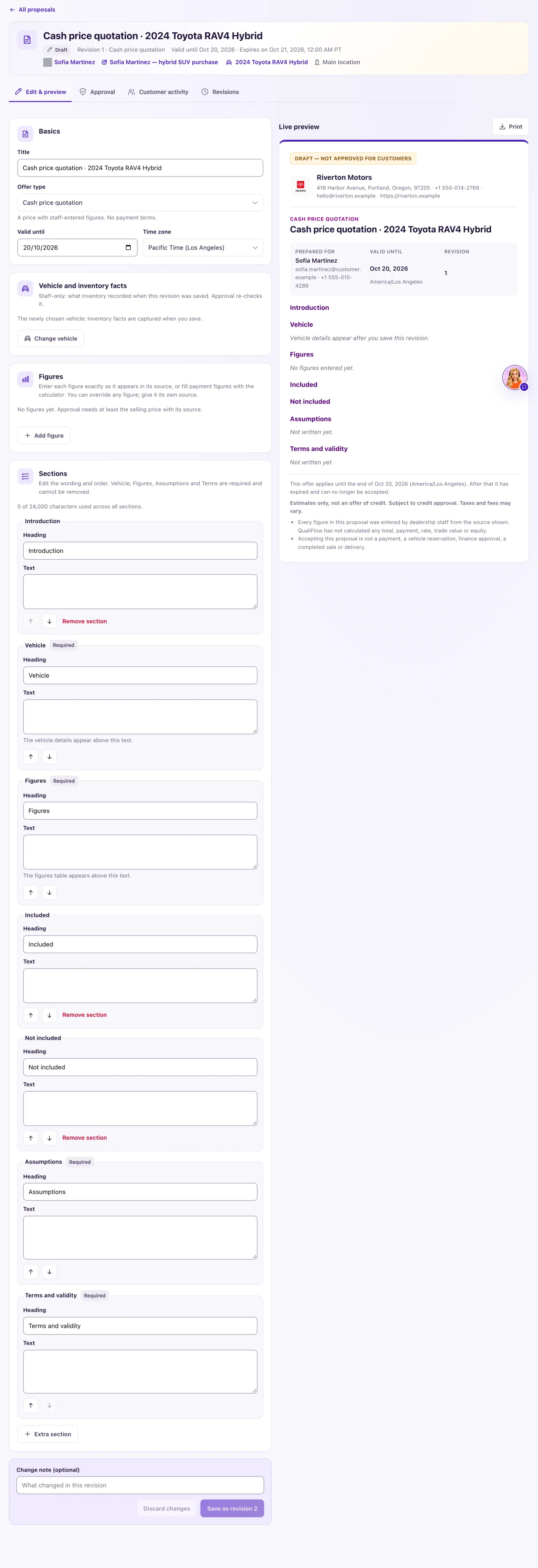
Every figure keeps its source. An Owner approves one exact revision; editing it later saves a new revision that needs approval again. A proposal page has four tabs: Edit & preview, Approval, Customer activity and Revisions.
How to use it
- Select Create proposal on an opportunity, or New proposal on Proposals and choose an open opportunity.
- Choose the Offer type, check Valid until and Time zone, choose the vehicle and select Create draft.
- On Edit & preview, add the selling price as a figure with its Source and reference.
- For an illustration, fill in the Finance calculator or Lease calculator, select Calculate, then Use these figures.
- Write the Assumptions and Terms and validity sections (Vehicle and Figures are required too), then select Save as revision N.
- Open Approval and select Submit revision N for approval. Fix anything under Needed before approval first.
- An Owner ticks the box that they re-checked the vehicle's price and availability and every figure's source, then selects Approve revision N. Approving sends nothing.
- To send it, go to Customer activity (see "Send a proposal and record the customer's response").
What the data means
Figure sources: Entered by staff, Approved document or QualiFlow calculator. Monthly payment, APR, residual value, amount financed, finance charge and total of payments must come from an approved lender or rate-sheet document or from the calculator. A trade allowance needs an approved appraisal document.
The calculator does the arithmetic only; the rate, residual and tax rule come from you. Finance uses standard amortization with tax following your trade-in rule in Proposal settings. Lease uses monthly depreciation plus rent charge, with APR converted as APR ÷ 2400. Results are estimates, marked "QualiFlow calculator" with today's date. Using it again replaces only the figures it added before.
Needed before approval lists what blocks approval. Check before approving lists warnings that don't block it, such as availability unknown, vehicle inbound, a price different from the advertised price, or no email address on the Contact.
Possible issues and fixes
New proposal doesn't list my opportunity
Symptom: The opportunity is missing, or you see "This opportunity is closed. Reopen it before drafting a proposal." or "Link this opportunity to a Contact first."
Why: Only open opportunities with a Contact can get a proposal. A Contact in Trash or another location also blocks it.
Fix: Move a Lost opportunity to an open stage, create or restore the Contact, or switch to the opportunity's location.
How to check: The opportunity is listed and Create draft works.
A figure is refused when I save
Symptom: "This figure must come from an approved document (lender or rate sheet) or the QualiFlow calculator. Record its reference." or a similar message.
Why: Payment figures need a trusted source, trade allowances need an appraisal, and a cash quotation can't carry payment terms. Amounts are digits with at most two decimals.
Fix: Set the figure's Source to Approved document with its reference, use the calculator, or switch to a finance or lease illustration.
How to check: Save as revision N succeeds.
I can't approve the proposal
Symptom: Approve revision N is missing or disabled.
Why: The revision isn't submitted yet, Needed before approval has a blocker, there are unsaved edits, Inventory changed since it was saved, the offer expired, or the re-check box isn't ticked. Only Owners approve.
Fix: Submit it, fix each blocker, save or select Discard changes, use Refresh recorded facts under Inventory freshness, renew an expired offer, and tick the box.
How to check: The Approval tab reads "Revision N was approved by … on …".
The Owner who approved is no longer an Owner
Symptom: The page says the Owner who approved the revision is no longer an active Owner.
Why: An approval only counts while the person who gave it is still an active Owner.
Fix: Select Withdraw approval with a reason, submit the revision again and have a current Owner approve it.
How to check: The approval line names a current Owner.
