
What it is
Opportunities (sidebar group CRM) is your sales pipeline. Each opportunity is one purchase conversation: who the customer is, what they want, their stated budget, who on your team owns it and what happens next.
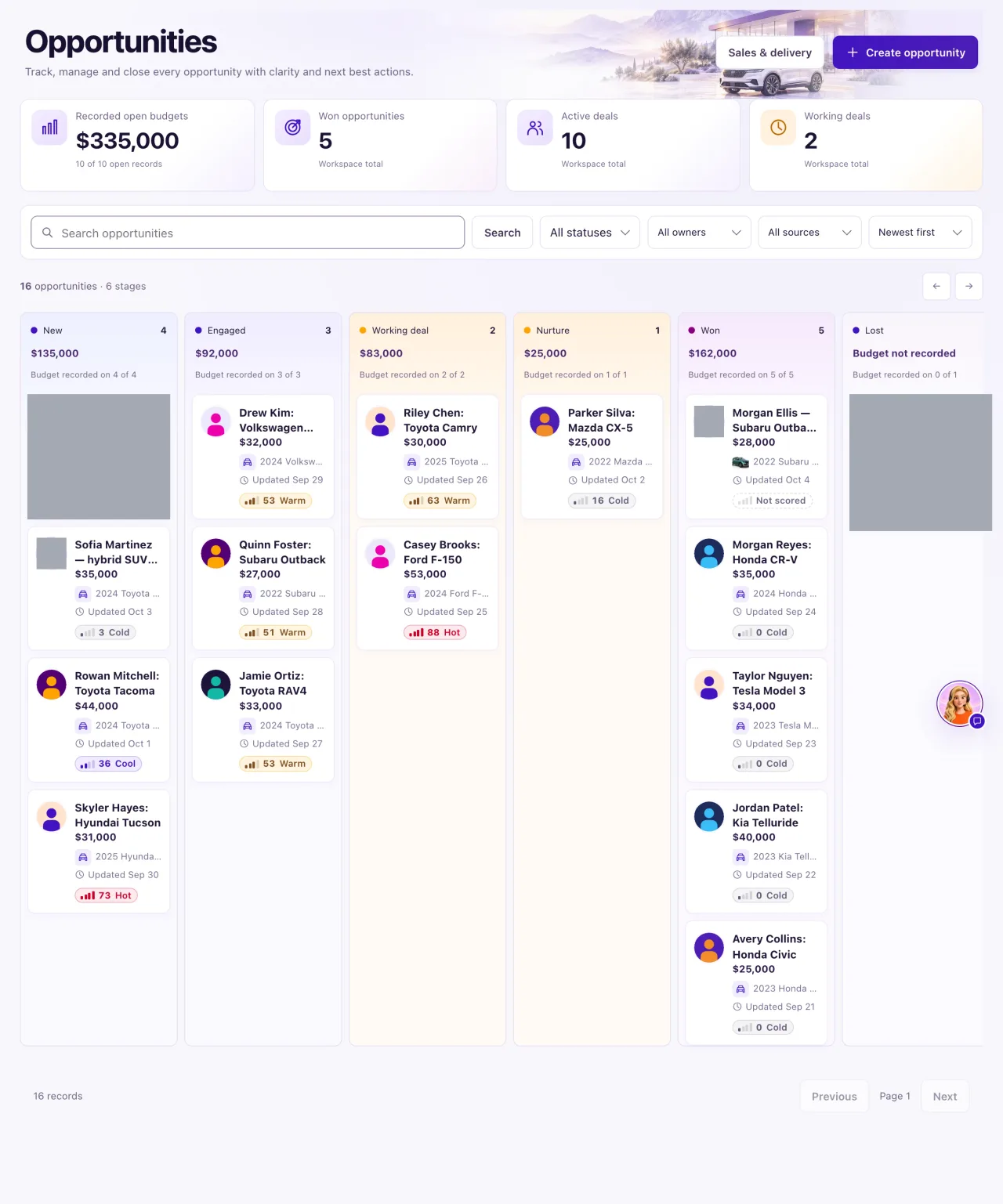
Most opportunities appear by themselves. When Aria (or your Intake rules) marks a conversation as a Lead and the customer is a saved Contact, QualiFlow creates one card titled "Vehicle inquiry · customer" in New, with the customer's own words as its source. An Owner can also add one by hand with Create opportunity.
Owners can create and change opportunities. A Staff member whose Owner gave them Sales & delivery access can open the board and read every opportunity in their locations; the page says "View only. Ask your Owner for access." and the change buttons are hidden.
How to use it
- Select Opportunities in the sidebar.
- Type part of a title in Search opportunities and select Search, or pick a stage in the status list.
- To narrow the cards on this page, use Owner on this page, Source on this page or Sort this page (for example Budget high–low or Lead score high→low).
- Select Clear filters to see everything again.
- Use the arrow buttons to scroll the board sideways, and Previous and Next to move between pages of 20.
- Select a card to open the opportunity beside the board.
- Owners: select Create opportunity to add one by hand (see "Create and move an opportunity").
What the data means
| Card | What it shows |
|---|---|
| Recorded open budgets | The total of customer-stated budgets on open opportunities, read from the newest 50. "Mixed currencies" when they mix |
| Won opportunities | How many opportunities are Won, across the workspace |
| Active deals | How many are not Won or Lost |
| Working deals | How many are in Working deal |
The summary cards are workspace totals: search, filters and the page do not change them. Each column header shows its count on this page and the budgets recorded in it ("not sales revenue"). Lost appears only when the page has a Lost opportunity or you filter to Lost.
Each card shows the customer's photo, the title, the budget (or "Budget not recorded"), the linked vehicle (or "No linked vehicle"; Staff see "Vehicle details are Owner only" when a vehicle is linked, because Inventory is Owner-only for Staff today), when it was last updated, and for Owners the customer's lead score.
Possible issues and fixes
The board is empty
Symptom: The board shows no cards, or far fewer than you expect.
Why: A search or status filter is on, or no conversation has been marked a Lead for a saved Contact yet.
Fix: Select Clear filters. If it is still empty, an Owner adds an opportunity with Create opportunity.
How to check: Cards appear in their stage columns.
A lead in the Inbox has no card on the board
Symptom: A conversation shows Aria's lead decision, but there is no opportunity for it.
Why: Most often the conversation has no Contact yet. Customer service and Not a lead decisions create nothing. If the Contact already has several open opportunities, QualiFlow does not guess which one fits. An opportunity a team member unlinked is never linked again by itself.
Fix: Link or create the Contact in Intake, or create the opportunity yourself: on the Contact use Create opportunity, or in the Inbox Context panel choose Review a new opportunity.
How to check: The card appears in New and its source quotes the customer's words.
The summary cards don't match the columns
Symptom: The numbers at the top are different from what the columns add up to.
Why: The cards count the whole workspace. The board shows only the 20 cards on this page, after your page filters.
Fix: Nothing is wrong. Clear the filters and page through the board to compare.
How to check: With no filters, the column counts across all pages add up to the cards.
I can't create or change anything
Symptom: Create opportunity and Edit opportunity are missing, and the page says "View only. Ask your Owner for access."
Why: Only Owners can create or change opportunities. Staff with Sales & delivery access can read them.
Fix: Ask an Owner to make the change.
How to check: The Owner sees the buttons and the change saves.
