
What it is
Service tracks each customer's service requests: the concern, the appointment your service desk confirmed, the work done and its completion. A service request records an appointment confirmed outside this page. To book a service visit in QualiFlow's own calendar, use Visits → Book appointment with the type Service visit and a service bay; that is also how Aria books them.
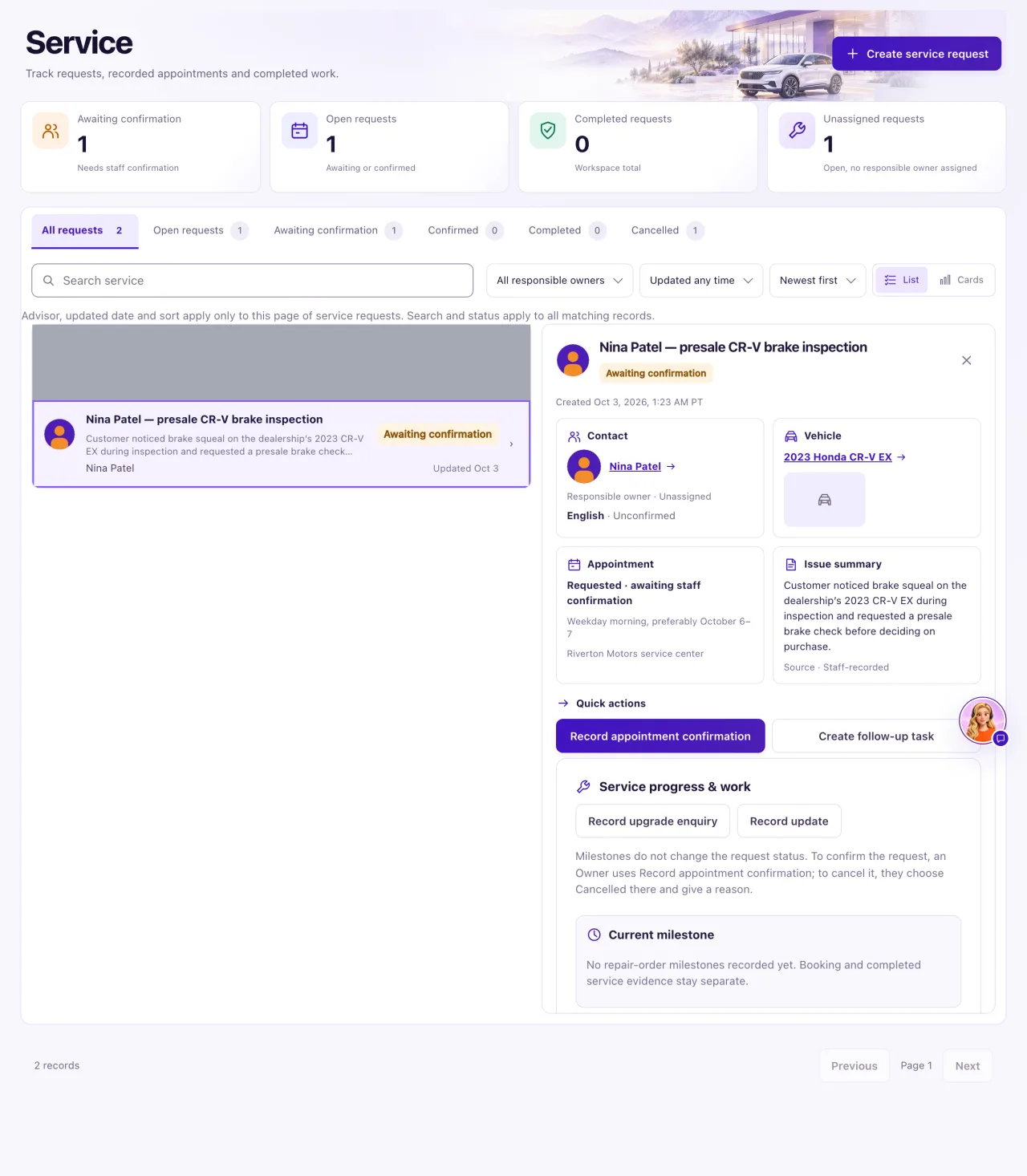
Owners create and change requests. Staff with Service access can read requests, progress and history; the buttons that change things are hidden for them.
How to use it
- Select Create service request (or Create service request on an ownership, or Service request under a contact's Dealership activity).
- Enter the Title, Contact, Responsible owner, Concern / requested work, Preferred dates or window, Service location and Timezone.
- Choose the Vehicle. It must be a vehicle record in Inventory, so an Owner adds the customer's own car there first if needed.
- Fill in Source & evidence and save. The request starts as Awaiting confirmation.
- When the service desk confirms the time, select Record appointment confirmation and fill in the three fields under Confirm the appointment: Externally confirmed appointment, External confirmation reference and Confirmation evidence. The rest of the request, including warranty and coverage, stays folded under More details (optional).
- Track the job with Record update under Service progress & work (see "Record service progress and work lines").
- When the work is done, select Edit service details, fill in Actual service completion, Completed service categories, Servicing dealership / provider and Service completion evidence, set Status to Completed, add the reason, and save.
What the data means
| Status | What QualiFlow does |
|---|---|
| Awaiting confirmation | Creates the My Work task "Confirm service request: title" |
| Confirmed | The task becomes "Review service outcome: title"; reminders can go out |
| Completed | Closes the task; can start service retention and the feedback request |
| Cancelled | Closes the task |
Open requests means Awaiting confirmation plus Confirmed; the Overview's open-requests tile opens that tab. Every status change, including a correction or reopening, needs a reason, and the completion date can't be later than today.
Service retention and the feedback request start only from a Completed request with Source = Verified and evidence. Service retention also needs the approved maintenance guidance and its valid-through date; the feedback request needs all four review-consent fields.
Possible issues and fixes
A customer asked for a service visit, but there is no service request
Symptom: Aria or a customer arranged a service visit, but Service is empty.
Why: Aria books service visits in the Visits calendar with a service bay. Service requests are for appointments your team confirmed elsewhere.
Fix: Look in Visits. To let Aria book service visits, add a place booked for Service (a service bay) in Settings → Booking → Advanced → Add booking resource. To record a visit confirmed elsewhere, select Create service request.
How to check: The visit shows in Visits as Service visit, or the request appears here.
I can't create a service request: it needs a vehicle
Symptom: The form asks you to choose a Vehicle.
Why: Every request is linked to a vehicle record in Inventory, including a customer's own car. Linking it doesn't make it for sale.
Fix: An Owner adds the car in Inventory, then you pick it under Vehicle.
How to check: "Record saved." and the request is Awaiting confirmation.
The request stays on Awaiting confirmation
Symptom: The service desk confirmed the time, but the request hasn't changed.
Why: The status never changes by itself.
Fix: Select Record appointment confirmation and fill in the confirmed time, reference and evidence. Without all three you see "Record the externally confirmed date, reference and evidence."
How to check: The status is Confirmed.
I can't set a request to Completed
Symptom: "Record the actual date, categories, provider and completion evidence."
Why: Completion needs all four completion facts, a reason, and a date that is not in the future.
Fix: Select Edit service details, fill in the four completion fields, set Status to Completed, enter the reason and save.
How to check: The status is Completed and its task closes.
Service retention or the feedback request didn't start
Symptom: A completed service is not in the journey's Activity tab.
Why: Most often Source is still Staff-recorded. Retention also needs the maintenance guidance and its valid-through date; feedback needs all four consent fields.
Fix: Select Edit service details, set Source to Verified with evidence and fill in the missing fields. Leave the Follow-up fields empty unless you need them.
How to check: The customer shows in the journey's Activity tab on Journeys.
