
What it is
Contact imports brings many contacts in from a spreadsheet: a UTF-8 comma-separated .csv file, or an Excel .xlsx file (the first sheet is read). Nothing is created until you have reviewed a preview and confirmed it.
An import only adds new people. A row whose email or phone already belongs to a contact, including one in Trash, is skipped. An import never updates, merges or overwrites a contact. Only Owners can import.
How to use it
- In Contacts, select Import. Select Download template to get the header row, and add your people under it.
- Check the file: one header row, then one row per person; each row has a name, email or phone; the full name is in one column; up to 1 MB, 500 rows and 30 columns.
- Select New import, choose the file and select Upload and map columns.
- On Map columns, check each column's field. Recognised headers are suggested for you.
- Set Default phone country / format (United States or International (+country code)) if your file doesn't mark each number. It is used only for rows that give no format.
- Select Preview import. Read Total rows, Eligible contacts, Skipped and Invalid, and filter Row results by Outcome.
- Look at the Contact column of a few rows to check that names, emails and phones landed in the right fields. If anything is wrong, fix the file and upload it again.
- Tick the review box and select Confirm this preview.
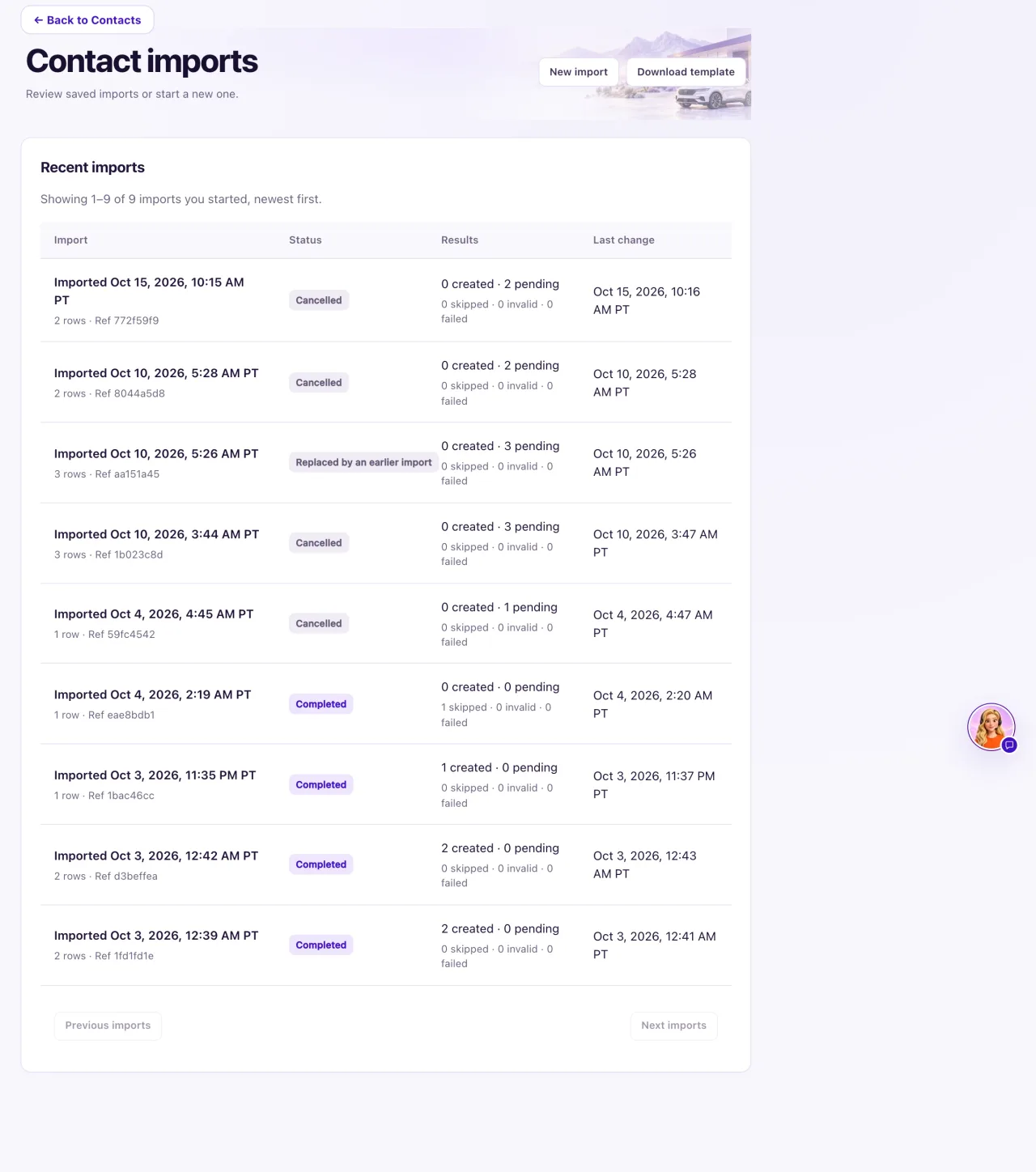
- Select Process next rows. Each press handles 25 rows; select Resume import until the status reads Completed.
- Select Download row results and fix any skipped or invalid rows by hand.
- To reuse your column choices next time, save a Saved mapping profile on the mapping step.
What the data means
Column names QualiFlow recognises by itself (capitals, spaces and dashes don't matter): display_name (or name, full_name), email, phone (or mobile), phone_country, email_2, phone_2, whatsapp, instagram, facebook, source_note, do_not_contact, do_not_call, do_not_sms, do_not_email, unsubscribed, service_consent, consent_source, consent_date, and the address columns address_line_1, address_line_2, city, state, postal_code and country.
Yes/no columns take yes, true or 1, or no, false or 0, or an empty cell. Yes in a do-not or unsubscribed column records a restriction; no or empty never clears one. Yes in service_consent records permission for service messages only (reminders and updates), never marketing. consent_date is written YYYY-MM-DD.
An incomplete or invalid address never stops a row: the person is imported without it, and the preview says "Address not imported" with the reason.
| Status | Meaning |
|---|---|
| Ready for confirmation | A preview is saved |
| Confirmed · ready to process | Confirmed, no rows processed yet |
| Paused · ready to resume | Some rows processed; select Resume import |
| Completed | Every row has an outcome |
| Partial · review results | Some rows unfinished or failed |
| Expired | Not confirmed within 24 hours |
Possible issues and fixes
The file won't upload
Symptom: The upload is refused with a message such as "Use a valid .csv (comma-separated, UTF-8) or .xlsx file with unique headers and consistent rows."
Why: The file is another type, isn't UTF-8, has an empty or repeated column name, has a row with more cells than the header, or is over the limits. A file with only a header row is refused too.
Fix: Save it again as CSV UTF-8 (Comma delimited), give every column its own name, quote values with commas, and split it into files of 500 rows or fewer. Save old .xls or .xlsm files as .xlsx or .csv.
How to check: You land on Map columns and each column of your file shows separately.
Map columns won't let me continue
Symptom: QualiFlow says "Map each column once, select at least a name, email or phone, and keep restriction columns mapped."
Why: Two fields use the same column, none of Display name, Email or Phone is mapped, or an opt-out or consent column was pointed at another field.
Fix: Map each field to a different column, map at least one of name, email or phone, and put opt-out and consent columns back on their own fields. Then select Preview import.
How to check: The preview shows the Total rows, Eligible contacts, Skipped and Invalid counts.
Map columns shows one long header such as "name;email;phone"
Symptom: All your columns appear as a single column.
Why: The file separates columns with semicolons or tabs, not commas.
Fix: In Excel choose Save As → CSV UTF-8 (Comma delimited). In Google Sheets choose File → Download → Comma-separated values (.csv). Upload the new file.
How to check: Map columns lists each column of your file on its own.
We imported our customers but can't text or email them
Symptom: Campaigns leave the imported contacts out, or say there is no recorded permission.
Why: An import creates contacts; it doesn't give permission to market. A service_consent column covers service messages only. Texts also need your business approved for texting, and email needs a connected dealership mailbox or email domain.
Fix: Record permission with evidence on each contact (see "Record contact permission"). Check texting and email in Settings → Connections.
How to check: The contact's Contact permission card lists the permission.
