
What it is
The Overview is your dealership on one screen. It is the page you land on after signing in, and you can always open it from Overview in the sidebar.
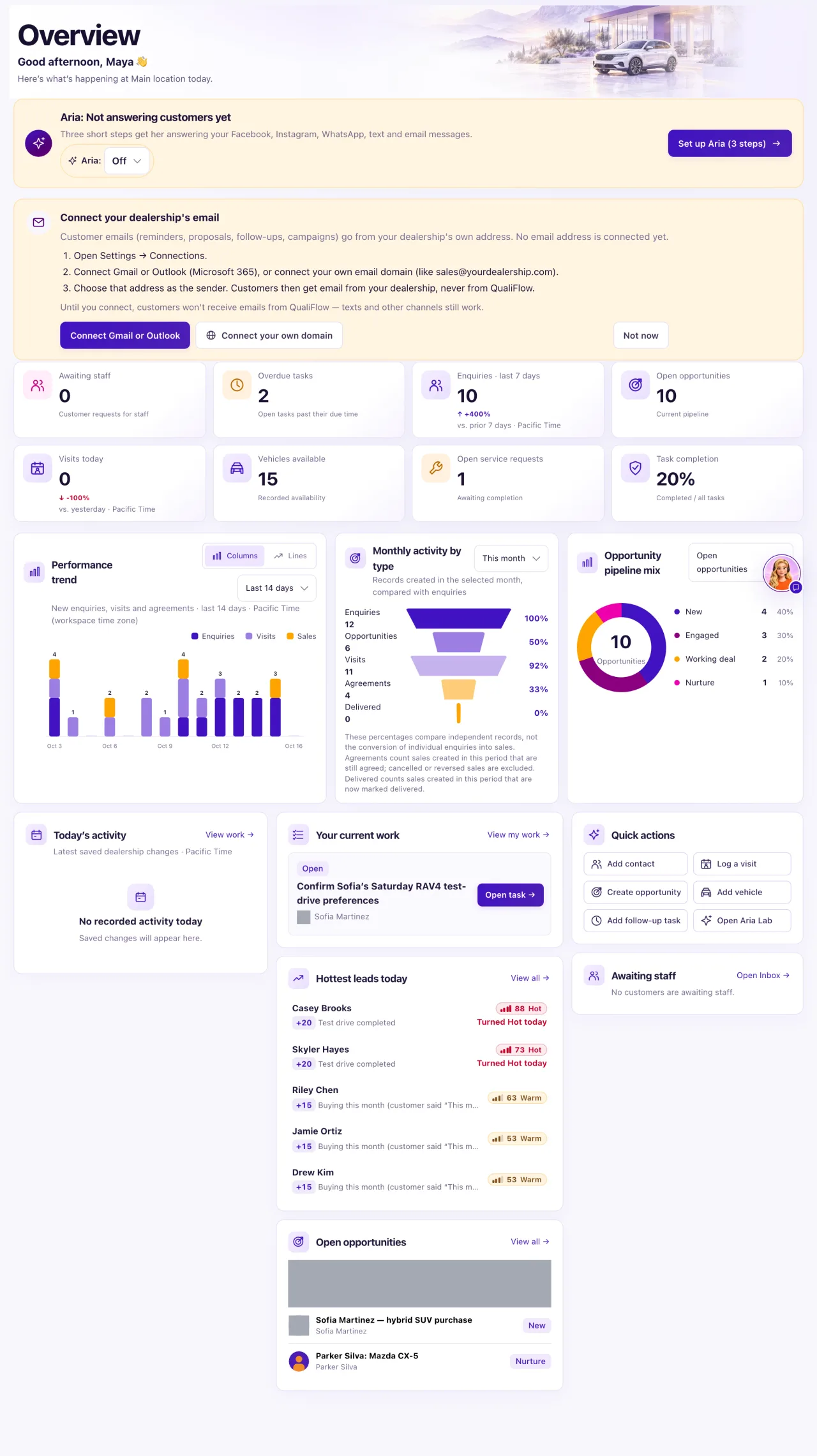
Owners see the full page: the Aria status card, eight number cards, three charts and the work cards (Today's activity, Your current work, Hottest leads today, Open opportunities, Quick actions and Awaiting staff).
Staff see a simple welcome page: "Welcome back, name. Your workspace at a glance.", the Aria status card (read only), a Settings shortcut and Your workspace with their role, account email and whether their email is verified. The full numbers are for Owners.
Every number covers the location selected in the header. The greeting ("Good morning", "Good afternoon" or "Good evening") follows the time at the dealership (the reporting time zone of the location or workspace), not your computer's clock: morning before 12:00, afternoon before 17:00, evening from 17:00. Until that time zone is known, for example while the page loads, it says "Hello".
How to use it
- Select Overview in the sidebar.
- Check the location in the header. Switching location reloads the page for that location.
- Read the Aria card at the top. Aria: Live on N channels means she is answering; Aria: Not answering customers yet means a setup step is missing.
- Look at Awaiting staff and Overdue tasks first. Select any number card to open the list behind it.
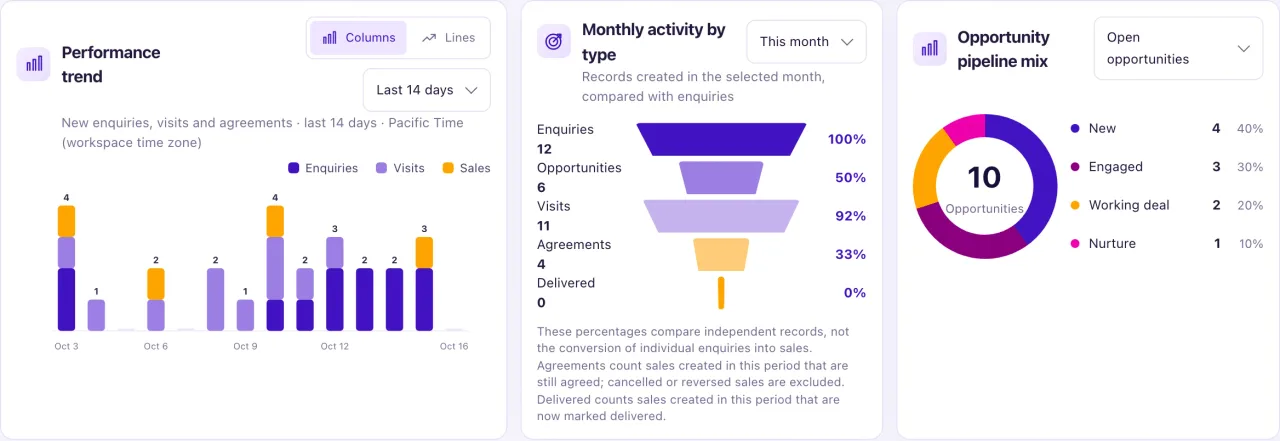
- On Performance trend, choose Columns or Lines and a Trend period: Last 7 days, Last 14 days (the default) or Last 30 days. Hover a bar or point for the exact count.
- On Monthly activity by type, choose This month or Last month.
- On Opportunity pipeline mix, choose Open opportunities or All opportunities.
- On Your current work, select Open task → to open your next task, or Create task → when you have none.
- Use Quick actions for Add contact, Log a visit, Create opportunity, Add vehicle, Add follow-up task or Open Aria Lab.
What the data means
| Card | What it counts |
|---|---|
| Awaiting staff | Open customer requests for a person, until someone selects Resolve. Opens the Inbox (or Intake) |
| Overdue tasks | Everyone's open tasks past their due time. Opens My Work, Tasks |
| Inquiries · last 7 days | New live conversations on every channel plus Manual Intake, against the 7 days before |
| Open opportunities | Opportunities in New, Engaged, Working deal or Nurture |
| Card | What it counts |
|---|---|
| Visits today | Visits arriving today, or booked for today. Cancelled visits and no-shows are left out |
| Vehicles available | Active vehicles marked Available in Inventory |
| Open service requests | Service requests not completed or cancelled |
| Task completion | Completed tasks out of all tasks ever recorded. Shows "—" when there are no tasks yet |
+25% or −10% is the change against the comparison window, No change means the same number, and New means something now and nothing before. A 0 on a loaded page is a real zero: while the page loads you see a placeholder instead.
Possible issues and fixes
A team member says their Overview has no numbers
Symptom: A Staff member sees only a welcome page with Aria's status and Your workspace.
Why: The full Overview is for workspace Owners. Staff always get the simple page.
Fix: Nothing is wrong. Point them to My Work or the other pages their Owner gave them in Settings → Team & roles.
How to check: The Staff page shows their role badge, for example "Staff workspace".
Inquiries on the Overview doesn't match Leads in Analytics
Symptom: The Overview shows more inquiries than Analytics shows Leads, or the other way round.
Why: They are different measures. Inquiries count new live conversations and Manual Intake. Leads also count calls and walk-ins, and leave out excluded, social, campaign-started and dealership-started conversations.
Fix: Use Analytics when you need Leads. Use the Overview for a quick daily count.
How to check: Select the info button on the Analytics Leads tile to read its definition.
Visits today doesn't match the trend chart
Symptom: Visits today says 2, but the trend chart shows 3 visits today.
Why: The card counts visits by their arrival or booked time. The chart counts visit records by the day they were created, so a visit entered today for yesterday shows in the chart only.
Fix: Nothing is wrong. Use Visits for what is booked today.
How to check: The appointment shows on the right day in Visits.
The monthly chart shows more than 100%
Symptom: Monthly activity by type shows ">100%" for Visits or another bar.
Why: The bars compare separate record counts, not one customer's path. More visit records than inquiries were created in that month.
Fix: Use Analytics → Funnel to follow customers from lead to sale.
How to check: The Funnel shows each person once, stage by stage.
The Overview couldn't be loaded
Symptom: The page says Overview couldn't be loaded.
Why: The numbers took too long or the connection dropped. Nothing was changed.
Fix: Select Try again. If it keeps happening, open Support and create a ticket.
How to check: The number cards and charts appear.
