
What it is
The Customer activity tab of a proposal is where the approved revision leaves the dealership and where your team records what the customer did. Proposals are emailed only from your dealership's own email (listed in this order: a Gmail or Outlook mailbox connected before mailbox connections were paused, a verified email-domain sender set up for service (or both), then the Other mailbox (SMTP with an app password)), never from a QualiFlow address, and texted only from your own texting number. You can also record a hand-over in person or on paper, with nothing sent at all. When the customer doesn't answer, QualiFlow follows up for you and then asks the salesperson to call.
The customer's page lists the car in plain words (VIN, stock number, condition, mileage, advertised price, location) and leaves out sections with nothing written. Who can send: the Owner, and Staff who can work the proposal: Proposals set to act for its location, and its customer's department (Sales, for example) within their reach. That includes the salesperson the customer contacted. Staff can email it, text it or attach its secure link only once its current revision is approved; a draft or a revision waiting for approval can't be shared. A Staff member's text that starts a new conversation puts it in the proposal's department, assigned to them. Text permission, STOP and texting hours apply exactly as for the Owner. Otherwise the send says "You can share a proposal once its current revision is approved…": ask the customer's salesperson or a manager, or your Owner (Settings → Team & roles).
How to use it
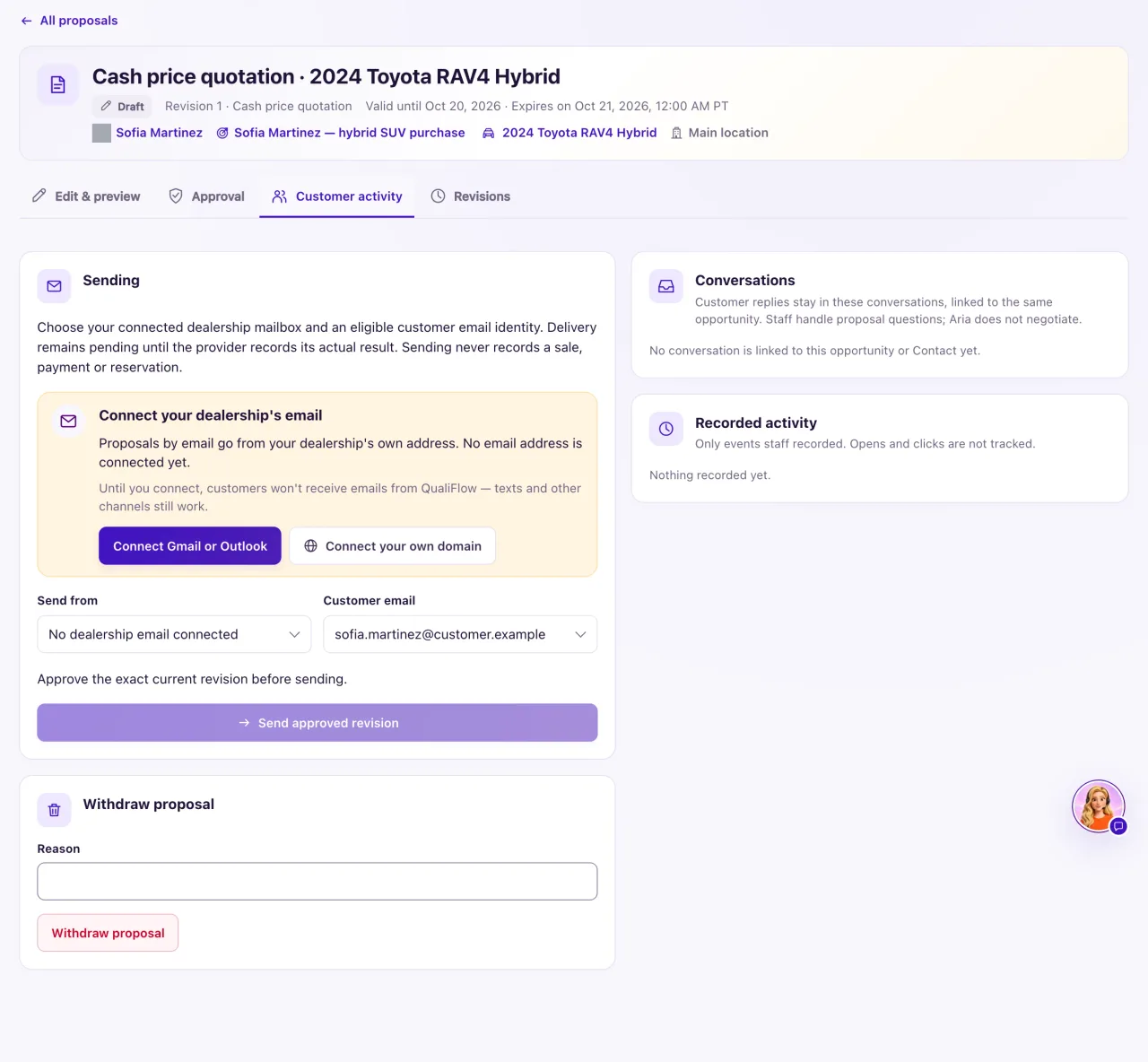
- Open the approved proposal and select Send at the top, then Email, Text or Email and text. The same sending panel opens. (It is also under Customer activity → Sending, where Send by offers Email, Text (SMS) or Both.) Before approval, Send says "Approve revision N before sending it."
- For email choose Send from (your mailbox or domain address) and the Customer email. For a text choose Text from (your texting number at this location) and the Customer phone.
- Emailing only? Leave Also text them ticked to send a short text too: "Hi Luis, we've emailed your quote for the 2024 Range Rover Evoque from Riverton Motors to l***@example.com. Any questions, just reply here." It is ticked by default only when a text is allowed right now.
- Select Send approved revision, then Queue approved proposal. When the provider confirms it was sent, the delivery shows Shared (recorded) and the proposal is recorded as shared by itself.
- Handed it over instead? Use Record that revision N was shared, choose In person, Printed copy handed over or Other recorded method, and select Record as shared. This sends nothing.
- When the customer reacts, use Record a customer response: choose what happened (viewed, a question, a counteroffer, accepted or declined), how and when, and the evidence. If it's refused ("Acceptance can only be recorded for a shared proposal that is still open." or "Record the evidence for this response."), share or hand over the current revision first, use a past time, and fill in the evidence and who accepted.
- After a question or counteroffer, select Create follow-up task to assign it to a person. Aria does not negotiate proposals.
- To take an offer off the table, select Withdraw proposal and give a Reason. It stays on record, and its text link stops opening it.
- Don't want follow-ups on this proposal? Select Cancel next to "Follow-up scheduled for …". An Owner sets the days, or turns follow-ups off, in Proposal settings.
- Follow-ups stop by themselves when the customer replies on any channel, you record a response, withdraw the proposal, it expires, a newer revision replaces it, a sale is recorded, the opportunity is marked Won or Lost, the customer opts out, the conversation is marked Not a lead, or a team member messages the customer. The proposal then says why it stopped.
- To see what happened, read the Timeline on Customer activity: each send (shared by email or text), approval, saved revision and response has its own icon. Select the page icon by a revision to open it read-only, exactly as saved.
- The email opens with your location's Proposal email text (Proposal settings → Layout and email), then the approved figures. Attach proposal in a customer email adds that text and a secure link to the approved proposal; nothing is sent, or recorded as shared, until you send your message.
What the data means
Sending works only for the approved current revision while it has not expired, to a customer email on their Contact with recorded permission for follow-up on their inquiry. Each send shows its state and, when it was not sent, the reason in plain words. The Timeline lists every send, approval, revision and recorded response, newest first; email opens and clicks are not tracked. Accepted (recorded) is not a payment, finance approval or sale: record the sale on the opportunity. A customer's email reply or text back with a question or counteroffer is recorded on the proposal, a My Work task asks a person to review it, and the follow-ups stop.
The text reads: "Hi Luis, here's your quote for the 2024 Range Rover Evoque from Riverton Motors: (link). Reply here with any questions." The link opens a secure, read-only page of the exact approved revision and its valid-until date. It carries no personal details, can't be guessed, stops working when the offer expires or is withdrawn, and says "There is a newer quote" once replaced. A text needs the customer's own phone on their Contact, permission for texts about their inquiry (or they texted you first) and no STOP. Texts go between 9:00 AM and 8:00 PM in the customer's time zone; outside those hours it is scheduled ("Scheduled for 9:00 AM", with Cancel text).
Follow-ups. When a shared proposal gets no answer, QualiFlow sends a polite follow-up after 2 days ("Hi Luis, just checking you got the quote for the 2024 Range Rover Evoque from Riverton Motors. Happy to answer anything or book a visit. Just reply here."), a final one 3 days later, and 2 days after that creates a My Work task for the responsible salesperson: "No response to the proposal — call the customer". They go at 10:00 AM on a day you are open (no hours set: never a Sunday), with the secure link, by text when the proposal was texted (else email), only where the customer allows that channel, and never with new figures or discounts.
Possible issues and fixes
The Sending panel says "No dealership email connected"
Symptom: Send from is empty and the Connect your dealership's email card shows.
Why: No mailbox or verified domain address is connected. Proposals leave only from your dealership's own address.
Fix: An Owner verifies your email domain and adds a sender for service email, or connects another mailbox with an app password in Other mailbox, in Settings → Connections, then reloads the proposal. Meanwhile, record a hand-over.
How to check: Send from lists your address.
Sending is refused: no captured permission for proposal follow-up
Symptom: "This recipient does not have current captured permission for proposal follow-up."
Why: An email address alone is not permission. The Contact needs a current permission for follow-up on their inquiry, with its captured disclosure filled in, not revoked, disputed or expired.
Fix: On the Contact choose Permission & outreach preferences → Record permission: channel Email, that address, purpose Follow-up on their inquiry, the basis and evidence, and tick Include captured disclosure and affirmative permission with its boxes filled in.
How to check: The send is queued.
Send approved revision is greyed out, or the send shows "Not sent"
Symptom: You can't select Send approved revision, or the delivery line says the proposal was not sent.
Why: No Send from or Customer email chosen, the revision isn't approved or has expired, it was already sent there, or an earlier send's result is unknown. "Not sent": the content, sender or recipient changed after queueing, the mailbox needs authorizing again, the address bounced, or the mail server couldn't be reached.
Fix: Choose both boxes and approve the current revision; reconnect the mailbox in Settings → Connections or correct the address. For an unknown result select Check again and check with the customer before sending again.
How to check: The send is queued, then shows Shared (recorded).
The text option says texts aren't allowed
Symptom: Text (SMS) can't be sent, or Also text them is unticked and greyed out, with a reason.
Why: No texting number at the proposal's location, no phone on the Contact, no recorded text permission (and the customer never texted you), a STOP reply, or texting isn't set up yet ("QualiFlow is setting this up").
Fix: Connect a number in Settings → Connections → SMS & calls, add the phone, or record text permission (Permission & outreach preferences → Record permission, channel Text, purpose Follow-up on their inquiry). Outside texting hours a text is scheduled, not refused. After STOP, email only.
How to check: The text is queued and later shows Shared (recorded).
No follow-up was sent
Symptom: The customer didn't answer, but no follow-up went out.
Why: Follow-ups are off in Proposal settings, someone selected Cancel, or the sequence stopped (the line under the button says why, for example "Stopped: the customer replied."). When neither a text nor an email is allowed, QualiFlow creates the salesperson's call task instead.
Fix: Read the follow-up line on the proposal. Check My Work for "No response to the proposal — call the customer".
How to check: A newly shared proposal shows "Follow-up scheduled for …".
Learn more: the dealer CRM pipeline and handoff