
What it is
QualiFlow renews Google and Microsoft access by itself before it runs out. If it can't, the mailbox tile shows Needs reconnect or Renew access, the Go-live checklist says the mailbox needs to be reconnected, and email replies from the Inbox fail until an Owner signs in again. Conversations and history are kept.
How to use it
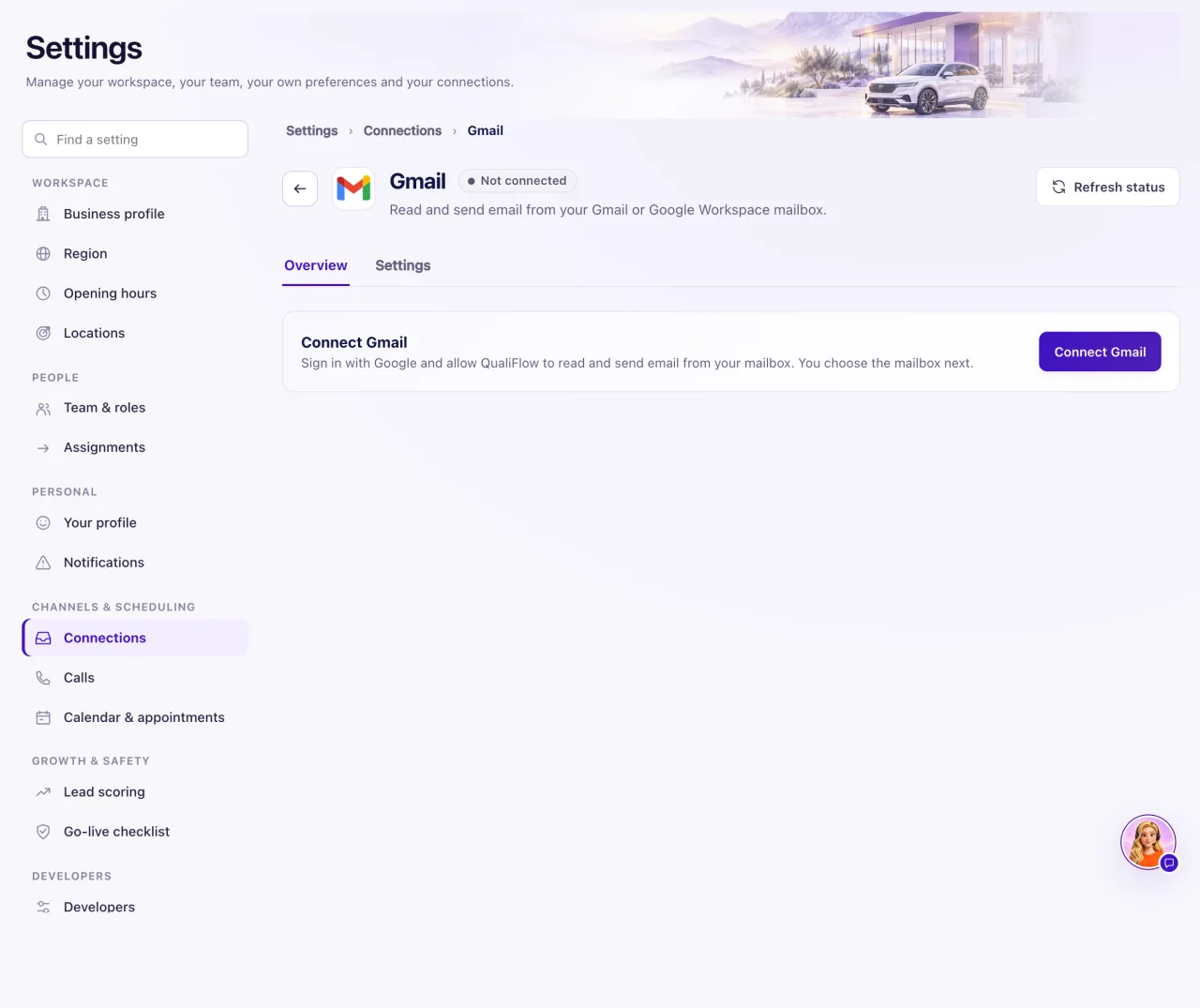
- Go to Settings → Connections and open the Gmail or Outlook mail tile.
- Select Reconnect, or Renew access if that is what it offers.
- Sign in with the account that owns the mailbox and allow every permission.
- QualiFlow uses the mailbox you signed in with again by itself; the page shows Successfully connected.
- Mailbox sync shows "Reconnected — syncing new emails from now". Email that was already in the mailbox is not imported again.
- Send a test email reply from the Inbox.
What the data means
- Needs reconnect: access to the mailbox ran out or was removed. You must sign in again.
- Renew access: access needs renewing. Select Renew access; nothing else changes.
- Disconnected: QualiFlow no longer uses this connection. Select Reconnect when you are ready.
Possible issues and fixes
An email reply fails with "the mailbox needs to be reconnected"
Symptom: A reply in the Inbox fails and says the mailbox needs to be reconnected in Settings → Connections.
Why: The mailbox's access ran out.
Fix: Follow the steps above to reconnect the mailbox, then send the reply again.
How to check: The tile reads Connected and the reply sends.
Reconnecting fails twice with the same message
Symptom: You reconnect, but the same error shows again.
Why: The cause is not a simple expiry. It may be on QualiFlow's side.
Fix: Create a ticket in Support with the category Connections and channels. Quote the message, give the time and the address you signed in with. Meanwhile, you can send customer email from your own Email domain.
How to check: After support's fix, the tile reads Connected.
Mail stops arriving but the tile says Connected
Symptom: New customer email doesn't show in the Inbox.
Why: Live updates is off, or the sync stopped part-way.
Fix: Open the tile, find Mailbox sync, select Check status, then Sync new mail (or Continue sync or Continue from now if offered). Turn Live updates on.
How to check: A test email to the mailbox shows in the Inbox within about five minutes.
