
What it is
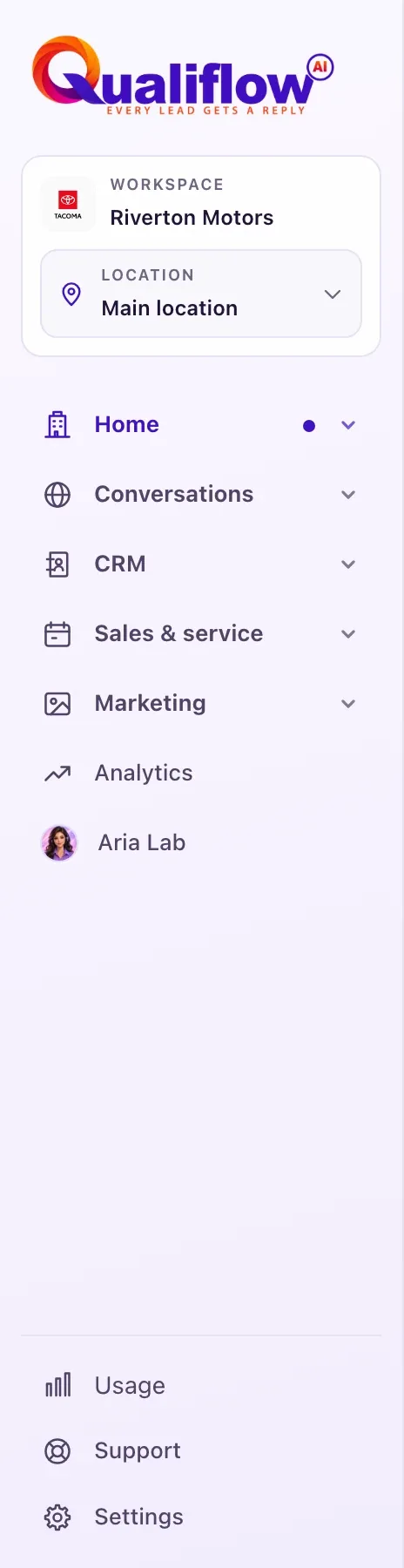
Every page after you sign in has the same frame: a sidebar on the left, a top bar, and a Chat with Nora button at the bottom right.
The sidebar shows the WORKSPACE name, then every page in sections that are always open: Your space (Overview, My Work, Analytics), Conversations (Intake, Inbox, Calls), CRM (Contacts, Opportunities, Proposals, Lead scoring), Sales & service (Visits, Sales & delivery, Inventory, Ownership, Service), Marketing (Campaigns, Journeys, Forms & QR, Chatbot) and AI (Aria Lab). Inbox shows how many conversations are unread and Intake how many inquiries are waiting. Aria's card shows her live status, then Usage, Support and Settings sit at the bottom. The collapse button shrinks the sidebar to icons (remembered on this device).
How to use it
- Select a page in the sidebar. To make room, select the collapse button: the sidebar shows icons only, with each page's name when you point at it.
- To jump to a page by name, select Search pages… in the top bar (or press ⌘ K or Ctrl K), type, then press Enter.
- Select your name and picture at the top right for the account menu. A card shows your name, role, email, workspace and location. Under it: Account (Your profile for Owners, Sign-in & security, Notifications, Workspace & profile photos), Workspace (Settings, and Usage & billing for Owners), Switch location when you have two or more, Help (Help Center, Chat with Nora, Report a problem, Replay the welcome tour, Watch the welcome video) and Sign out at the bottom. Use the arrow keys to move and Esc to close it. On a phone it opens as a sheet from the bottom; tap outside it to close.
- Owners with two or more locations: select the LOCATION box under the workspace name and pick a location.
- Need help? Select Chat with Nora, or open Support.
- On a phone or narrow window, select Open navigation (the menu button) to show the sidebar.
What the data means
The top bar shows where you are: the location name (or "Workspace"), then the page, for example "Main Street / Inbox". Search pages… finds pages only, not customers or records.
Switching location first protects unsaved work, then reloads the page for that location. Times on screen use the location's time zone, then the business time zone, then your browser's.
Staff see only the pages their Owner gave them, plus Overview, Support and part of Settings. Owners also see the notifications bell, the LOCATION switcher, Turn Aria on and Open Aria Lab in Aria's card.
Leaving a page with unsaved edits asks Unsaved changes, with Stay and edit or Discard and leave. The workspace has one light appearance; there is no dark mode.
Possible issues and fixes
A page is missing from my sidebar
Symptom: You can't find a page in the sidebar or in Search pages….
Why: Staff see only the pages their Owner opened for them. Some pages are Owner-only today whatever the Owner sets.
Fix: Reload the page to pick up any new access. If it's still missing, ask an Owner to check Settings → Team & roles → Members → you → What they can do.
How to check: After a reload, the page appears in your sidebar.
I don't see the LOCATION switcher
Symptom: There's no LOCATION box under the workspace name.
Why: It shows only for Owners, and only when the workspace has two or more locations.
Fix: Owners: add a site in Settings → Locations with Add location. Staff see the locations an Owner allowed them.
How to check: The LOCATION box appears under the workspace name.
Times on screen look an hour or a day off
Symptom: Times, or opening times Aria quotes, look wrong.
Why: The location or business time zone isn't set, or is set wrong.
Fix: An Owner sets Business timezone in Settings → Region and each site's zone in Settings → Locations → Time zone & hours.
How to check: The Business profile: hours, time zone and address row in Settings → Go-live checklist is Ready.
I belong to two workspaces and see the wrong one
Symptom: You log in and land in the wrong dealership.
Why: There's no workspace switcher. Log-in opens your oldest active workspace.
Fix: Don't sign up again. Create a ticket in Support → Create a ticket naming the workspace you need.
How to check: The sidebar shows the workspace you expect after the next log-in.
