
What it is
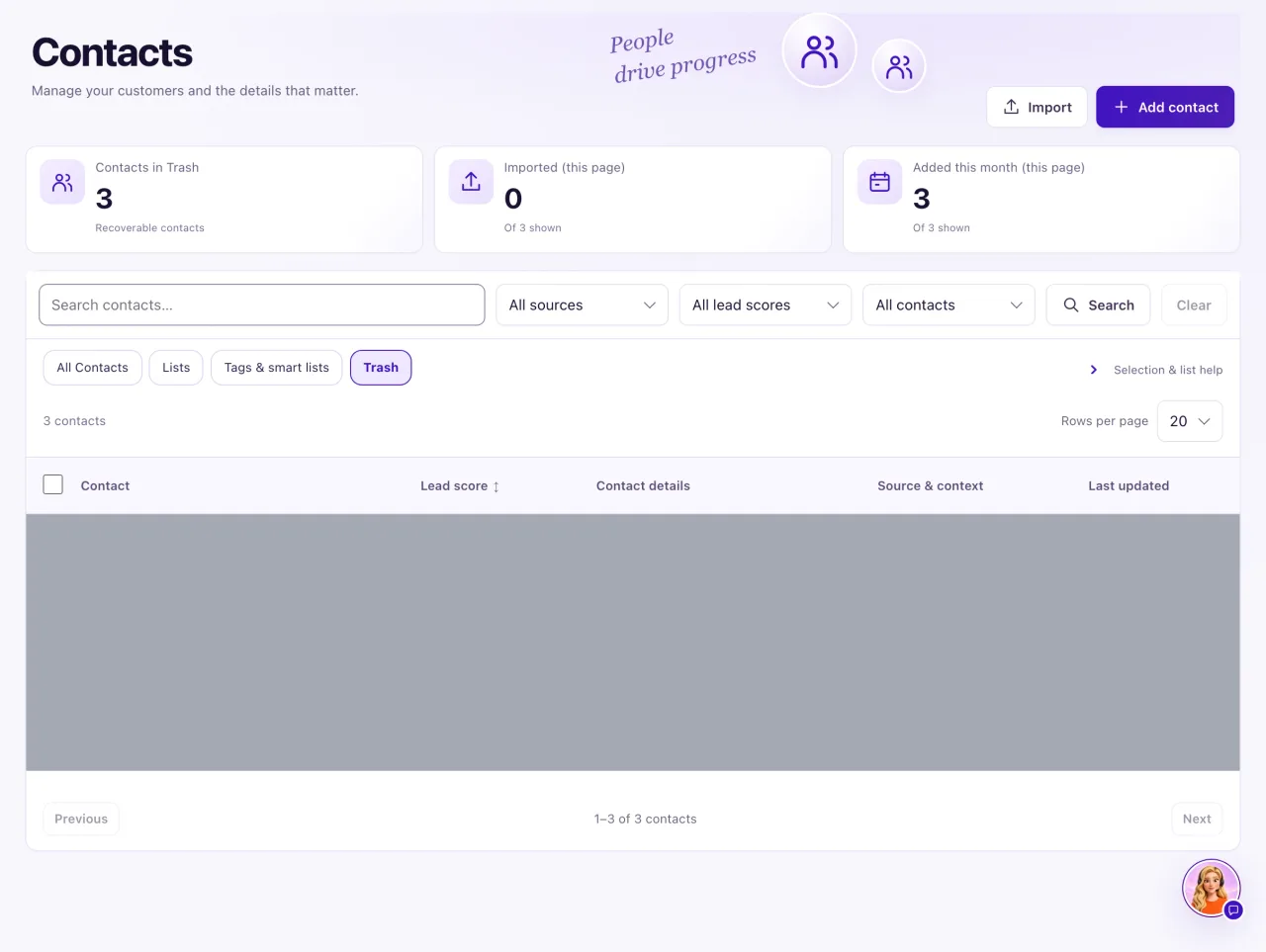
To take someone out of your active list, an Owner moves them to Trash. Everything about them is kept, and they can be restored at any time.
Moving to Trash is not a permanent delete. To remove contacts for good, an Owner erases them: from the Trash tab (Delete permanently or Empty Trash), from the contact profile (⋯ → Erase contact…), or in Settings → Go-live checklist → Contact data. All three do the same erase. Staff never see these actions.
Trash is never emptied by itself, unless an Owner turns on Erase contacts left in Trash for 30 days (off by default).
How to use it
- In Contacts, tick the contacts (up to 100) and select Move to Trash.
- Read Move Contacts to Trash and confirm with Move to Trash.
- To see them, select Trash above the list.
- To bring someone back, tick them in Trash and select Restore, then confirm in Restore Contacts.
- After a restore, Aria answers the customer's conversations again, as before the Trash. A message they sent while they were in Trash gets her reply within a few minutes. To answer yourself instead, open the conversation in the Inbox and select Take over.
- To erase one trashed contact for good, select Delete permanently on it, read the warning and type
ERASE. - To erase several, tick them in Trash and select Delete permanently in the selection bar, then type the number of selected contacts. To erase everyone in Trash, select Empty Trash and type the number of contacts in Trash.
- Confirm it's you with your password, or with Google or Microsoft. It lasts 10 minutes.
- To erase from the contact itself (in Trash or not), open the profile, select ⋯ (More) in the header, then Erase contact…, type
ERASEand confirm it's you. You go back to the Contacts list. - To have Trash emptied automatically, open Settings → Go-live checklist → Contact data and turn on Erase contacts left in Trash for 30 days. Turning it on needs Confirm it's you; turning it off does not.
What the data means
Moving to Trash keeps linked conversations, notes, opportunities, visits, sales, service and audit history. The contacts leave active views and counts, and their Inbox automation is paused. Restore brings them back with "N contacts restored. Aria answers their conversations again; existing restrictions remain." Each conversation goes back to how it was before the Trash (Aria's, or a team member's if someone had taken over). Opt-outs stay on the record and Aria never writes to an opted-out customer.
While a contact is in Trash it can't be edited, given notes, merged or given permission; its history can still be read. A contact merged into another can't be restored from Trash: use Unmerge on the kept contact.
Every erase shows the same warning as Settings. It lists what is permanently erased: contact details, postal address and address history, and merged duplicates; message text in their conversations; call summaries, call transcripts, call and voicemail recordings, and voicemail transcripts; team notes text (who wrote it and when stay); Aria notes; quoted words on Aria follow-ups and contact preferences; and call address tasks. Consent, delivery and audit records are kept, without their details. It can't be undone.
Delete permanently for several contacts and Empty Trash run in batches with a progress line ("Erased 25 of 80…"). At the end a summary says how many were erased, how many were skipped because of a legal hold, and how many failed, with Try again for the failed ones. Contacts under a legal hold are never erased. Erased contacts no longer show in Trash (they used to stay there as "Erased contact").
Possible issues and fixes
I restored a contact, but Aria still doesn't answer them
Symptom: The contact is back in the list, but the conversation stays Paused.
Why: Restore hands back only what the Trash paused. If someone paused the conversation, took it over or the customer opted out after it went to Trash, or the contact was restored before 25 Oct 2026, it stays as it is.
Fix: Open the conversation in the Inbox and select Hand back to Aria, or reply yourself. If the contact has a restriction, respect it.
How to check: The conversation no longer shows Paused, and Aria answers the customer's next message.
A contact disappeared from the list
Symptom: Someone you know was in Contacts is no longer listed.
Why: They were moved to Trash, or merged into another record (merged records go to Trash too). If they are not in Trash either, they were erased, which can't be undone.
Fix: Select Trash and search for them. Tick and Restore, or, for a merged record, open the kept contact and select Unmerge. To see whether someone was erased, check Recent requests in Settings → Go-live checklist → Contact data.
How to check: The contact shows on All Contacts again.
I can't edit a contact or add a note
Symptom: The profile says "This Contact is in Trash" and the buttons are missing.
Why: A contact in Trash is read-only.
Fix: Restore it from Contacts → Trash, then edit it.
How to check: Edit contact and Add note show again.
Some contacts were skipped or failed when I emptied Trash
Symptom: The summary says some contacts were skipped because of a legal hold, or failed.
Why: A contact under a legal hold is never erased. A contact that failed was not erased in that run and is still in Trash.
Fix: Select Try again for the failed ones. For a legal hold, release it in Settings → Go-live checklist → Contact data only if that is right, then erase again.
How to check: The contacts are gone from Trash, and Recent requests shows Erased.
