
What it is
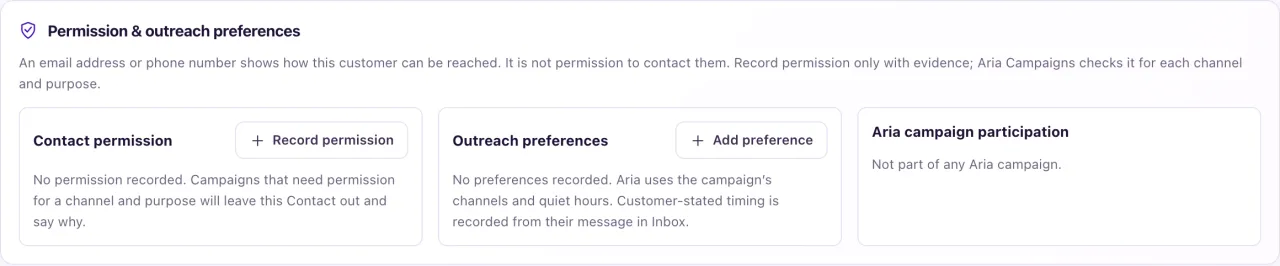
An email address or phone number shows how a customer can be reached. It is not permission to contact them. The Permission & outreach preferences card on the full profile records permission with evidence, and Aria Campaigns checks it for each channel and purpose. Only Owners see the card.
It has three parts: Contact permission (who agreed to what), Outreach preferences (limits such as timing or one channel only, never permission) and Aria campaign participation (live Aria campaigns this person is in).
How to use it
- Open the contact's full profile and find Permission & outreach preferences.
- Under Contact permission, select Record permission.
- Choose the Channel (Email, SMS or Calls) and the Contact detail (one of the contact's emails or phones).
- Under What can we send?, choose Service (reminders, appointments and updates), Marketing (offers, promotions, events and new-vehicle news), Follow up on their inquiry (answers and next steps about the car, quote or visit they asked about) or Both (service and marketing).
- Under How did they agree?, choose On a call, In person, Signed form, Texted us, Website form or Email. Marketing texts and calls need written agreement: for them choose Signed form, Texted us, Website form or Email.
- Add a Note (optional), for example "Asked for service reminders while booking an oil change".
- Select Record permission. The proof is saved for you: collected now, by you, with the dealership's standard wording for that kind of message. More details (optional) shows that wording if you need to change it.
- To change a record, use Dispute permission / Record resolution, or Revoke with a written reason. Revoked records stay listed under Revoked permission.
- Under Outreach preferences, select Add preference: Contact timing (Not before a date and time, or Preferred hours), Prefers a channel or Only use one channel, then Add preference.
- To stop a preference, select End and choose why: The customer changed it, Ended by staff or It was recorded in error.
What the data means
Each permission shows its channel and purpose, how the customer agreed, who recorded it and when, and the proof. Both saves two records, one for service and one for marketing. Disputed means it isn't used until resolved.
Other badges: CSV import · service messages only comes from an import's consent column and covers reminders and updates only, never marketing. Consenting web form comes from a ticked consent box on a form. A customer who texted or emailed you first can get service messages on that number or address.
Prefers a channel means Aria tries it first when it is allowed. Only use one channel means no automatic message uses any other channel, even an allowed one. Each preference shows Customer stated or Staff entered.
WhatsApp, Instagram and Messenger permission belongs to the conversation, not a number or username, so it isn't recorded on this card.
Possible issues and fixes
"Marketing texts and calls need written agreement"
Symptom: Record permission refuses marketing for SMS or Calls with this message.
Why: US rules need the customer's written agreement for marketing texts and calls. Agreement said On a call or In person is not written.
Fix: Choose how they agreed in writing (Signed form, Texted us, Website form or Email), or record Service or Follow up on their inquiry, which don't need it.
How to check: The marketing permission shows under Contact permission for that channel.
I can't record permission, or the buttons are grayed out
Symptom: Record permission is missing or can't be used.
Why: The card is for Owners only, it is read-only while the contact is in Trash ("Restore this Contact to record or change permission and preferences."), or the contact has no email (for Email) or phone (for SMS and Calls).
Fix: Restore the contact if it is in Trash. Add the email or phone under Edit contact → Contact channels. Then select Record permission.
How to check: The permission shows under Contact permission with its basis and who recorded it.
"Permission is already recorded for this address, channel and purpose"
Symptom: Saving a new permission is refused.
Why: There is already an active record for the same detail, channel and purpose.
Fix: Revoke the old record with a reason, then record the new one.
How to check: The new record shows, and the old one is under Revoked permission.
Campaigns leave this contact out for "no permission"
Symptom: The card says "No permission recorded. Campaigns that need permission for a channel and purpose will leave this Contact out and say why."
Why: Nothing has been recorded for that channel and purpose. A list, tag, import or a note for Aria is never permission.
Fix: Record permission for the right channel with What can we send? set correctly. Sales, offers and test drives are Marketing; repairs, recalls and pick-up are Service; answers about what they asked for are Follow up on their inquiry.
How to check: The campaign's audience review includes the contact.
