
What it is
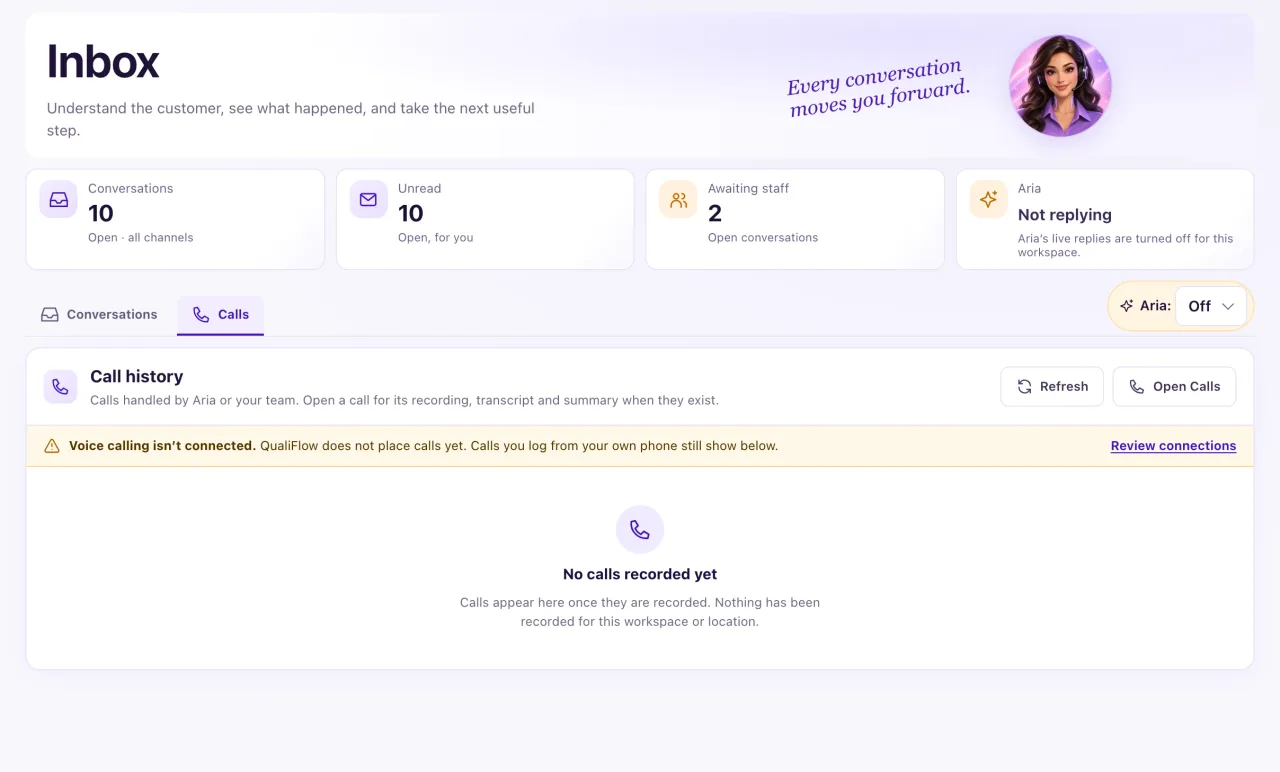
The Inbox has two tabs: Conversations and Calls. The Calls tab, headed Call history, lists real phone calls handled by Aria or your team, 20 at a time. The full details of each call (summary, transcript, recording) stay on the Calls page.
You need Calls access as well as Inbox access to see it.
Each call, incoming or outgoing, also appears in the customer's conversation on the Conversations tab, as a call card next to the texts from the same number. With Calls access the card shows the time, length, who answered, the outcome, the summary, the recording player and the transcript (folded), as far as the call kept them under Settings → Calls. This tab and the Calls page stay as they are.
How to use it
- Open Inbox and select the Calls tab.
- Read each row: whether the call was incoming or outgoing, who called, its status, when it started, how long it lasted and who handled it.
- Select a call to open it on the Calls page.
- Select Refresh to load new calls, or Open Calls to go to the Calls page.
- Use Previous and Next at the bottom to page through calls.
What the data means
Each row shows the contact's name or number ("Unlinked caller" when the number isn't a contact), "from → to", the status, "SMS & calls line", the start time, the length (for example "3m 05s") and who handled it: Aria with her agent version (for example "AI agent v3"), a team member's name, or System.
The footer, for example "Showing 1–20 of 57 calls", counts every call you can see.
Possible issues and fixes
The tab says "Owner access required"
Symptom: The Calls tab shows Owner access required and "Ask a workspace Owner to review call history."
Why: You have Inbox access but not Calls access.
Fix: Ask an Owner to set your Calls page to View in Settings → Team & roles.
How to check: After reloading, the tab lists calls.
The tab says "Voice calling isn't connected."
Symptom: A banner says Voice calling isn't connected. "QualiFlow does not place calls yet."
Why: QualiFlow does not place outgoing calls from the browser. The banner is about outgoing calls only.
Fix: Nothing to fix. Aria still answers incoming calls on your number, voicemails still arrive, and calls you log from your own phone still show here.
How to check: Call your QualiFlow number from another phone. The call appears in the list after Refresh.
A call I expected isn't in the list
Symptom: A customer says they called, but the call isn't listed.
Why: Calls show only for a QualiFlow number that is Verified and sends its calls to a location you can see. A call to your own phone isn't in QualiFlow unless it is forwarded to your QualiFlow number or logged.
Fix: Select Refresh. Check the Location switcher. An Owner checks the number in Settings → Connections → SMS & calls. See "Calls aren't working" for more.
How to check: The call shows in the list, or under Calls → Incoming.
The tab says "Call history could not load"
Symptom: The list is replaced by Call history could not load.
Why: The page couldn't reach QualiFlow for a moment.
Fix: Select Refresh. If it keeps failing, create a ticket in Support with the page and the time.
How to check: The list of calls appears.
