
What it is
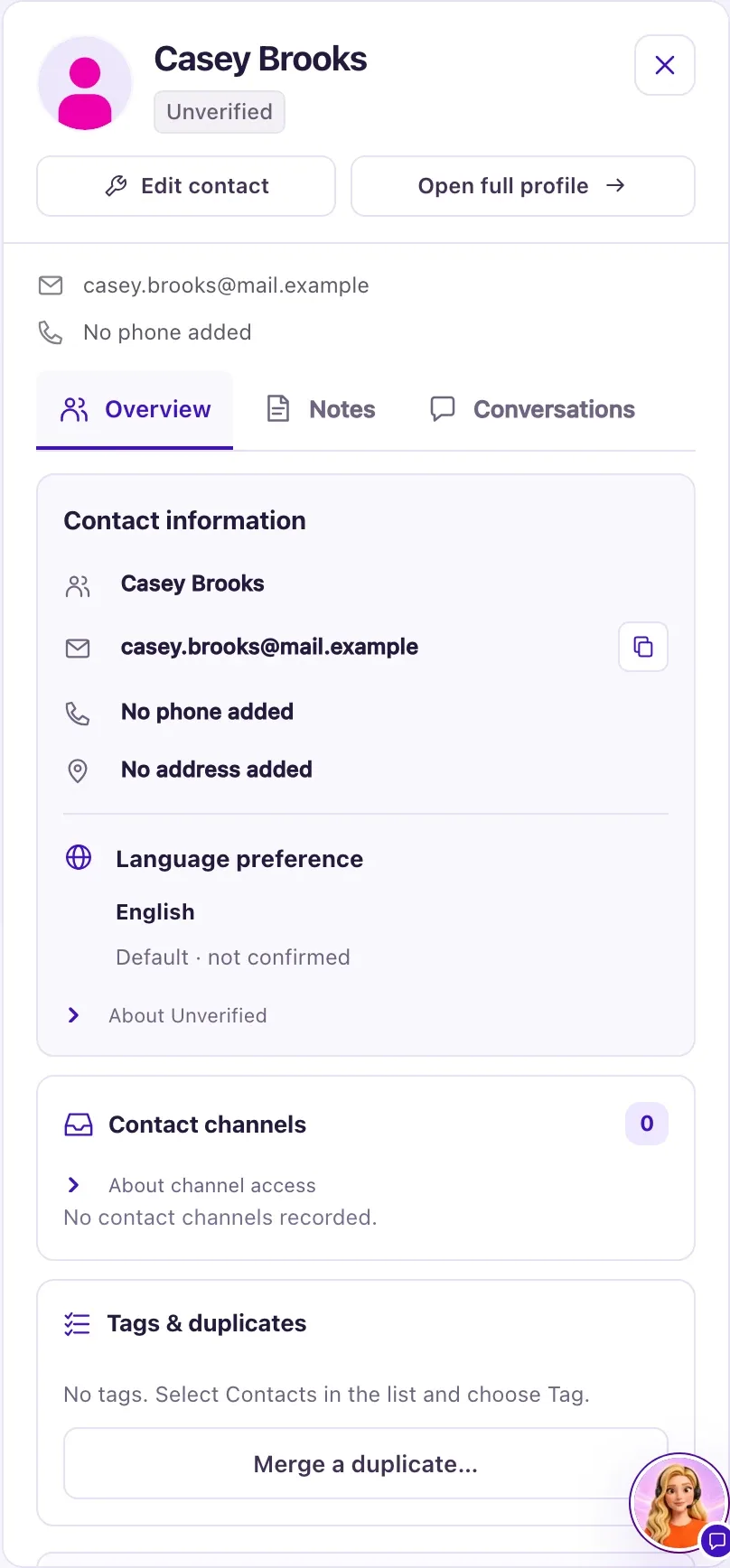
The details panel is a quick look at one contact without leaving the list. Select a contact's name in Contacts to open it. The address in your browser changes, so you can bookmark or share the link with your team.
On a wide screen (1280 px and wider) it sits beside the table. On a smaller screen it slides over the table from the right, and on a phone it fills the screen with a Back to Contacts link. Press Esc, the close (X) button or the dimmed background to close it.
How to use it
- In Contacts, select a contact's name.
- Read the header: photo, name and a badge (Unverified or In Trash). The email and phone show once, under Contact information, with copy buttons. Owners also see Edit contact. Move to trash is in the ⋯ menu (it asks you to confirm and closes the panel); a contact in Trash shows Restore. Select Open full profile for everything about the person.
- On Overview, use the copy button next to the email, phone or address to copy it. A short message confirms, for example "Email copied".
- Open Dealership activity to see this person's opportunities, tasks, visits, ownership, service requests and commitments. Owners can select Create opportunity or Service request to open those forms with the contact filled in.
- Owners: on Notes, type in Note (up to 2,000 characters) and select Add note. Notes are for your team only.
- Owners: on Conversations, read every conversation with this person on every channel, newest first. Select Open in Inbox to work a conversation there.
- Owners: select Send message to write to the person on any channel, even one with no conversation yet. The same sending checks apply as in the Inbox.
What the data means
Overview shows Contact information (name, email, phone, address and Language preference), Contact channels, Tags & duplicates, Source (Manual entry, CSV import, or the channel the person first used when QualiFlow created the contact for them: Facebook Messenger, Instagram, WhatsApp, Text message, Email, Website chat, Website form or Phone call), when and by whom the contact was added, the Source note and, only when there are any, Communication restrictions. The restrictions card says what is stopped, for example "Unsubscribed from marketing email — service messages continue."
Internal notes show newest first, 20 at a time, with the author and time. They can't be edited or deleted; if you made a mistake, add a correcting note. A contact in Trash can be read, but you can't add notes or message them until it is restored.
On Conversations, calls show as call cards and sent messages show their delivery mark. Test conversations from Aria Lab are never listed.
Possible issues and fixes
There is no Conversations tab
Symptom: The panel shows only Overview and Notes.
Why: The Conversations tab is for Owners only.
Fix: Open the conversation from Inbox instead, or ask an Owner.
How to check: Signed in as an Owner, the panel shows three tabs.
A chat I expect isn't on the contact
Symptom: Conversations says "No conversations with this customer yet." or a known chat is missing.
Why: A chat shows on a contact only when it is linked to that contact. Texts and emails link by the exact phone or email. Messenger, Instagram and WhatsApp customers are identified by the channel, never by name, so they can be a separate contact from one you typed in.
Fix: If the chat is still in Intake, open it, select Review & link or create Contact and pick this contact. If it sits under a second record for the same person, see "Merge duplicate contacts" first: a merge does not move chats.
How to check: The chat is listed with Open in Inbox.
Send message is refused
Symptom: The Send message window says why it can't send, such as "Customer must message first." or a texting approval message.
Why: It runs the same checks as an Inbox reply: texting approved for your business, permission to text this person, a connected dealership mailbox for email, the 24-hour window on Messenger, Instagram and WhatsApp, sending not paused, and no opt-out on that channel.
Fix: Use the button in the message, such as Add business details, Record permission on the contact or Open Launch safety. For the 24-hour window, wait for the customer to write again.
How to check: The message appears in the conversation marked Sent or Delivered.
The panel covers my list
Symptom: The panel hides part of the table.
Why: On screens narrower than 1280 px the panel opens over the list.
Fix: Close the panel with Esc or the X, or make the window wider.
How to check: The full table shows again.
