
What it is
Settings → Connections is where your dealership links QualiFlow to the channels your customers use: WhatsApp, Facebook Messenger, Instagram, SMS & calls, Gmail, Outlook mail, Email domain, Other mailbox, Google Calendar and Outlook Calendar. Each connection is a tile, and each tile opens its own page.
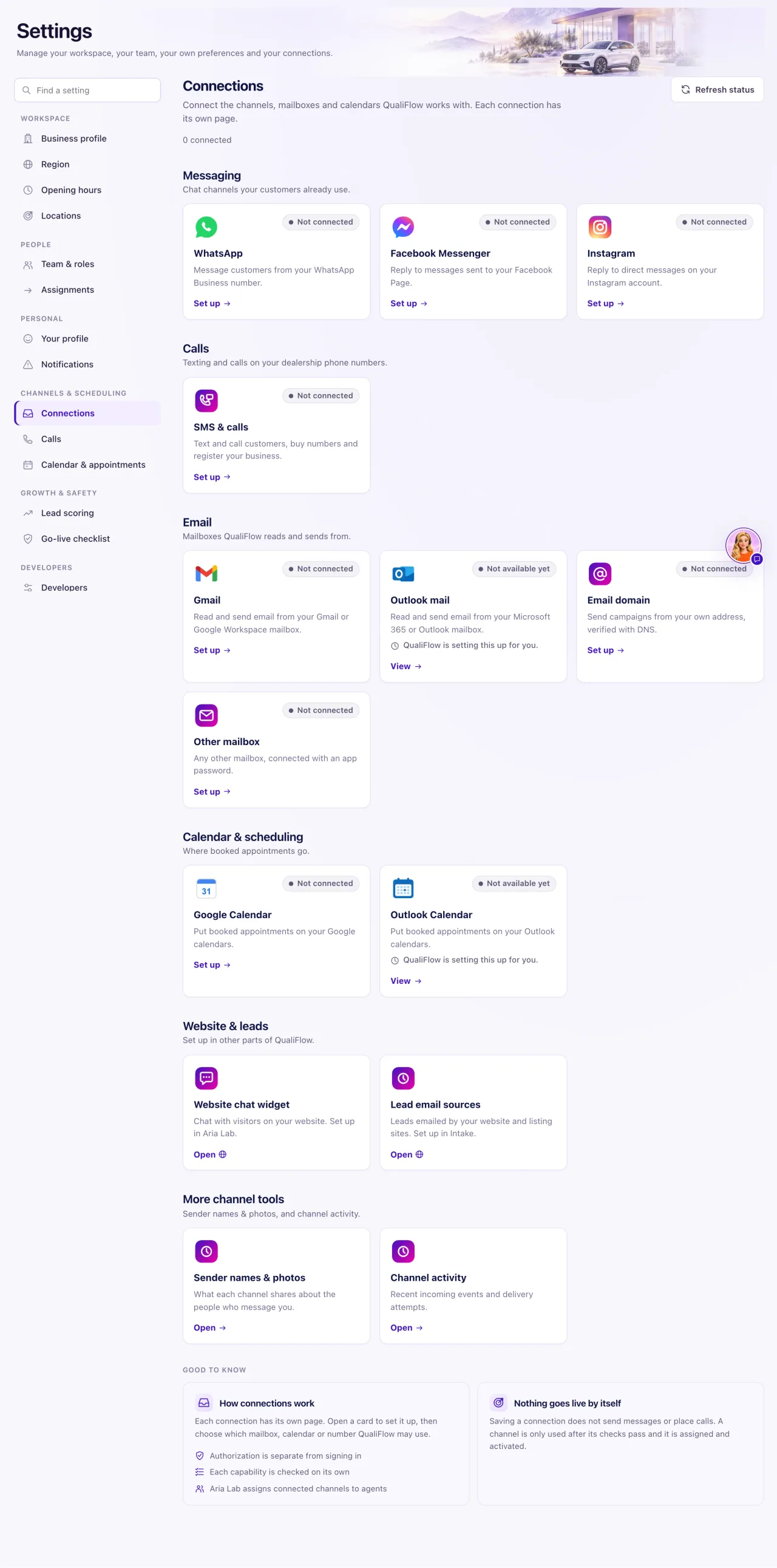
Only an Owner can connect, change or disconnect anything. Everyone else sees the note Owners manage connections: "Your workspace Owner connects and changes channels, mailboxes and calendars. Ask them if something here needs to change."
The tiles are grouped: Messaging, Calls, Email, Calendar & scheduling, Website & leads (the Website chat widget tile opens Aria Lab, Lead email sources opens Intake) and More channel tools (Sender names & photos and Channel activity). Staff see only the Email domain tile (marked Owner only); the other tiles, including the two that open Aria Lab and Intake, are for Owners.
How to use it
- Select Settings in the sidebar, then Connections.
- Read the line under the title, for example "3 connected · 1 need attention". Select Refresh status to see the latest state.
- If a Needs your attention box shows, select a tile name in it to open that connection.
- Select a tile to open its page. The button on the tile says what to do: Set up, Manage, Review, Reconnect, Open or View.
- Follow the steps on the connection's page. Each channel has its own article: Facebook Messenger and Instagram, WhatsApp, SMS & calls, Gmail and Outlook, Email domain and Other mailbox.
- Once a connection works, its page shows one clear state: a green Connected with the account it uses (your Facebook Page, Instagram @handle, WhatsApp number, Gmail address or calendar) and since when, and two buttons: Reconnect and Disconnect. Nothing asks you to pick again. Extra facts (permissions, sync, readiness) sit under Details.
- When you sign in and there is only one Page, number, mailbox or calendar to use, QualiFlow connects it by itself and says Successfully connected. You only pick from a list when Meta lists more than one Page.
- To disconnect, open the connection, select Disconnect and confirm Disconnect in the box (or Keep connected to cancel).
What the data means
| Status pill | What it means |
|---|---|
| Not connected | Nothing is set up yet |
| Connected | Working |
| Needs attention | Connected, but something is wrong. Open it to see what |
| Needs reconnect or Reconnect needed | Access ran out. Select Reconnect and sign in again |
| Renew access | Google or Microsoft access needs renewing. Nothing else changes |
| Choose a Page | Meta listed several Pages. Pick the one QualiFlow should use |
| Disconnected | It was disconnected. Conversations and history stay |
When you disconnect, QualiFlow stops reading and sending through that connection, messages still waiting to go out through it are not sent, and your conversations and history stay. For Microsoft and Meta, finish by removing QualiFlow from that account's app settings; the message after you disconnect tells you.
Possible issues and fixes
My Staff can't connect anything
Symptom: A Manager or Staff member sees Owners manage connections and no buttons to change anything.
Why: Only the workspace Owner may manage connections.
Fix: Ask an Owner to make the change. Owners are listed in Settings → Team & roles.
How to check: The Owner sees the connected count and Refresh status at the top of the page.
A tile shows an old status
Symptom: You fixed something, but the tile still shows the old pill.
Why: The page shows what was true when it loaded.
Fix: Select Refresh status at the top of Connections.
How to check: The pill and the "connected · need attention" line change to the new state.
"A connection setup is still being confirmed"
Symptom: A box with this title says to finish confirming one connection before changing others.
Why: One connection's setup has not finished, and QualiFlow holds other changes until it does.
Fix: Select Open followed by the connection's name in the box and finish its steps.
How to check: The box is gone and the other tiles can be changed again.
The account is "already connected to another QualiFlow workspace"
Symptom: Connecting stops with "This account is already connected to another QualiFlow workspace."
Why: A Page, account, number or domain can belong to only one QualiFlow workspace.
Fix: Disconnect it in the other workspace first, or contact QualiFlow support from Support → Create a ticket.
How to check: Connecting again finishes and the tile reads Connected.
