
What it is
Needs attention is the second tab of My Work: one ranked list of what needs a person at your location, built from your current records. It has three sections:
- Ready for salesperson: customers waiting for staff (including "Aria could not reply" cases), callers waiting for a call back, and open tasks.
- Needs your decision: booking and other approvals, Aria's drafted replies and notes on Ask first, proposals to approve, Intake conversations to review, records to review, paused journeys, stopped campaign steps, consent disputes and support replies waiting for you. An Intake conversation to review is one still waiting in Intake. A chat that is already in the Inbox never shows here as an Intake review too; its handoff or drafted reply card covers it.
- Aria activity: what Aria did, what she will do next and what failed. Routine Aria work is not a task for you.
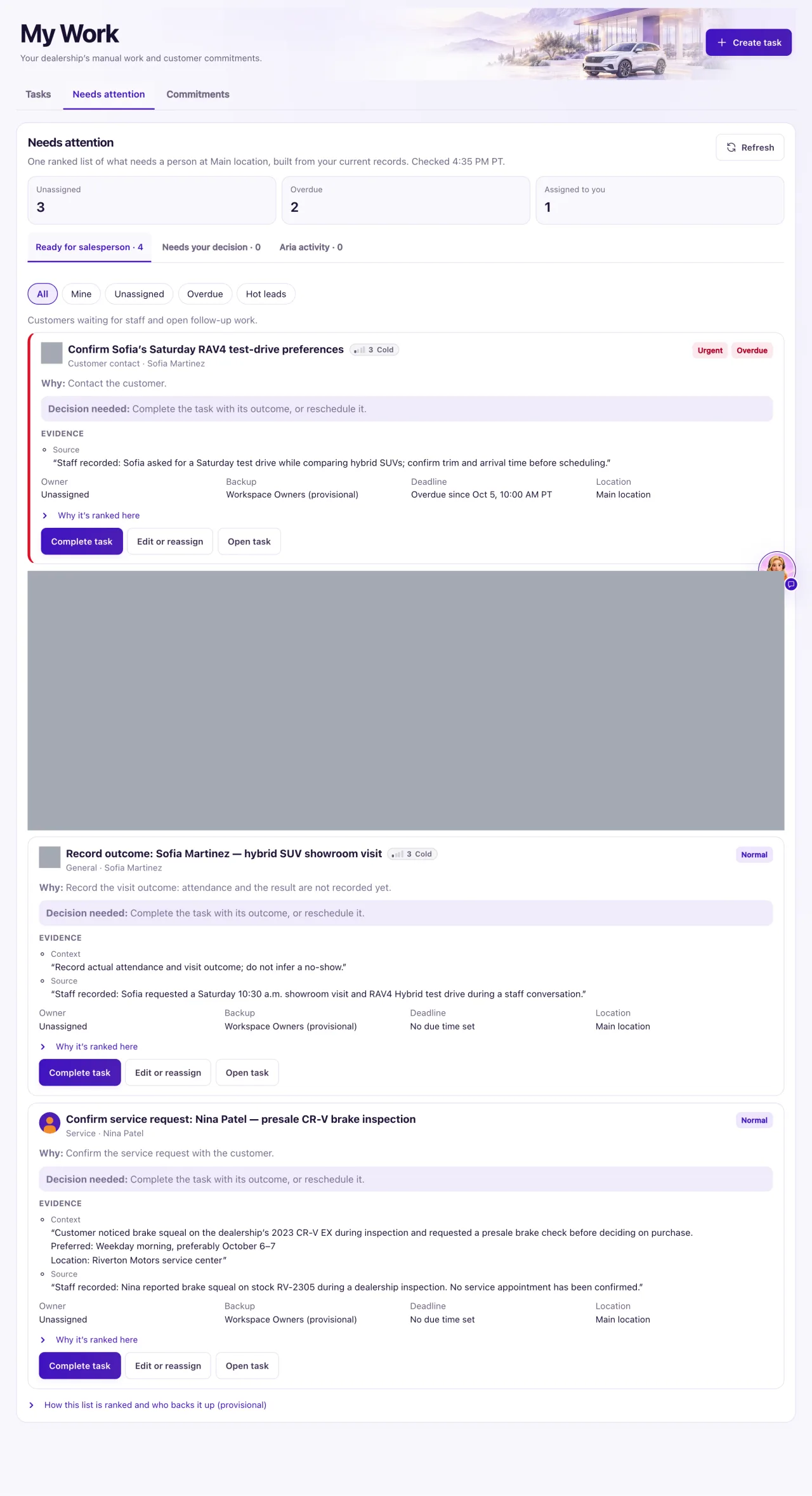
A Staff member whose Owner gave them My Work view sees this tab for their locations. Staff with Inbox View and change can use the handoff buttons. Approvals, task completion and Intake decisions stay with Owners; buttons a person can't use are hidden.
How to use it
- Open My Work and select Needs attention. Select Refresh to read the list again.
- Pick a section, then narrow it with All, Mine, Unassigned, Overdue or Hot leads.
- Read each card's Why: and Decision needed: lines, and the Evidence under them.
- For a customer waiting: select Assign to me if nobody has it, then Acknowledge. This stops the backup alert; it does not answer the customer.
- Select Open conversation and reply. Then select Resolve, write a reason and confirm. Only Resolve removes the card.
- To hand it to another Owner, select Reassign, choose the Owner and write a reason.
- For a booking approval, check Proposed time, select Approve, then Confirm execution. Or select Reject with a reason. Tell the customer yourself either way.
- For Aria's draft, select Review draft. The conversation opens so you can approve or dismiss it.
- For a task, select Complete task, or Edit or reassign. For other cards, use the button they offer, such as Review proposal, Review consent, Resume journey or Reply in Support.
- After each change the card shows "Action: saved for name." and the list, the counters and the bell refresh.
What the data means
Each card shows a priority badge (Urgent, High, Normal or Low; Aria items show Done by Aria, Upcoming or Failed), Overdue when past due, and "N signals" when several related items were merged. Owner says who has it; Needs reassignment means that person no longer has access. Why it's ranked here lists the recorded facts behind the rank, such as overdue, a customer waiting or a Hot lead.
Customer cards show two clocks: Acknowledge by and Reply by. They count opening hours only, and use the location's targets or the defaults of 15 and 60 minutes. Deadline reading "No response target recorded" is normal on these cards, because the clocks are the targets.
A booking approval must be approved and confirmed within 30 minutes. After that it expires: nothing is booked, and a high-priority task asks an Owner to book it. The bell counts Ready for salesperson and Needs your decision only.
Possible issues and fixes
I replied to the customer, but their card is still here
Symptom: The customer card stays under Ready for salesperson after you answered.
Why: Only Resolve clears a customer request. Replying, closing the conversation and Acknowledge do not. A card with "2 signals" holds more than one request.
Fix: Select Resolve on the card, write a reason and confirm. Refresh and repeat if the customer is still listed.
How to check: The card leaves the list and the section count falls.
Aria stopped answering this customer after we resolved the request
Symptom: The customer writes again and Aria stays silent.
Why: Your reply took the conversation over, and resolving the request does not hand it back.
Fix: Open the conversation in the Inbox and select Hand back to Aria.
How to check: The conversation shows Automation active and the customer's next message is answered.
Many "Aria could not reply" cards appeared at once
Symptom: Several cards start "Aria could not reply to this message".
Why: One setup problem is stopping her on a channel or location, such as a paused agent or no approved live rules. Every customer who writes meanwhile gets a card.
Fix: An Owner fixes the cause named on the card once. Then for each customer reply yourself (or use Retry processing in the conversation) and select Resolve.
How to check: A new test message on that channel gets an answer and no new cards appear.
A change is refused
Symptom: You see "Add a reason before you continue." or "This item changed since it loaded. The list has been refreshed; check it and try again."
Why: Resolve, Reassign, Reject and Exclude recipient need a reason. Or someone else acted on the item first.
Fix: Add the reason, or check the refreshed card and try again.
How to check: The card shows "Action: saved for name."
Needs attention is empty, but a customer is waiting
Symptom: You expect a card and the section is empty.
Why: A filter is on, another location is selected, it is a test conversation, or the list is long ("Showing the first records from … Open those pages for the full list.").
Fix: Select All, check the location in the header and select Refresh. Use the page named in the note for the full list.
How to check: The customer's card appears under Ready for salesperson.
