
What it is
The website chat widget is the chat bubble on your own website. Visitors open it and talk to Aria (or another chat agent you choose), and each chat arrives in QualiFlow as a Website chat conversation.
You build, try and publish your website chat on the Chatbot page, its own item in the sidebar (it used to be the Widgets tab in Aria Lab). The Website chat widget tile in Settings → Connections opens the same screen. Only Owners can set up widgets.
How to use it
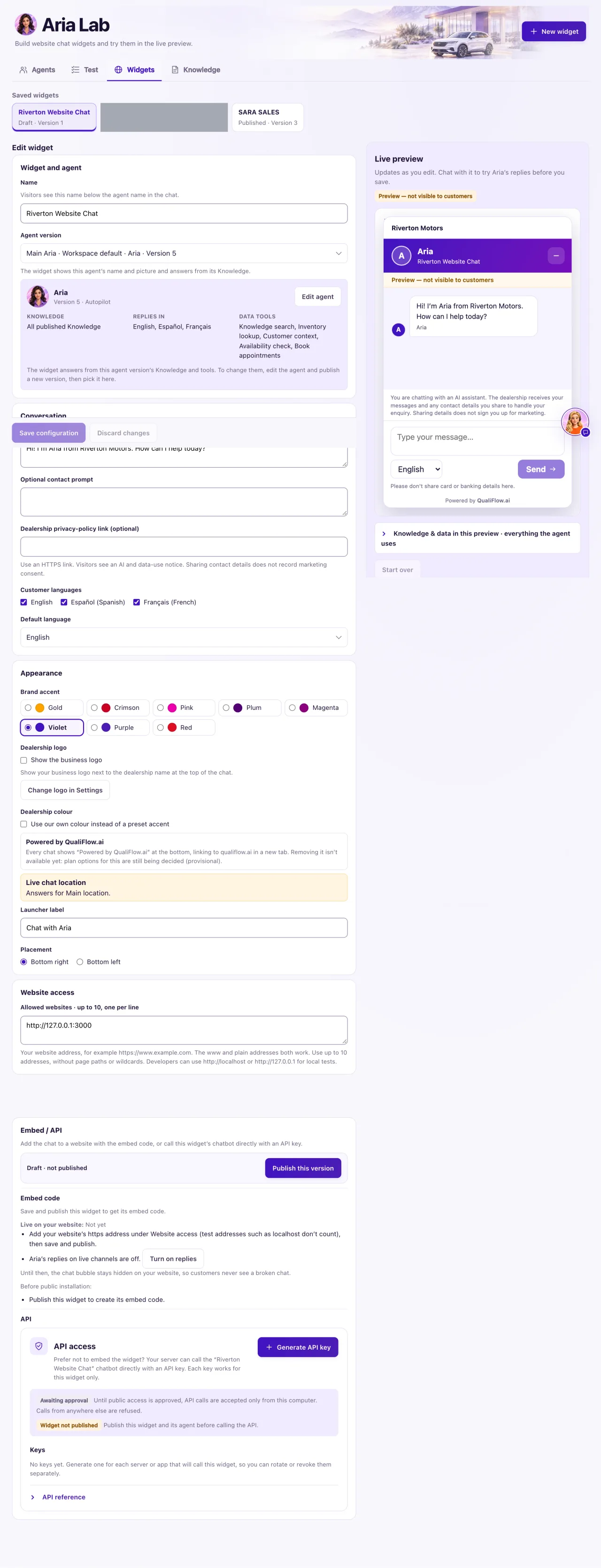
- Select Chatbot in the sidebar, then select New chatbot.
- Enter a Name and choose the Agent version that answers (usually Main Aria).
- Check the Greeting and the Customer languages. Untick any language the agent doesn't speak.
- Choose the Brand accent, Launcher label and Placement.
- Under Website access, list your website address, such as https://www.example.com, one per line, up to 10. The www and plain addresses both work.
- Try it in the Live preview on the right. Nothing there reaches customers.
- Select Save configuration, then Publish this version.
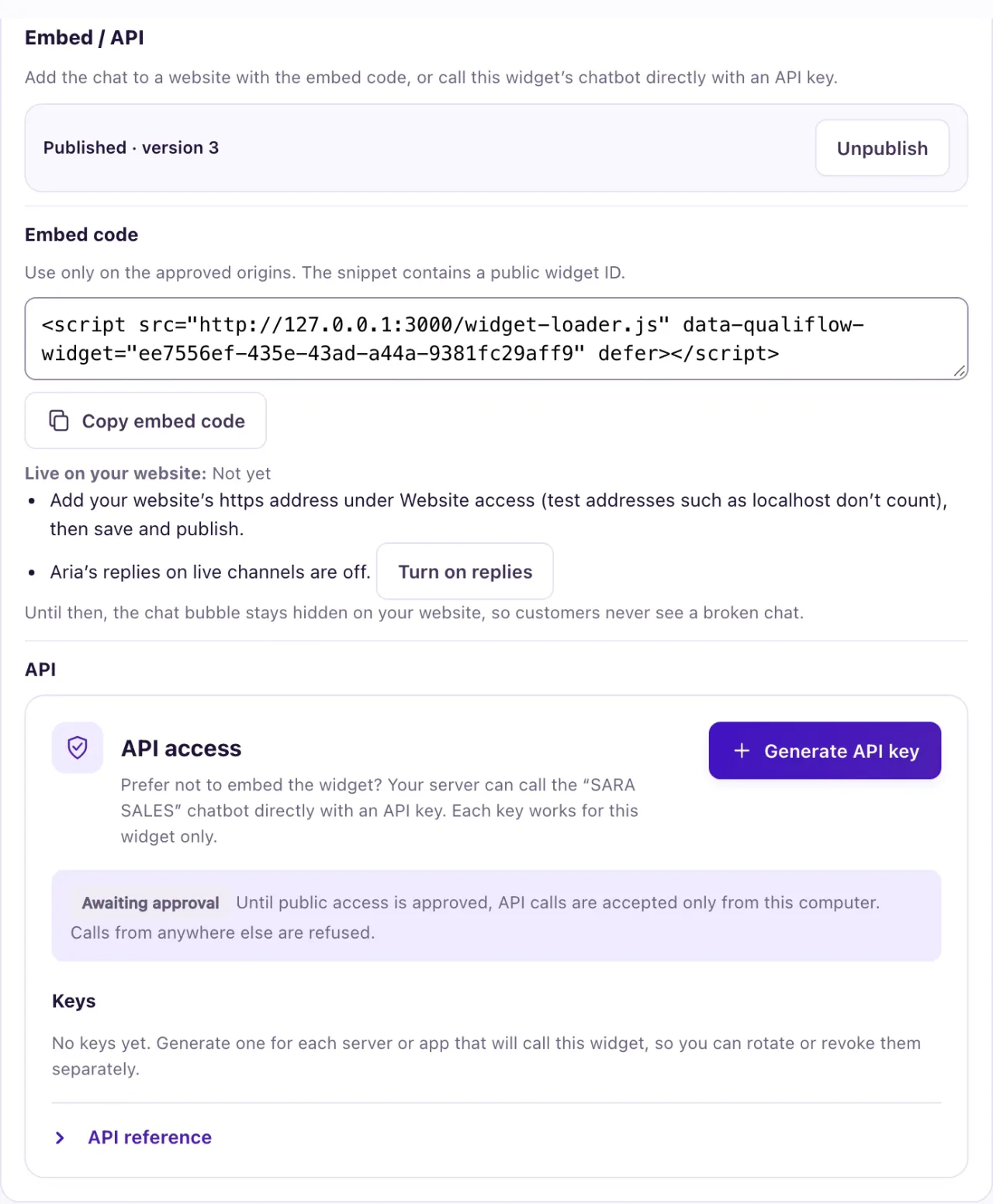
- Check that Live on your website says Yes. If it says Not yet, use the button beside each reason.
- Select Copy embed code. Under it, How to install lists the steps: open your website editor (WordPress, Wix, Squarespace, your dealer website provider or your web developer), paste the code just before the closing
</body>tag or in the site-wide footer or custom code box, then save and publish your website. - Open your website in a private browser window and try the chat.
- After any later change, select Save configuration and Publish this version again. The embed code stays the same.
- To take the chat off your website, select Unpublish. Saved conversations stay in Intake.
What the data means
Each saved widget shows Draft, Published or Unpublished with its version. Under Embed / API the status reads Published · version N, Unpublished or Draft · not published. Only a published widget appears on websites, and publishing or unpublishing reaches them within about 30 seconds.
Live on your website says Yes when visitors can see the chat, or Not yet with each reason and a button to fix it. Until it says Yes, the bubble stays hidden, so customers never see a broken chat. Only an https address counts; test addresses such as localhost are for tries.
Saving a change to a published widget takes it offline. QualiFlow asks first: Save and take offline saves and returns the widget to Draft, Keep published saves nothing. Select Publish this version afterwards to bring the chat back.
Developers who don't use the embed code can select Generate API key under API access to call this widget's chat from their own software. The key is shown once, and it works only once the widget and its agent are published.
Possible issues and fixes
The chat disappeared after I changed a setting
Symptom: You edited the greeting or another setting, and the bubble is gone from your website.
Why: Saving puts a published widget back to Draft, and a draft never shows on a website.
Fix: Open the widget and select Publish this version. You don't need to paste the embed code again.
How to check: The status reads Published · version N, and Live on your website says Yes.
Publishing says "Add at least one exact website origin before publishing."
Symptom: Publish this version is refused.
Why: There is no website address under Website access.
Fix: Add your website's https address, without a page path, select Save configuration, then Publish this version.
How to check: The message "Version N is published. Copy the embed code below." appears.
Publishing says "This agent is assigned to calls."
Symptom: Save or publish is refused with "Choose an agent that answers chat for the website widget."
Why: The chosen agent only handles phone calls. A widget needs a chat agent.
Fix: Under Agent version, choose Main Aria or another chat agent, save, then publish.
How to check: The widget publishes and Live on your website says Yes.
