
What it is
An Aria Campaign lets Aria contact a chosen group of contacts for a Follow-up, Service or Marketing purpose. You select contacts, tell Aria what to do, review exactly who will be contacted and how, then start or schedule. Aria picks one first channel per person, contacts only eligible people, handles replies within the plan you approve and hands over when a person adds value.
Open them from Campaigns → Campaigns → Aria campaigns. (Create with Nora on the campaign list is different: it drafts a Campaign Designer campaign and never starts it.) Aria Campaigns are for Owners only. Staff never see them. Selecting someone never gives permission to contact them: everyone is checked at preview and again before every message or call.
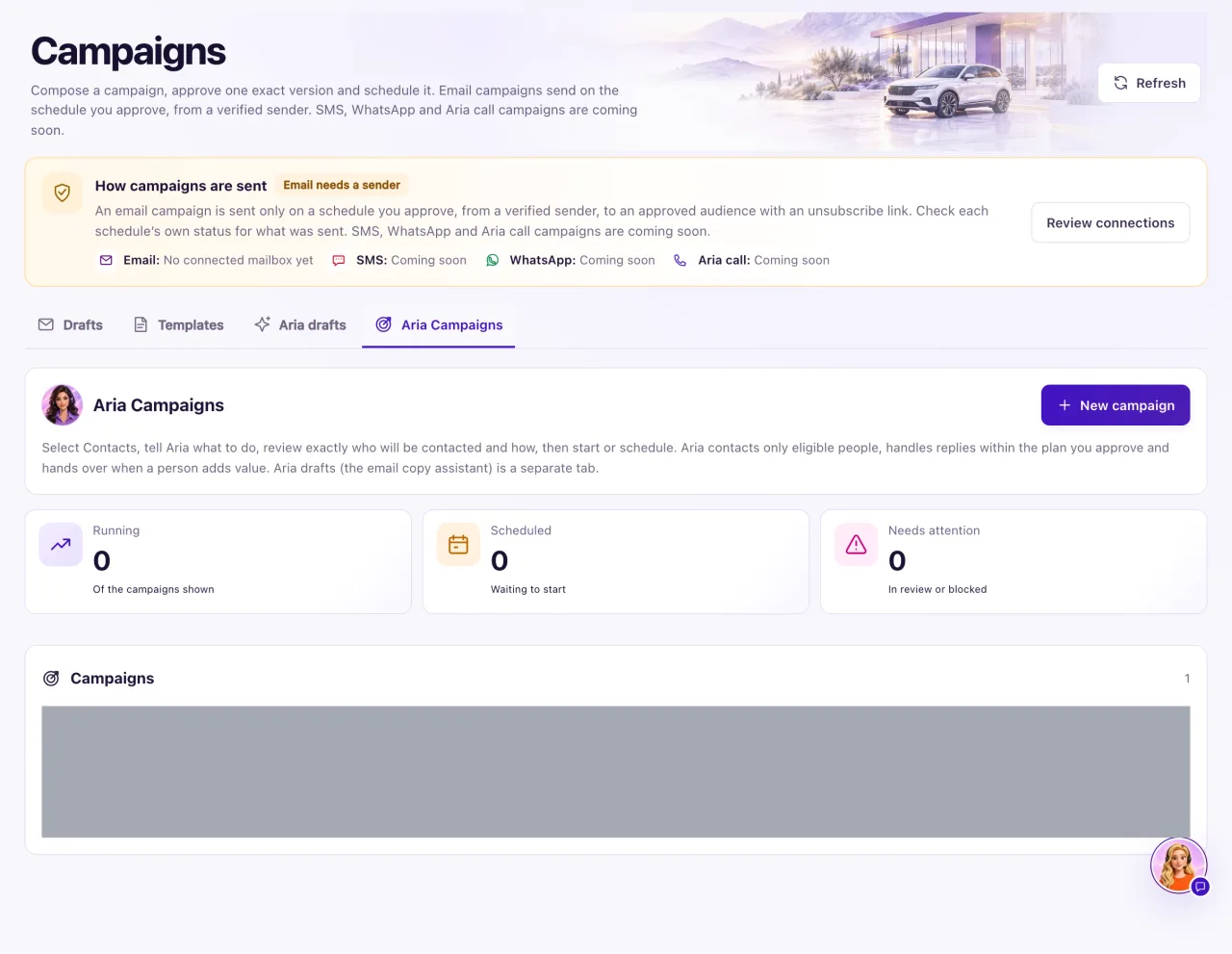
A live campaign can start only after QualiFlow approves live campaign launch rules for your workspace and gives you a launch approval reference for your campaign policy. Until then you can plan, preview, review and try the campaign in Aria Lab, and nothing is sent.
How to use it
- Open Campaigns → Campaigns → Aria campaigns and select New campaign. Enter the Campaign name and Location, then Create campaign. You can also select contacts in Contacts and choose Create Aria campaign.
- Audience: add saved lists with Add list, pick contacts, or use Select all matching. Exclude anyone you don't want. Contacts in Trash are never included.
- Select Continue to instructions.
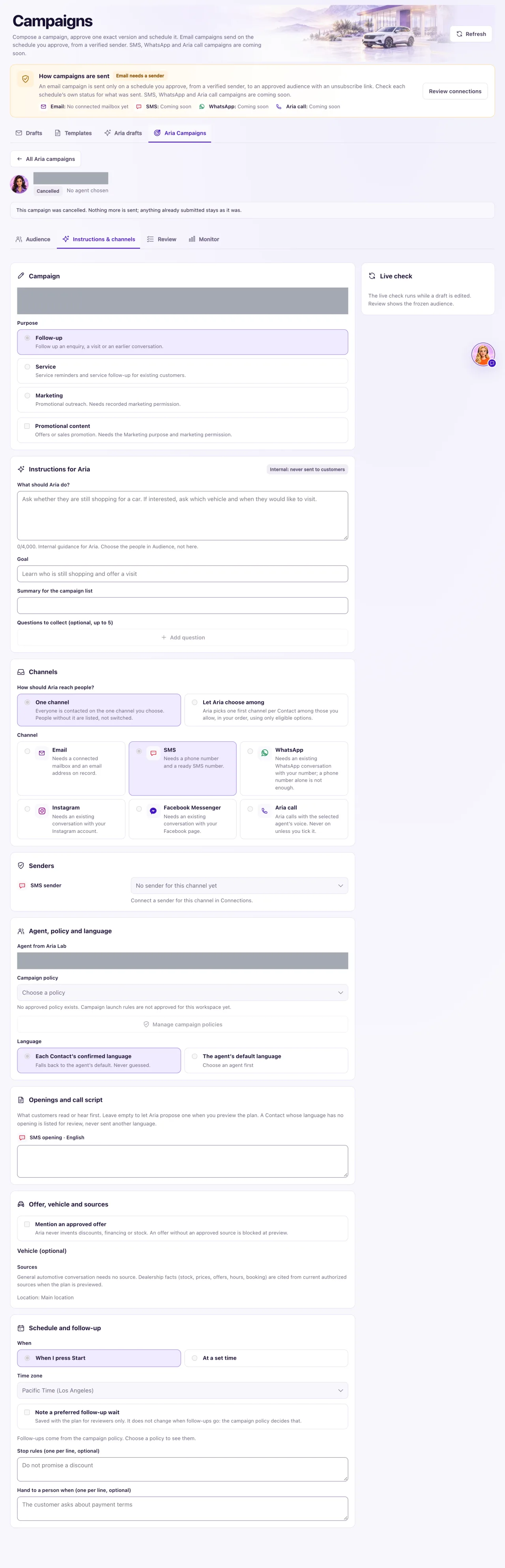
- Instructions & channels: choose the purpose, write What should Aria do? (internal, never sent to customers) and the Goal, and choose One channel or Let Aria choose among the channels you tick.
- Pick a sender for each channel, the Agent from Aria Lab, the Campaign policy and the language rule. Write or leave empty the openings; Aria proposes them when you preview.
- Under Schedule and follow-up, choose When I press Start or At a set time.
- Select Preview plan. The audience is frozen for review and nobody is contacted.
- Review: read the Execution plan, fix every item under Blockers with its button, and check Who will be contacted.
- Select Start and confirm Start campaign, or Schedule for the reviewed time.
- Follow it on the Monitor step.
What the data means
| Status | What it means |
|---|---|
| Draft | Being prepared. Nothing is sent |
| Needs review | Previewed, with blockers or questions to resolve |
| Ready to start | Previewed with no blockers |
| Scheduled | Starts at the reviewed time; everyone is checked again then |
| Running | Sending |
| Paused (replies continue) | Paused by an Owner; unsent messages stop, conversations continue |
| Blocked | Paused automatically, with the reason. Fix it, then Resume |
| Completed: processing finished | The batch finished. It doesn't mean everyone replied |
| Cancelled | Stopped for good |
Limits: up to 100 contacts picked one by one, 20 saved lists, 1,000 exclusions and 5,000 contacts in all. The policy's Most Contacts per campaign also applies. Any edit ends the review, and a preview older than 24 hours must be done again before starting.
QualiFlow always adds the business name and "Reply STOP to opt out." to SMS openings, starts calls by saying an AI assistant is calling for your business, and hands the customer to a person when they ask for one or ask about pricing or financing that no approved source answers.
Possible issues and fixes
Start is blocked by the launch rules
Symptom: Blockers says "Live campaign launch rules are not approved for this workspace yet; live campaigns cannot start." or "A live policy needs its launch approval reference (from QualiFlow)."
Why: Live Aria Campaigns start only after QualiFlow approves launch rules for your workspace.
Fix: Keep planning and select Test in Aria Lab to see how it would run. Ask QualiFlow about live launch with a ticket in Support, naming the campaign.
How to check: The launch message is gone from Blockers on the Review step.
Preview plan takes long or fails
Symptom: Preview plan keeps working, then fails.
Why: Planning can take up to a minute, and a slow plan can time out. You can ask for 6 plans per workspace every 10 minutes.
Fix: Select Preview plan again. If Aria's planning isn't available, or the policy's AI budget is $0, you get a manual plan that uses only text your staff wrote; write the openings yourself.
How to check: The Review step shows the Execution plan.
A contact shows Needs review or is excluded
Symptom: A contact in Who will be contacted isn't Ready now.
Why: The reason is on their row, for example no recorded permission for this purpose and channel, an opt-out, a recorded purchase, a person handling their conversation, a shared phone or email, no WhatsApp conversation, or no recorded time zone.
Fix: Fix what the row names on the contact, or accept it. Then select Preview plan again.
How to check: The contact shows Ready now or Scheduled for later.
