
What it is
Forms & QR (under CRM in the sidebar) is where you build inquiry forms and surveys that bring people into Intake. When you publish one, it gets a permanent hosted link, a QR code you can print, and embed code for your own website.
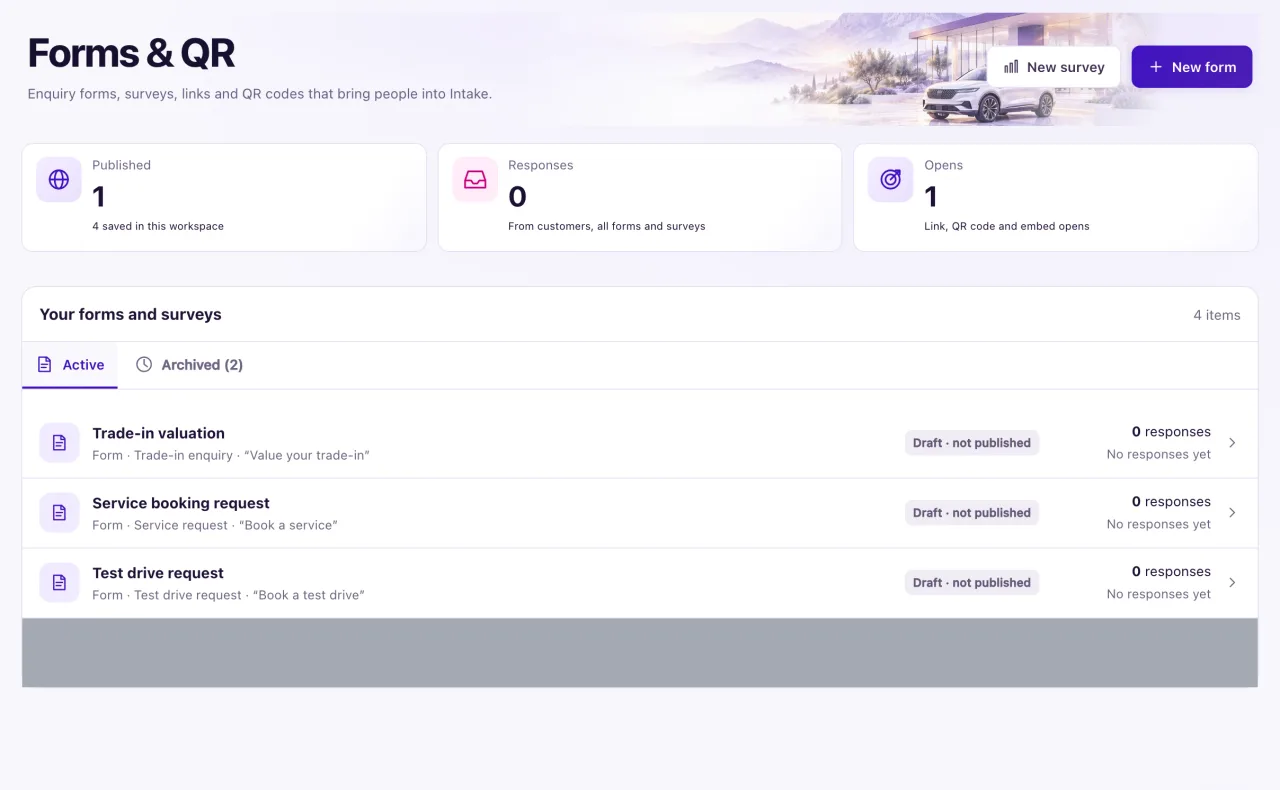
Forms & QR is for Owners. Each workspace can keep up to 100 forms and surveys. Nothing is ever deleted: you archive a form instead, and its responses stay.
How to use it
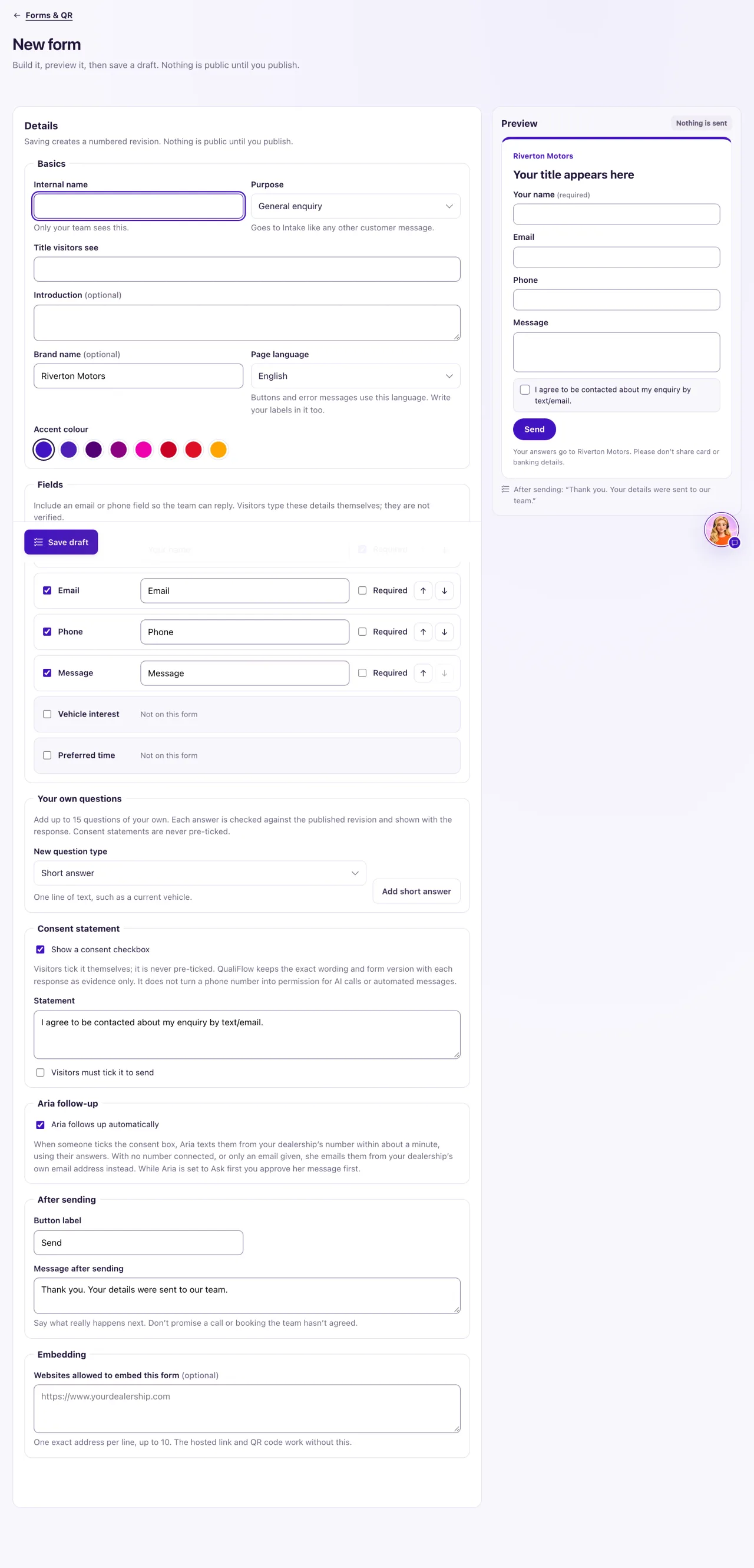
- Open Forms & QR and select New form (or New survey for a rating question).
- Under Basics, fill in the Internal name (only your team sees it), choose a Purpose, and write the Title visitors see. Pick the Page language and an Accent colour.
- Under Fields, tick the fields you want and which are Required. A form must include an email or phone field so the team can reply. Add up to 15 extra questions under Your own questions.
- Check the Consent statement and Aria follows up automatically (both are on for new forms), then write the Button label and Message after sending.
- Select Save draft. Nothing is public yet.
- Select Publish and confirm. After any later change, select Save new revision, then Publish revision N; until then visitors keep seeing the old version.
- Open the Link, QR & embed tab. Copy the Link, or select Open the hosted page to try it.
- For a QR code, fill Source, Medium and, if you like, Campaign (for example "showroom" and "qr"). Select Download PNG or Download SVG.
- To show the form on your website, add the site's exact address under Edit & preview → Embedding, save and publish, then copy Embed code (recommended) for your web team.
- To stop taking responses, select Unpublish. To retire a form, select Archive; Restore brings it back unpublished.
What the data means
The cards at the top: Published is how many forms are live; Responses counts customer responses across all forms and surveys; Opens counts opens of the link, the QR code and embeds.
| Badge | What it means |
|---|---|
| Draft · not published | Saved, never published |
| Published | Live at its link, QR code and embed |
| Published · newer edits not live | A newer revision is saved, but visitors still see the published one |
| Unpublished | Was published; the link shows the form is unavailable |
| Archived · not public | Unpublished and read-only; responses are kept |
The Purpose decides where responses go. General inquiry, Test drive request, Service request, Trade-in inquiry and Customer feedback go to Intake. A test drive request is not a booked appointment, and a trade-in inquiry promises no value. A Job application stays on the form's Responses tab and never enters customer Intake.
Possible issues and fixes
Visitors see "This form is unavailable right now."
Symptom: The link, QR code or embed shows Form unavailable.
Why: The form is a draft, unpublished or archived.
Fix: Open the form and select Publish (or Restore, then Publish, for an archived form). The link stays the same.
How to check: The badge says Published, and the hosted page shows the form.
The badge says "Published · newer edits not live"
Symptom: You changed the form, but visitors still see the old version.
Why: Saving creates a new revision. Visitors keep the published one until you publish the new one.
Fix: Select Publish revision N at the top of the form and confirm.
How to check: The badge changes to Published, and the hosted page shows your change.
My QR code doesn't open on a phone
Symptom: Scanning the code fails, or the Link, QR & embed tab warns that the link uses this computer's own address.
Why: QualiFlow was opened at this computer's own address when you made the code, so a phone can't reach it.
Fix: Open QualiFlow at its normal web address, open the form's Link, QR & embed tab and download the QR code again.
How to check: A phone on mobile data opens the form. Test before you print.
The form doesn't show on my website
Symptom: The page shows nothing or an empty frame where the form should be.
Why: The site's exact address isn't under Embedding in the published revision. It must be https with no page path, and the www and plain addresses count as two websites.
Fix: Add each address (up to 10) under Edit & preview → Embedding, select Save new revision, then Publish revision N, and paste the embed code again. If your site builder blocks scripts, use Embed code without script.
How to check: Reload your website page. The form shows, and Opens goes up.
The page opens but won't take responses
Symptom: The fields are grayed out with "This form is not accepting responses yet.", and the tab says "The page opens, but forms are not taking responses right now."
Why: QualiFlow is still switching on public responses for your workspace.
Fix: Select Contact support on the warning so the support team can finish it.
How to check: The warning is gone, and a test from your phone shows on the Responses tab.
