
What it is
Add contact records a new person. Edit contact changes a saved one. Both open in a dialog over the page, so you keep your place. Only Owners can add or edit contacts.
Add contact has two steps so you only see a few fields at a time:
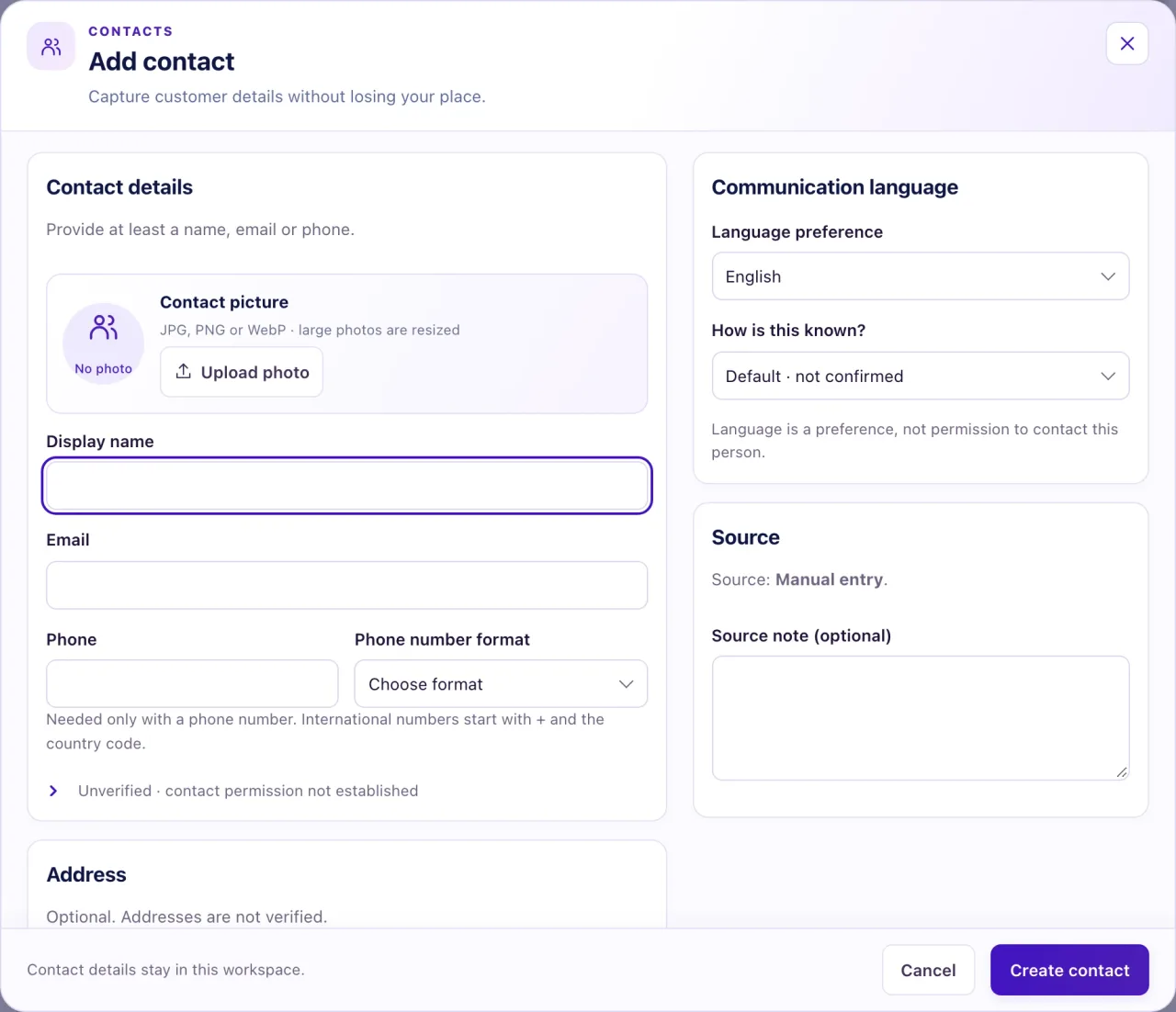
- Step 1, Basics: a photo (optional), name, email and phone, with the phone's Country (United States unless you pick another). You can select Create contact straight away.
- Step 2, More details (optional): how they found you (Walk-in, Phone, Campaign, Website, Referral or Other), other emails and phones, a vehicle they're interested in picked from your inventory, anything already done (visited, test drive, already bought, service customer), the address, language, a source note and an Aria note.
A contact needs at least a name, a valid email or a valid phone number. Everything else is optional. Type the phone the way the customer says it; QualiFlow reads it in the chosen country and saves it in full international form (for example "(555) 210-4286" in the United States is saved as +1 555-210-4286). A number typed with + keeps its own country code. Adding an email or phone does not verify it and is not permission to contact the person.
Other forms (Opportunities, Service, Visits, Sales, My Work) can send you here to create a contact. After saving you go back to that form with the contact filled in.
How to use it
- In Contacts, select Add contact. To edit, open a contact and select Edit contact.
- On Basics, enter a Display name, an Email and/or a Phone. Check the Country next to the phone (United States by default).
- To add a picture, select Upload photo and choose a JPG, PNG or WebP file (HEIC works too) under 50 MB. On a saved contact, select Save photo.
- Select Create contact to save now, or More details to add more. Back returns to the basics.
- On More details, pick how they found you, add Other emails and Other phones (one per line), and under Interested in a vehicle? search your stock by stock number, year, make or model and pick the car.
- Under Anything already done?, tick what already happened (for example Already bought a vehicle from us) and add any detail. It's saved as a note on the contact.
- Optionally fill in Address, Communication language, a Source note and an Aria note (an instruction for Aria to contact this person once; see "Give Aria a note on a contact").
- Select Create contact (or Save contact when editing).
- When editing, use Contact channels to add another email, phone, WhatsApp number, Instagram handle or Facebook profile: choose the Channel type, type the value and select its add button, such as Add phone number.
- Select Make primary to make an extra email or phone the main one, or Remove to stop using a channel. Channel changes save straight away.
What the data means
| Field | Rules |
|---|---|
| Display name | Up to 160 characters |
| Must look like name@domain.com, up to 254 characters | |
| Phone | Read in the chosen Country and saved in international form |
| Phone, US or Canada | Ten digits; the area code and next three digits can't start with 0 or 1 |
| Phone with + | Keeps its own country code; 8 to 15 digits |
| Source (More details) | Saved at the start of the source note, e.g. "Referral · from Ali" |
| Interested vehicle | Saved as a vehicle interest linked to the real stock record (Owners) |
| Anything already done | Saved as a note on the contact |
| Address | If you fill any part: a street, a country, and a city or postal code |
| Source note, Aria note | Up to 1,000 characters each |
Changing the primary email or phone keeps the old one as an extra channel. Each channel line says where it came from: Entered manually, CSV import, "From chat on SMS" (or another channel), or Existing contact detail, then "Not verified · Not connected". Changing the language sets how it is known to Staff entered · not customer-confirmed. Language is a preference, not permission.
Possible issues and fixes
I can't save the contact
Symptom: Create contact or Save contact does nothing, or a red message shows.
Why: A field isn't valid (the reason shows under it), the contact is in Trash, someone else changed it first ("This record changed since you opened it."), or the connection dropped ("The save result is unknown. Your draft is kept.").
Fix: Fix the field named in red. For "changed", select Discard draft and reload latest and make your edit again. For "unknown", select Retry same action; it can't create a second contact. Restore a Trash contact first.
How to check: The dialog closes and the panel or profile shows the new details.
It says "Potential existing contacts" or "Possible shared identifier"
Symptom: Saving stops and lists other contacts with the same email or phone.
Why: The email or phone already belongs to another contact, including extra channels, WhatsApp numbers and contacts in Trash. QualiFlow never matches on a name and never merges by itself.
Fix: Open each match. If it's the same person, edit that contact instead, or merge the two. If the match is in Trash, restore it. Only for a different person, such as family sharing a phone, tick the review box and select Create separate contact or Save separately.
How to check: The contact saves and the other record is unchanged.
It says the phone number isn't valid
Symptom: The phone field says "Enter a ten-digit United States number." or "Enter a valid … phone number."
Why: The number is read in the Country next to it. A number from another country, typed without +, doesn't fit the United States pattern.
Fix: Pick the customer's country in Country, or type the number with + and the country code (for example +44 7700 900123).
How to check: The red message clears and the contact saves.
Something from More details wasn't added
Symptom: After Create contact you see "Contact saved, but … couldn't be added."
Why: The contact saved, but one extra step was refused: for example another contact already uses that email, or only an Owner can add a vehicle interest.
Fix: Open the contact and add the missing item there: a channel under Edit contact → Contact channels, a vehicle under Vehicle interests → Add vehicle from inventory, or a note with Add note.
How to check: The item shows on the contact.
A channel I typed didn't save
Symptom: A Facebook link, handle or number you typed under Contact channels isn't on the contact, or the buttons say "Save or undo your changes to the details first."
Why: A channel is added by its own add button, and channel buttons pause while the details above have unsaved changes.
Fix: Select Save contact (it also adds a channel typed there), or save the details first and then select the channel's add button. A refused value shows its reason under the field.
How to check: The channel shows in the Contact channels list.
The photo won't upload
Symptom: You see "Choose a JPG, PNG or WebP photo.", "Choose a photo smaller than 50 MB." or "This browser can't read this photo format. Export it as JPG and try again."
Why: The file type isn't supported, it is over 50 MB, or the browser can't read it.
Fix: Save the picture as a JPG under 50 MB and choose it again. If the upload failed after Create contact, the contact is still saved: select Save photo on the edit form.
How to check: "Photo saved." shows and the picture appears on the contact.
