
What it is
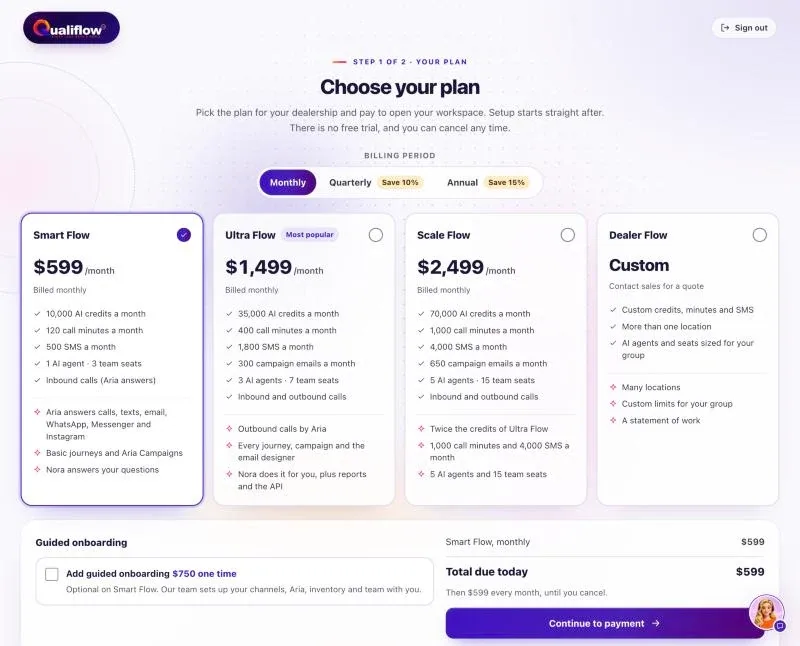
Choose your plan is step 2 of 3 when you sign up: after the email code you answer six quick questions about you and your dealership (Step 1 of 3 · About you), then Continue to your plan opens this page (Step 2 of 3 · Your plan). It also opens any time your workspace has no active plan. New Smart Flow workspaces get a seven-day free subscription trial from card confirmation. A card is required; the selected subscription amount is charged automatically after seven days unless cancelled before then. Optional $750 guided onboarding is charged upfront. Ultra Flow, Scale Flow and Dealer Flow Enterprise do not include this trial. During the trial, Nora answers how-to and help questions; asking her to do something for you (create a record, write an email, look up your records) shows Upgrade your plan. Card confirmation opens the rest of workspace setup (step 3 of 3).
If you chose a plan on the QualiFlow pricing page, that plan and billing period are already selected.
On the public website, Watch a demo opens the preview popup. The contact form appears immediately, without switching from a blank loading view. The preview uses a muted excerpt of the recording when configured. If a recording is available, enter at least one email or phone number and select Watch now. No verification code is requested, and the supplied contact details remain unverified. Your private watch page works in the same browser for 30 minutes. If no recording is configured, Watch a demo opens the Book a demo form and calendar instead. There is no empty teaser panel or recording-pending message.
Book a demo opens Nora's shared three-step form where offered, or the dedicated demo page (opens in a new tab). The Contact page's Request a demo link always loads that dedicated page. Tell us about you, your dealership and your goals, then save your request and choose to load the calendar. ZIP suggestions are editable. Your request is saved before you open Cal.com. Confirm your booking contact details in its calendar; QualiFlow does not put your name, email or phone in the calendar URL. In Nora, scroll inside the form; Continue and Back stay reachable. A request is not a confirmed meeting: choose an available calendar time to complete the booking.
The website proof wall contains illustrative dealership pictures and the founder quote signed Sami, Founder, QualiFlow. A review is shown only when its quote, contributor name, title, dealership and written permission on file are all recorded. Anonymous role-only entries stay hidden. There are no star ratings; pictures never claim to show reviewers or their dealerships. Other website walkthroughs use anonymous customer and staff roles; reporting previews do not claim dealership results. The homepage animation starts automatically on supported phones and desktops, with a still illustration for reduced motion or an unavailable graphics engine. Hover or focus to pause it; swipe on phones. Reduced-motion visitors get a static grid.
Demo buttons keep a light outline on dark sections and the standard secondary outline on light sections. Ultra Flow's pricing button stays filled. Opening a demo form never starts a paid plan. Owners, Staff and visitors can use the public website; workspace plan changes remain Owner-only.
Only the workspace Owner can choose a plan and pay.
Demos and reviews on the website
The homepage conversation preview is an illustrative product scenario, not live stock. Its Highlander card uses a licensed vehicle photograph; the source and image license appear on the card.
The public proof wall and Stories page keep the moving mix of dealership artwork, product facts and reviews. Two complete reviews are stacked together, followed by image and product tiles, then the next pair. Only eligible reviews appear, with contributor name, title, dealership and any original-use note. Written permission must be on file; missing information hides the tile. No star ratings are added. Drag with your mouse or swipe on a phone to explore. Hover or focus pauses the wall; reduced-motion visitors see a static layout.
Website recordings and shared proof-wall pictures are managed by the QualiFlow team in the separate platform admin Media library. Workspace Owners and Staff do not change the marketing website's media. If no demo recording is configured, Watch a demo opens the live booking form and calendar, and the Book a demo page hides the preview. A separate real-person video block on Home, About and Contact stays completely hidden until an approved video is set in the central site media configuration. It plays with sound only after a click, with captions when supplied; it never autoplays. The private product recording is used only in the demo popup, watch page and Book a demo page.
A recorded demo opens after you enter an email or phone, with no verification code, and is tied to that browser for 30 minutes. The player keeps playback, captions, sound and full-screen controls, with no download button. You can book a live walkthrough alongside the video.
How to use it
- Pick the Billing period: Monthly, Quarterly (saves 10%) or Annual (saves 15%).
- Pick a plan: Smart Flow, or Ultra Flow / Scale Flow if our team has unlocked one for you. Otherwise those cards show Price on request and Contact sales: select it and our Sales team prepares a price for your store. For several locations or custom limits, the Owner selects Request Dealer Flow on the Dealer Flow card (see Dealer Flow: how your custom plan is prepared).
- On Smart Flow, tick Add guided onboarding if you want our team to set up the workspace with you. On Ultra Flow and Scale Flow it is already included.
- Check Total due today and the line under it, which says what you pay after that.
- Select Continue to payment and enter your card on the secure payment page.
- Back in QualiFlow, Payment received shows while your workspace is set up. Workspace setup then opens by itself.
What the data means
Each plan card shows the price per month for the chosen period, what is billed (for example "Billed $1,617.30 every 3 months"), what you save against paying monthly, the monthly AI credits, call minutes, SMS, campaign emails, AI agents and team seats, and whether Aria makes outbound calls. The Dealer Flow card shows Custom and "Contact sales — we prepare your plan". After Request Dealer Flow the page shows "Your Dealer Flow plan is being prepared by QualiFlow" until QualiFlow has prepared it; then it shows "Your Dealer Flow plan is ready" with your price, limits and Choose and pay.
Total due today is the first period plus the guided onboarding fee when it applies: Smart Flow $750 (optional); on Ultra Flow and Scale Flow it is part of the price our team prepares (charged once). Ultra Flow and Scale Flow show Price on request and Contact sales until our team unlocks one for your workspace; then the card shows your price.
Until the plan is paid, every page shows Choose your plan, except Settings → Billing, Support and Sign out. Before the six questions are answered, every page shows them instead (except Support and Sign out). Your answers are saved, so a reload or sign-out brings you back to the same place.
Possible issues and fixes
"Payment canceled. Nothing was charged."
Symptom: You are back on Choose your plan with this message.
Why: The payment page was left before paying.
Fix: Pick your plan again and select Continue to payment when you are ready.
How to check: After paying you see Payment received, then workspace setup.
The card was declined
Symptom: The payment page says the card was declined and stays open.
Why: Your bank refused the payment. Nothing was charged.
Fix: Try another card on the same page, or call your bank. If your bank asks you to confirm the payment, finish that step on the payment page.
How to check: You come back to Payment received.
"Still confirming your payment"
Symptom: After paying, the page says your bank is taking a little longer than usual.
Why: Some payments take a minute to confirm. You are not charged twice.
Fix: Select Check again after a moment. If it still waits, ask Nora with the chat button.
How to check: Workspace setup opens.
"Your workspace is paused"
Symptom: Every page shows this, with Renew and Choose a different plan.
Why: The subscription was canceled. Your data is kept.
Fix: The Owner selects Renew (or picks another plan) and pays. There is no onboarding fee again.
How to check: The workspace opens where you left it.
"Your workspace needs a plan"
Symptom: A teammate sees this instead of the workspace.
Why: Only the workspace Owner can choose a plan and pay.
Fix: Ask the Owner to sign in and pick a plan, then select Check again.
How to check: The workspace opens.
Learn more: how a dealership AI agent works