
What it is
Preview & test in the email designer shows the finished email as customers will get it, and lists everything that must be fixed before the campaign can be approved.
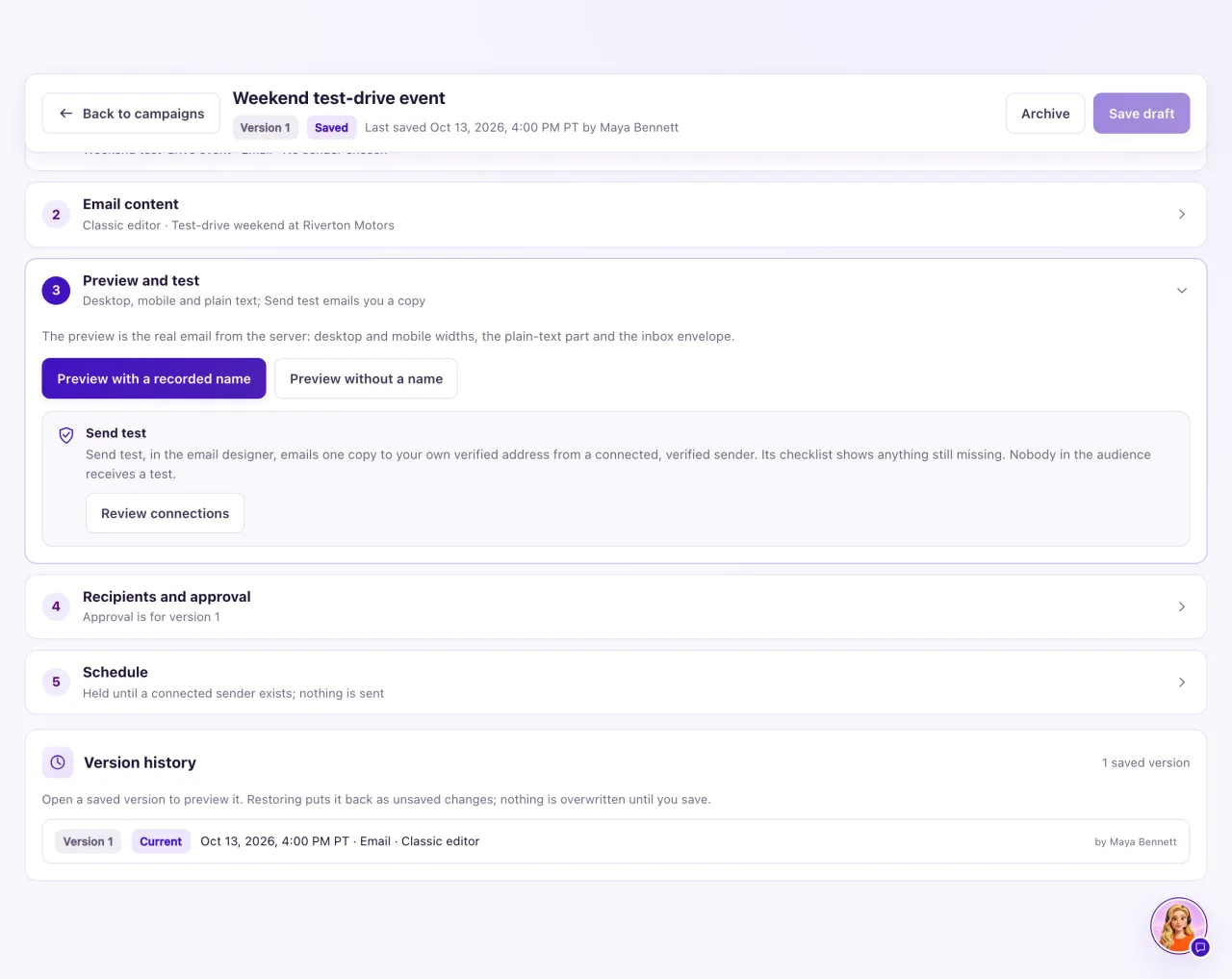
Send test emails a copy to you only, with sample personalization and [Test] before the subject. It goes to your own sign-in email, from the sender chosen for the campaign. A test is not a campaign send: it creates no campaign record and isn't counted in results.
How to use it
- In the email designer, select Preview & test.
- Switch between Desktop, Mobile and Plain text, and try Dark mode check.
- Under Recipient, choose a sample contact with a name or without one. Once the audience is approved you can also preview real recipients.
- Read Problems. Each is a Blocker (must be fixed before approval) or a Warning (worth checking), with a button that takes you to the block.
- Check Links in this email and What differs from the sent email.
- Select Send test. Check the three steps: Connected sender, Your verified email address and Email delivery. Each must read Ready.
- Select Send test in the dialog. "Test sent to" your email confirms it; it can take a minute to arrive.
What the data means
Common problems: an image without alternative text, a button without a link, a placeholder that wasn't replaced, a vehicle whose facts need refreshing, footer text with too little contrast, or an email larger than Gmail shows in full (about 102 KB).
The Connected sender step is ready with a connected Gmail or Outlook mailbox, or a Marketing or Marketing and service sender on a verified email domain. If the campaign's sender isn't ready, QualiFlow doesn't quietly switch to another one.
Possible issues and fixes
Send test is greyed out or a step says Needed
Symptom: Send test stays off, or the page says to connect an email sender.
Why: A test needs all three steps ready. The campaign's sender may be missing, set up for replies or service only, or on a domain that isn't verified.
Fix: In the campaign's Goal and sender step, choose a ready mailbox or a Marketing or Marketing and service domain sender. If you have none, connect a mailbox or finish your email domain in Settings → Connections.
How to check: All three steps read Ready and the test is sent.
"You can send 5 tests of this email an hour"
Symptom: Send test is refused with this message.
Why: Each email can be tested up to 5 times an hour.
Fix: Try again later. If a test's result was unknown, look in your inbox before sending another.
How to check: The next test says "Test sent to" your email.
The test didn't reach someone else
Symptom: You wanted to send the test to a colleague.
Why: A test goes only to the signed-in Owner's own verified email.
Fix: Forward the test from your inbox, or ask another Owner to send a test to themselves.
How to check: The test arrives in your own inbox with [Test] before the subject.
