
What it is
A support ticket is a message to the QualiFlow team, saved with its details. It gets a reference such as QF-000123 once it is saved, and the team's replies appear in its History.
Report a problem is different: a quick note about something broken, sent straight to the team's bug log. It gets no reference and no reply. If you want an answer, save a ticket.
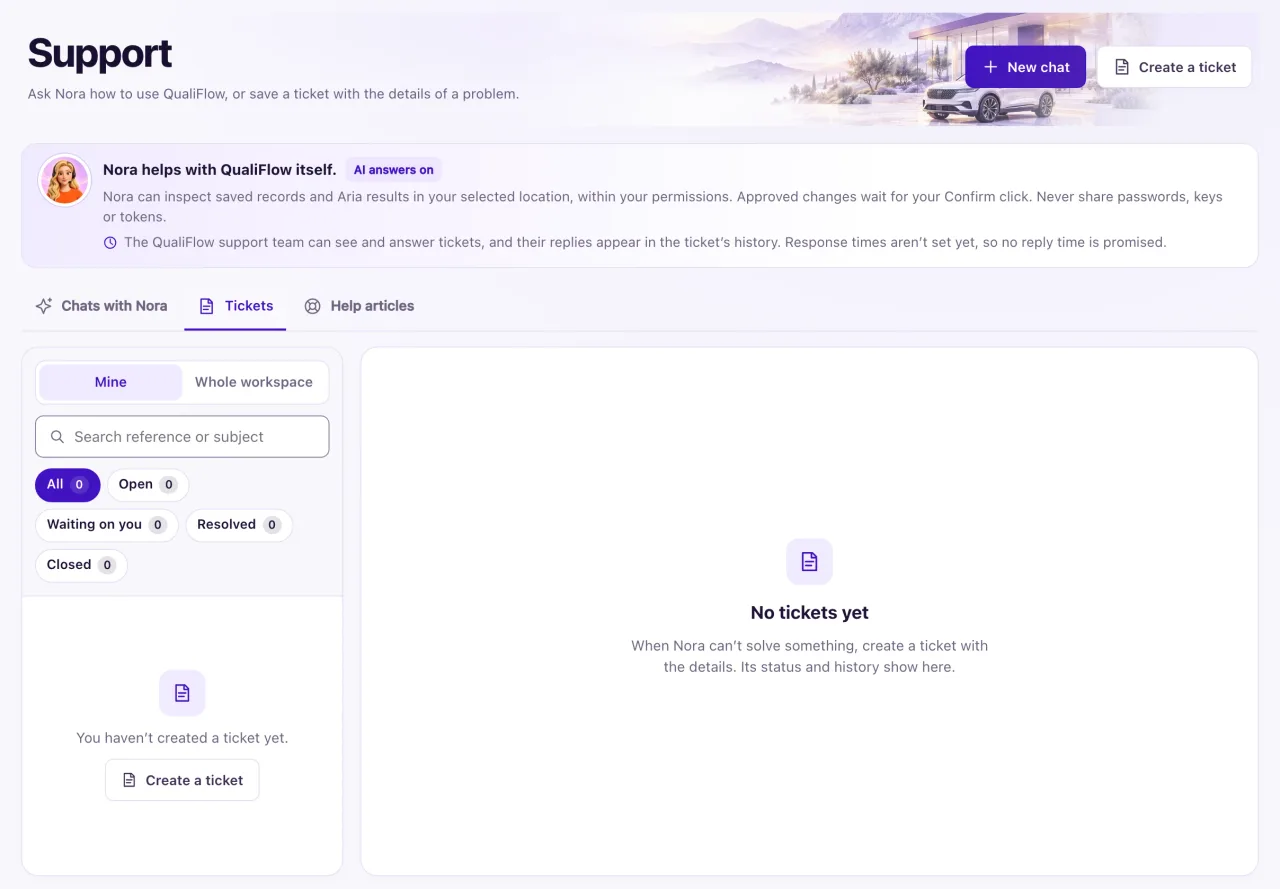
Every active member has their own tickets. Owners see the tab as Tickets and can also follow everyone's tickets with Whole workspace; Staff see it as My tickets.
How to use it
- Open Support and select Create a ticket, or select Talk to a QualiFlow specialist in Nora's chat window. With Priority support, Nora connects a specialist in live chat when one is available (see Live chat with a QualiFlow specialist); otherwise she offers a ticket.
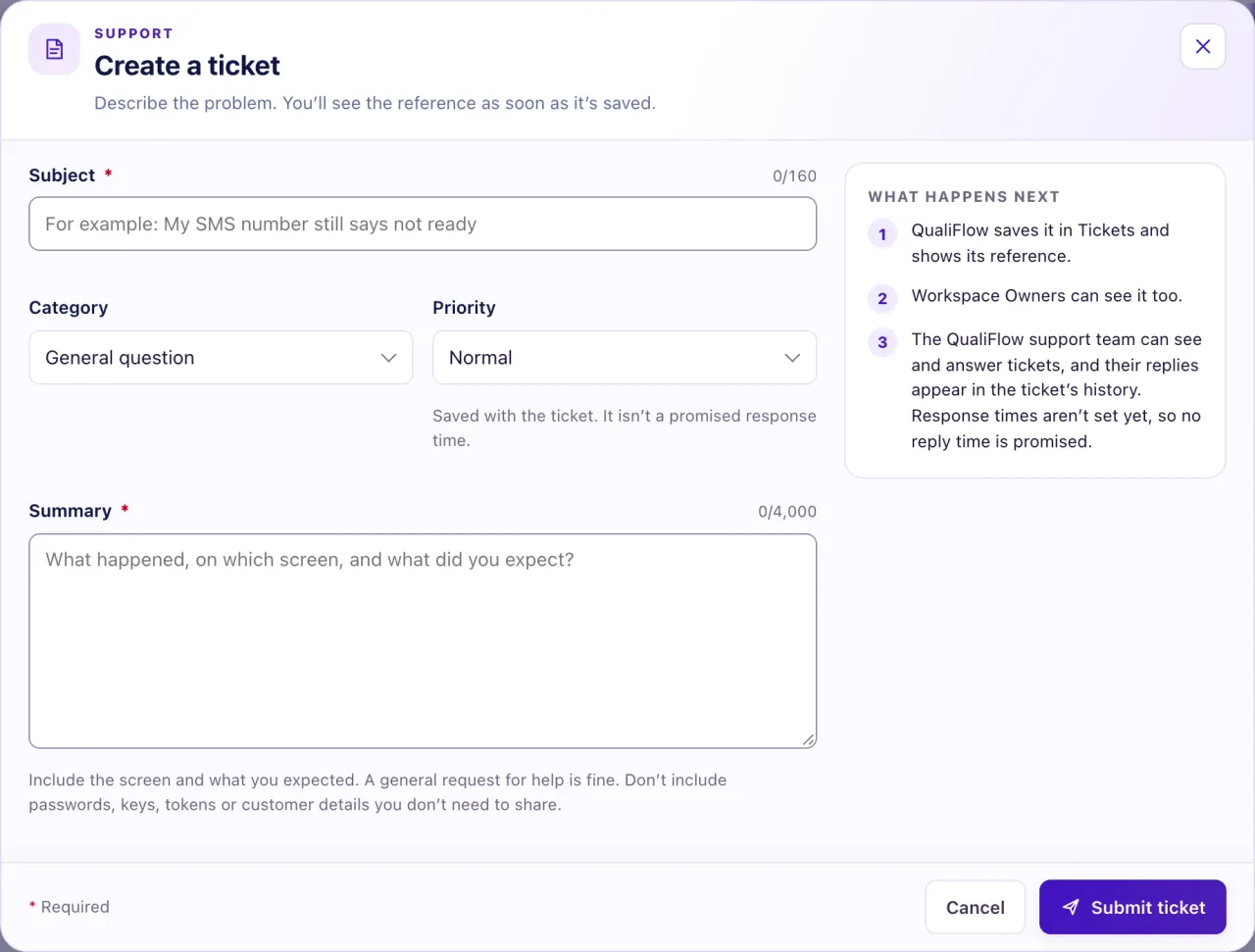
- Fill in Subject (3 to 160 characters), Category, Priority and Summary (up to 4,000 characters): the screen, the exact message, what you did and when, and what you expected.
- Select Submit ticket, then Submit ticket again in Create this support ticket?.
- Ticket submitted shows your reference. Select View ticket to open it.
- To add details, type in Add to this ticket and select Add reply.
- For a Resolved or Closed ticket, select Create a follow-up ticket. It starts with "Follow-up to QF-…".
- To report a bug, stay on the page, select your name at the top right, then Report a problem. Fill in What went wrong? (10 to 1,000 characters) and, if you like, What did you expect?, then select Send report.
What the data means
| Status | What it means |
|---|---|
| Open | Saved and active. You can add to it |
| Waiting on you | The support team needs information from you. Replying sets it back to Open |
| Resolved | Finished. It takes no new replies; create a follow-up ticket instead |
| Closed | Closed. It takes no new replies; create a follow-up ticket instead |
Priority (Normal, High or Urgent) is saved with the ticket; it is not a promised response time. With the Priority support add-on, the team replies to tickets within 3–6 hours. The line near the top of the Support page says whether the QualiFlow support team can currently see and answer tickets.
Ticket updates appear only inside QualiFlow: on the Support page, in My tickets in Nora's chat window, and in My Work, where a ticket waiting on you shows "QualiFlow support is waiting for your reply" with Reply in Support. When QualiFlow support replies, the person who opened the ticket also gets an email saying support replied, with a link to Support.
If a page can't open, it says This page didn't open and the sidebar stays: select Try again or open another page. If the whole app stops with Something went wrong on this page, select Reload page. Either way the details are saved for the team and your saved work is safe. Grey placeholder shapes that stay a long time: check your connection. A problem report attaches the page address, its recent errors, your browser and the time, never your messages or customer details. You can't attach screenshots or files to tickets or reports, so describe what the screen says. Never put a password, key or token in either.
Possible issues and fixes
I can't create a ticket
Symptom: The ticket isn't saved and you see "You already have the maximum number of open tickets. Add details to an open ticket instead." or "Remove passwords, keys or tokens. QualiFlow support never needs them."
Why: Each person can have up to 25 open tickets, and QualiFlow refuses any message that contains a password, key or token.
Fix: Add your details to an open ticket with Add reply, or wait until one is resolved. Take any secret out of the message and send it again.
How to check: Ticket submitted shows a new reference.
I can't reply to a ticket
Symptom: There is no Add to this ticket box on the ticket.
Why: The ticket is Resolved or Closed, or someone else created it. Only the person who created a ticket can reply; Owners can follow other people's tickets but not reply to them.
Fix: For your own resolved or closed ticket, select Create a follow-up ticket. For someone else's ticket, ask them to reply, or create your own ticket.
How to check: Your reply shows in the ticket's History.
Nobody replied to my ticket
Symptom: Your ticket has no reply from QualiFlow support.
Why: No reply time is promised. If the line near the top of the Support page says the support team's ticket queue isn't available yet, your ticket is saved but nobody from support can see it for now.
Fix: Open the ticket and read History. If its status is Waiting on you, add the details asked for. If the queue isn't available and the problem is urgent, contact the QualiFlow team the way you agreed your plan.
How to check: History shows "QualiFlow support replied".
My problem report wasn't sent
Symptom: Report a problem says "You have sent several reports just now. Try again in a few minutes." or "Your session has expired. Sign in again to send this."
Why: Each person can send up to 10 reports every 10 minutes, and reports need you to be signed in.
Fix: Wait a few minutes, or sign in again, then send the report.
How to check: The dialog says "Thanks — saved for the team."
