
What it is
A recorded sale shows on the customer's Ownership list and the Ownership page with the car's photo until it is delivered; clicking the car opens it. Sales & delivery records each sale as three separate facts: the agreement, the funding and the physical delivery. It shows where every agreed sale stands and what to do next, and it holds the car in stock while the deal is open.
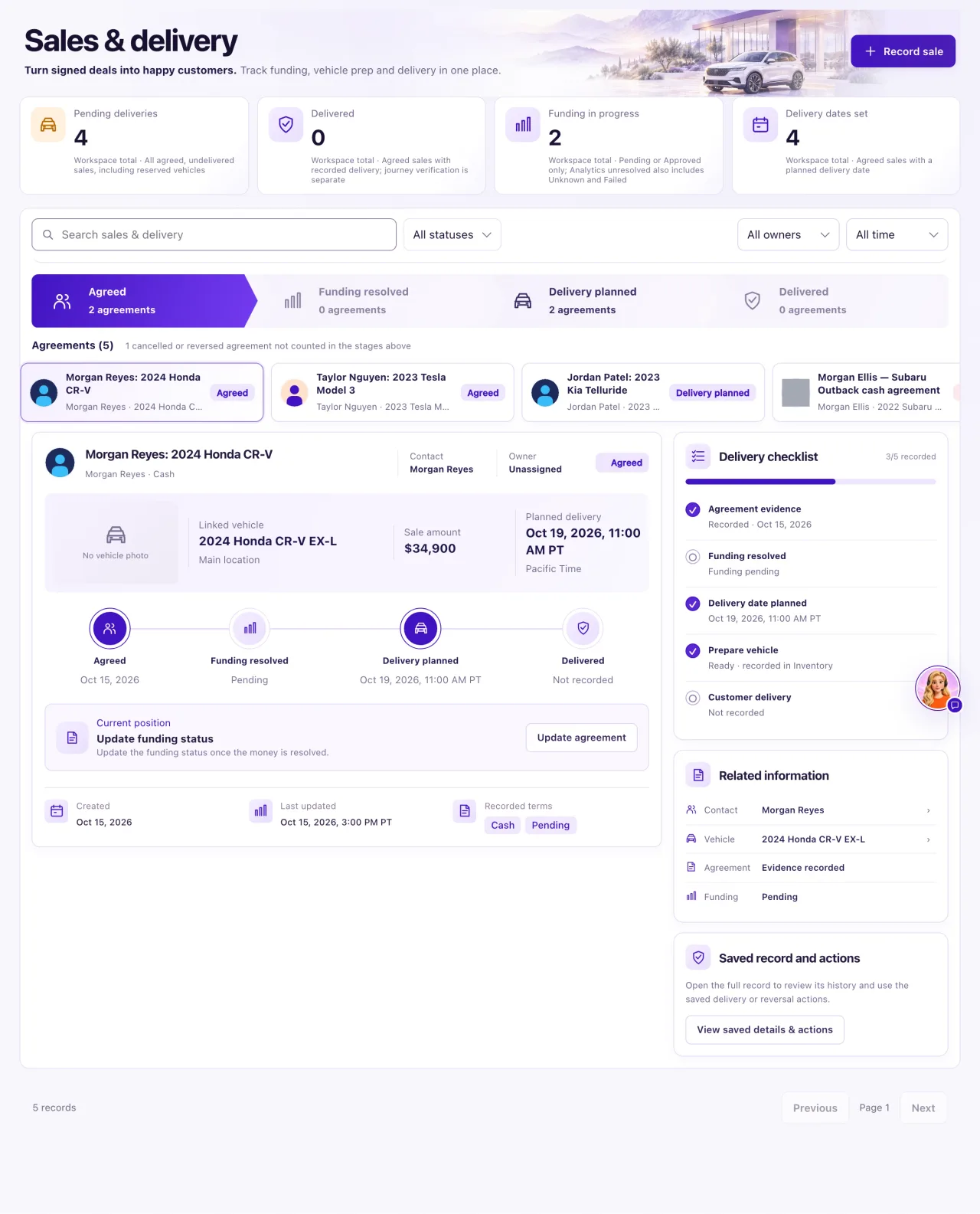
An Owner, or Staff with Sales & delivery change access, can record a sale or update its agreement, which holds the car. A delivery, cancellation, reversal or stock status is Owner-only. Staff with Sales & delivery access can read everything except the vehicle itself while Inventory is Owner-only for Staff: they see "Vehicle details are Owner only" instead of the car. Aria never records a sale.
How to use it
- Select Record sale where you are: on the opportunity, on an accepted proposal ("The customer accepted this offer"), in the contact's Quick actions, on the car in Inventory, or + Record sale here. You can also tell Nora, for example "Luis Garcia bought the 2022 Corolla".
- The form opens filled in from what QualiFlow already knows: the customer, their open opportunity (you choose when they have several), the car (the proposal's car, or the opportunity's only car), the Salesperson, the Purchase type and Sale amount from the proposal (or the car's listed price; the line under the amount says which), Funding (Not applicable for cash, Pending for finance or lease), today's Sale agreement date and the location. The amount shows your workspace currency; you are never asked for it.
- Proposal shows the proposal the sale follows (the accepted one, otherwise the latest), with its status and agreed total; Open opens it. Change lists the customer's proposals with their status and total, and None. Picking one fills its price, purchase type, funding and term again; a term the new proposal doesn't have is cleared, never kept from the one before. A declined, withdrawn or expired proposal is listed with its status and "cannot be used"; renew an expired one in Proposals first. If the list couldn't be loaded, choosing another customer or opening Change again tries once more.
- Check it and select Record sale. Title, planned delivery, finance or lease terms, deal notes and mileage are under More details if you want them.
- You are not asked for a source or evidence: QualiFlow records who recorded the sale and when (with the accepted proposal and its terms) and the opportunity's lead source, or "Showroom / walk-in". An accepted proposal is still not a sale until you record it.
- As the deal moves, select Edit sale to update Status (Sold / Burning gas or Deposit / Awaiting delivery), and mark the car Ready in Inventory once it is prepared.
- After the handover, open the sale and select Record delivery. Enter the Actual effective date and the Reason, and save. You are recorded as the person who verified the delivery, so the ownership check-ins can start.
The sale keeps its proposal: the sale shows From proposal under Related information, and the proposal shows "Sale recorded from this proposal" with Open the sale.
What the data means
| Stage | When a sale is in it |
|---|---|
| Agreed | The sale is on Deposit / Awaiting delivery |
| Sale status recorded | Sold / Burning gas (a cash sale gets here at once) |
| Delivery planned | Sale status recorded and a planned delivery date is set |
| Delivered | A delivery is recorded |
Selecting a stage selects the first agreement in it; it does not filter the list (use the status list, Sale owner and Sale period). The cards are workspace totals: Pending deliveries (agreed sales not delivered yet), Delivered, Deposit / Awaiting delivery (Pending or Approved) and Delivery dates set.
While a sale is open the car shows Sale pending / Reserved (funding not resolved), then Sold · Awaiting delivery, then Sold · Delivered. Nobody can pick Reserved by hand, and Approved funding is not receipt of funds. The checklist step Prepare vehicle is read from the car's Physical readiness in Inventory.
Possible issues and fixes
I can't record a sale
Symptom: Record sale refuses with a message, or the opportunity is not in the list.
Why: A sale needs the customer's open opportunity and the car: the form says "Choose the car the customer bought" or "This customer has no open opportunity" beside them. Only open opportunities take a sale, one agreed sale can hold a car, and a car under availability review, archived or with a disputed ownership can't be sold. Not applicable funding is for cash only.
Fix: Follow the message: choose the car or the opportunity, select Add an opportunity for this customer, cancel the other sale, or use Confirm availability on the car in Inventory.
How to check: "Record saved." and the opportunity shows Won.
The car says Sale pending / Reserved and I can't change it
Symptom: The car's availability can't be edited in Inventory.
Why: The sale sets it. It changes to Sold · Awaiting delivery when funding is Funded (cash counts at once) and Sold · Delivered after delivery.
Fix: Open the sale, select Edit sale and set Status to Sold when the money has really arrived.
How to check: The sale's stage and the car's label change.
Record delivery is refused
Symptom: A message such as "Record delivery after the handover; the actual delivery date cannot be in the future."
Why: The delivery date can't be in the future or before the agreement. The sale must still be agreed, and the car can't have another current ownership.
Fix: Correct Actual effective date, fill in the Reason, or end the previous ownership in Ownership.
How to check: An Ownership record appears and the car shows Sold · Delivered.
The checklist says Prepare vehicle is not ready
Symptom: "Not ready · mark it Ready in Inventory once prepared" or "Not recorded".
Why: The step reads Physical readiness in Inventory, not the sale. Staff see it as managed by an Owner.
Fix: An Owner opens the car in Inventory and sets Physical readiness to Ready.
How to check: The step reads "Ready · recorded in Inventory".
The pre-delivery or post-delivery message never went out
Symptom: The customer got no welcome before delivery or check-in after it.
Why: The welcome before delivery needs a planned delivery date on the sale; a sale recorded before 12 November may still be Staff-recorded. The customer also needs a conversation and consent.
Fix: Open the sale, select Update agreement and save: that marks an agreed sale Verified, with your name and the date. For the check-in, select Edit ownership and save it. To message the customer sooner, use the Inbox.
How to check: The customer shows in the journey's Activity tab on Journeys.
Learn more: the dealer CRM pipeline and handoff