
What it is
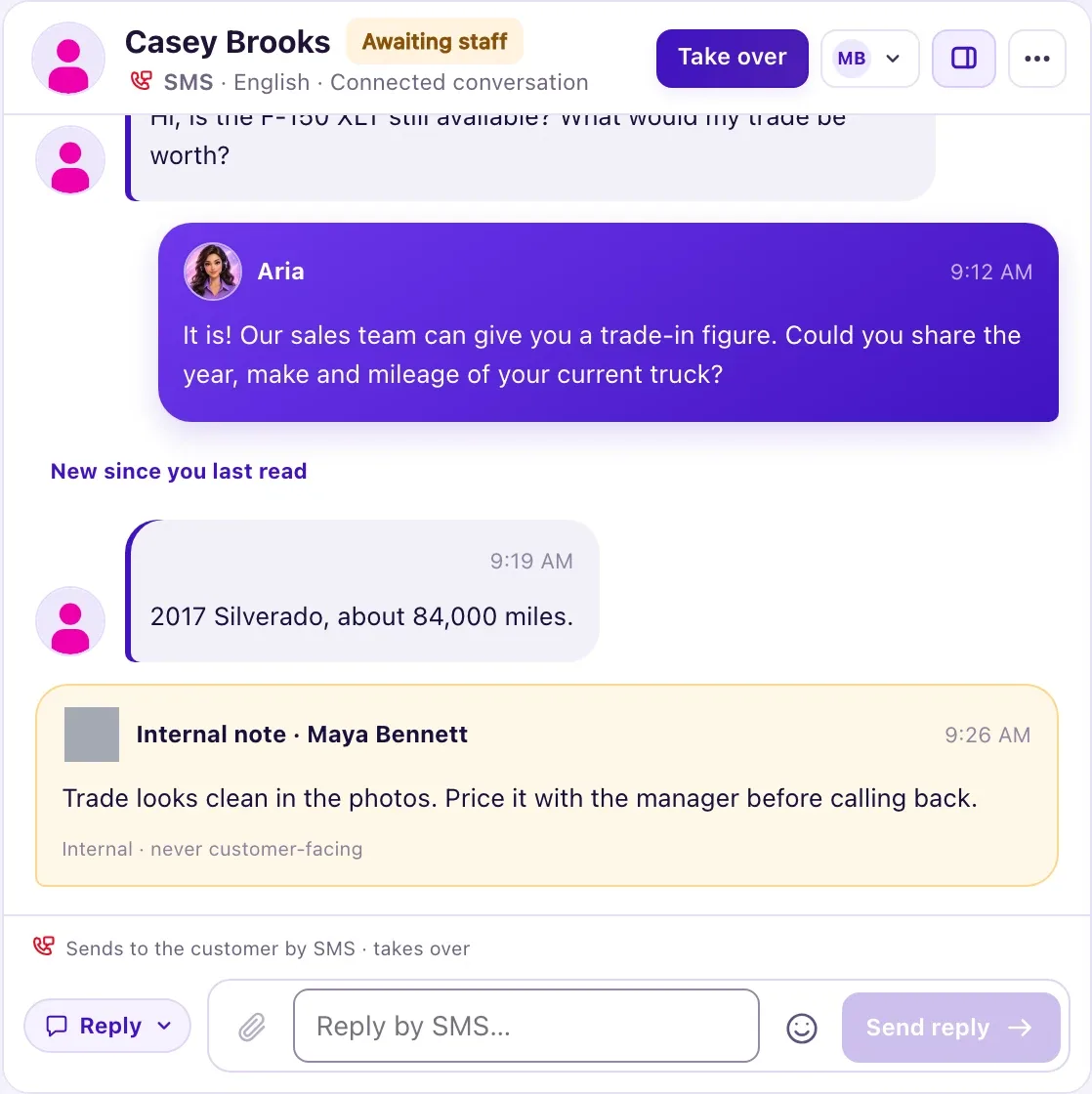
Select a conversation in the Inbox to open it. You see the whole history with the customer on that channel: their messages, Aria's replies, your team's replies, internal notes and phone calls. On a computer the Inbox title and the number tiles hide while a conversation is open, so the conversation fills the window; they come back when no conversation is open. On a narrow screen the conversation replaces the list; Back to conversations returns to it.
How to use it
- Open Inbox and select the conversation.
- Read the header row: the customer's photo with a small channel badge, their name, and a small button such as Instagram · English ⓘ. Select that button for Conversation details: the channel, the language, whether it is a connected conversation, which Aria agent and version answers here (for example "Aria · v12") and the customer's identity on the channel.
- Read the row of status chips under the name. Select a chip to open a small panel with the full explanation and its buttons. Most urgent first: Reconnect Instagram (Reconnect), Can't reply · 24h window closed (why, with the fix buttons), Texts aren't sent yet (Open business details), who answers (Automation active, Awaiting staff, Taken over or Paused), Draft awaiting approval, Closes 6:10 PM (Meta's reply window, amber under two hours), the lead decision such as Staff: moved to Inbox (Back to Intake or Move to Inbox, and Not a lead), Check-in 3:10 PM (Cancel Aria's check-in), AI withheld · 2, Campaign reply, Reopened, Closed, View only and Controls unavailable.
- Chips that don't fit fold into +N. On a phone the chip row scrolls sideways and each panel opens from the bottom of the screen.
- Scroll up and select Load earlier messages to see older messages. The divider New since you last read marks the first customer message you have not read.
- Every message looks the same: a small photo beside it, then a slim line with who wrote it (the customer's name, Aria or your teammate's name) and the time, then the text. The customer's messages are grey on the left; Aria's and your team's are on the right. Several messages in a row from one person show the photo and name once, and the later ones show their time at the end. Check the mark beside the time on each message you or Aria sent to see whether it was delivered.
- Open a photo the customer sent to see it full size, or select Download for a file. A voice message shows its Transcript under the player, and a shared contact card shows its details.
- On a call card, read the summary, press Play on the recording, or select Show transcript to unfold the call line by line. Select Open the call in Calls (or Listen in Calls for a voicemail) to see the call on the Calls page.
- If a small marker such as AI withheld or Aria didn't reply sits under a customer message, select it to see what Aria did with that message and the button that fixes it. The AI withheld · 2 chip jumps to it. While Aria is still writing, "Aria is preparing a reply…" shows at the bottom of the messages.
- Use the actions in the header: Take over or Hand back to Aria, Pause, the Assigned to chip, Context, and More (⋯) for Close, Reopen and Mark unread.
- Reply or add a note in the composer at the bottom. See "Reply and add internal notes".
What the data means
The mark beside the time on each message your team or Aria sent:
| Mark | What it means |
|---|---|
| Clock, Sending | Saved and queued to send. Not sent yet |
| Clock, Queued | The provider accepted it and is sending it |
| One tick, Sent | Sent. Email never goes further than Sent; Messenger and Instagram show Sent once Meta accepts it |
| Two ticks, Delivered | A delivery receipt arrived (texts, WhatsApp, Messenger) |
| Blue ticks, Read / Seen | The customer opened it (WhatsApp with read receipts on, Messenger, Instagram) |
| ! Failed | The provider reported it was not delivered, with the reason when known |
| ! Not sent | QualiFlow stopped it before it reached the provider, with the reason |
| ! Outcome unknown | The result was not confirmed. Check before sending again |
Every call with the customer also shows as a call card in their text conversation: calls to your number and outgoing calls (Aria's calls and calls your team logged). With Calls access, the card shows Incoming call, Voicemail or Outgoing call, the outcome, the time, the length, who answered or called, Aria's Summary, the recording player and Show transcript. Each part shows only when the call kept it under Settings → Calls. Without Calls access the card shows only its first line. Aria never texts a reply to a call card.
Files the customer sent are QualiFlow's own private copies. Internal notes are marked "Internal · never customer-facing". The Reopened chip means the conversation was closed and the customer wrote again.
Possible issues and fixes
There is a red ! on a message
Symptom: A message you or Aria sent shows Failed, Not sent or Outcome unknown.
Why: Failed: the provider reported it was not delivered (an email that bounced after Sent changes to Failed). Not sent: QualiFlow stopped it first, for example the customer opted out. Outcome unknown: the result wasn't confirmed, as with a Microsoft 365 email until it is.
Fix: Read the words beside the mark and see "Why didn't my message get through?". Then write a new reply. For Outcome unknown, check with the customer before sending again.
How to check: The new message's mark moves from the clock to Sent, then Delivered where the channel reports it.
A file the customer sent won't open
Symptom: A photo, video, voice message or document shows a reason instead of the file.
Why: QualiFlow could not save its copy, for example "The provider no longer has it. Ask the customer to send it again."
Fix: Select Retry when it is offered. If the provider no longer has the file, ask the customer to send it again. A voice message without a Transcript can still be played; see "Photos, voice messages and files customers send Aria".
How to check: The photo opens full size, or the file shows its size and Download.
A call card has no summary, transcript or player
Symptom: A call card has no Summary, no Show transcript or no player, or shows only one line and "Ask your Owner for Calls access to see them."
Why: Each call keeps only what Settings → Calls allowed when it happened: Summary only keeps no transcript, Off keeps neither, and recordings Off means no recording. A one-line card means you have Inbox access but not Calls access.
Fix: An Owner chooses Transcript and summary or turns recordings On in Settings → Calls, then Save call settings; it applies to new calls only. For a one-line card, ask an Owner to set Calls to View in Settings → Team & roles.
How to check: The next call Aria answers shows the parts you chose on its card.
The header buttons are missing
Symptom: You can read the conversation, but there is no Take over, no Assigned to and no reply box. The View only chip and the line where the reply box would be say "View only. Ask your Owner for access."
Why: Your Owner gave you Inbox View only.
Fix: Ask an Owner to give you Inbox View and change in Settings → Team & roles.
How to check: After reloading, the header shows Take over and the composer appears.
