
What it is
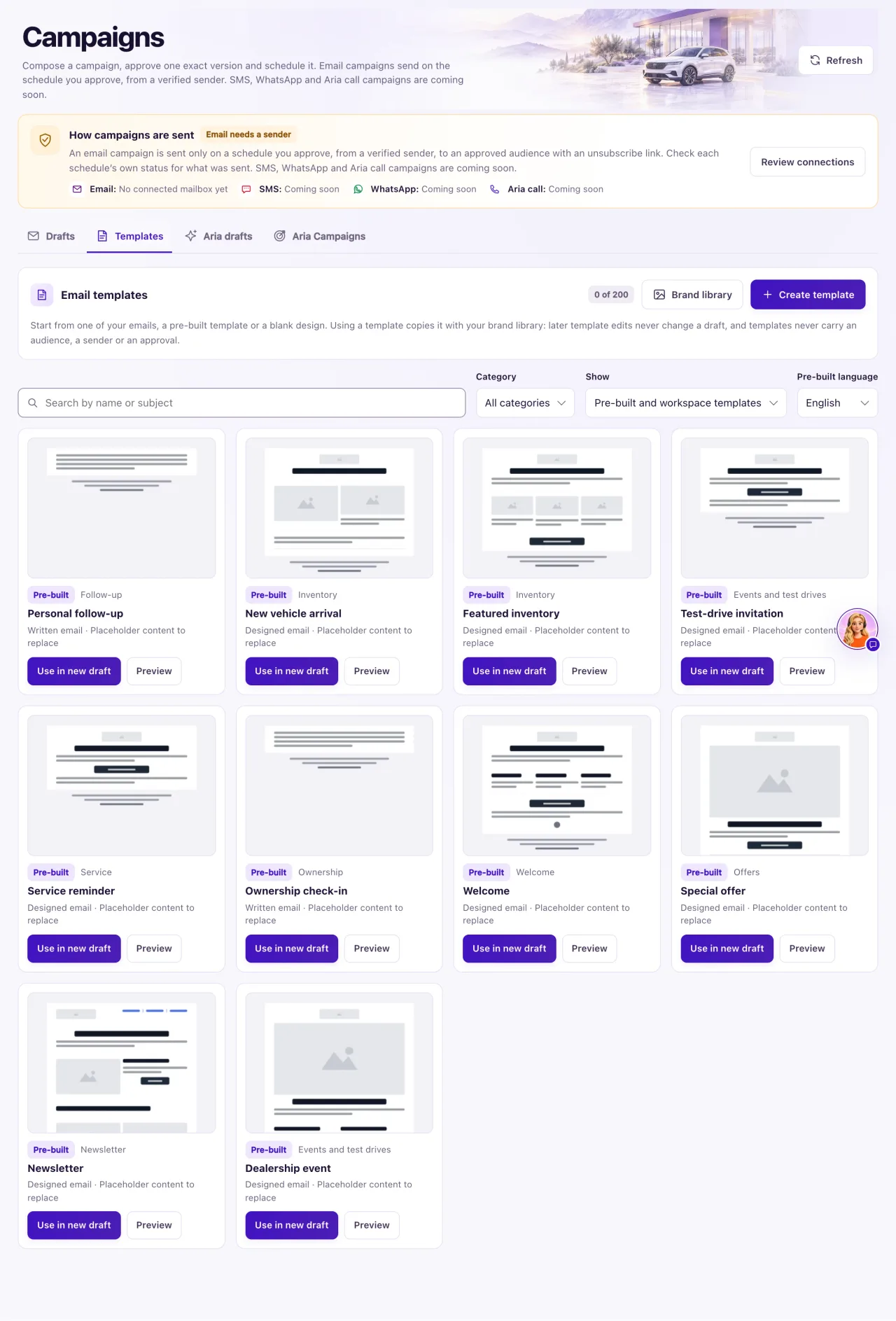
Campaigns → Emails holds everything about email content: Email templates, the Email designer, Brand and Categories. Email templates lists the pre-built templates QualiFlow provides and the ones your workspace saved. A template holds the subject, preview text, body and personalization fallbacks. It never carries an audience, a sender or an approval, and editing a template later never changes a draft made from it.
The Brand library holds your dealership's logo, colours, fonts, social links and details. It is copied into every new written or designed email.
How to use it
- Open Campaigns → Emails → Email templates. On a card, select Preview to see the real email with a sample customer's name filled in (desktop width, or Mobile), or Use to start a new campaign draft from a copy of it: the email designer opens with the template loaded, ready to edit.
- To make a reusable template instead, select Create template. The designer opens in template mode, headed New template: Save adds it to Email templates, and there is no audience or send step. Edit in designer on a saved template works the same way.
- To start a campaign email with no template, select Start from scratch here, or Email designer → Start blank. Email designer also lists your recent email drafts under Continue editing.
- To group saved templates, open Categories and select Create category, then choose the category on a template's card.
- From a draft's Email content step, select Save as template, choose a Template name and a Category, and save.
- To use a template in an existing draft, select Apply a template. It is copied in as unsaved changes; choose Apply to a copy instead to keep the draft as it is.
- On a workspace template, select Language versions, save the template first, then Create Spanish version (or French or English). Translate the copy yourself, for example with Aria text help → Translate.
- Open Campaigns → Emails → Brand. Choose who it is for (the whole workspace or one location), set the logo, colours, fonts, social links and dealership details, and select Save brand library.
- In an existing draft, when the banner says your brand library was updated, select Apply brand update, or Not now.
- To add a picture, select Choose an image: Library, Upload, Workspace logo, From a web address or Vehicle photo.
- To personalize, select Insert personalization field (or Personalization beside the subject) and choose First name or Full name, with fallback text such as "there".
What the data means
You can keep up to 200 active templates; archiving one frees a slot. Ten pre-built templates come in English, Spanish and French: Personal follow-up, New vehicle arrival, Featured inventory, Test-drive invitation, Service reminder, Ownership check-in, Welcome, Special offer, Newsletter and Dealership event. They hold placeholder words and empty image slots, and no prices, dates or offers.
Images can be JPEG, PNG or WebP still pictures up to 5 MB. QualiFlow turns them the right way up, removes location data and resizes them for email. Linking to an image on another website instead of copying it into the library is a warning at approval.
Personalization works with First name and Full name, each needing fallback text of 1 to 60 characters, and the dealership's name, phone, address and website from the brand library. Vehicle and appointment fields are not offered for campaign emails. Personalization can't go inside a link.
Possible issues and fixes
We changed our logo and the draft didn't change
Symptom: The brand library has the new logo, but an existing draft still shows the old one.
Why: Brand changes apply to new emails. Approved, scheduled and sent emails never change.
Fix: Open the draft and select Apply brand update. Applying it is an edit, so an approved email needs approval again.
How to check: The draft shows the new logo.
An image shows "Image unavailable"
Symptom: A picture in the email reads "Image unavailable", or doesn't load while you edit.
Why: It was archived in the image library, or it is linked from another website, which the editor doesn't load until you ask.
Fix: Select Choose an image and pick or upload another. For a linked image, select Load this image preview or Copy into library.
How to check: The image shows in Preview & test.
My GIF won't upload
Symptom: The upload is refused.
Why: Only still JPEG, PNG or WebP images up to 5 MB can be used in email.
Fix: Save the picture as a still JPEG or PNG under 5 MB and upload it again.
How to check: The image appears in the library.
