
What it is
Contacts has three ways to group people. All three are for Owners.
- Lists are static groups. People join or leave only when someone adds or removes them: a person, a campaign flow, a lead score automation, or Aria (she can add or remove the customer she is talking to, and creates the list if it doesn't exist yet).
- Tags are labels you put on contacts, such as "Trade-in" or "VIP". Aria can add or remove a tag on the customer she is talking to; the contact's Activity shows who added or removed each tag.
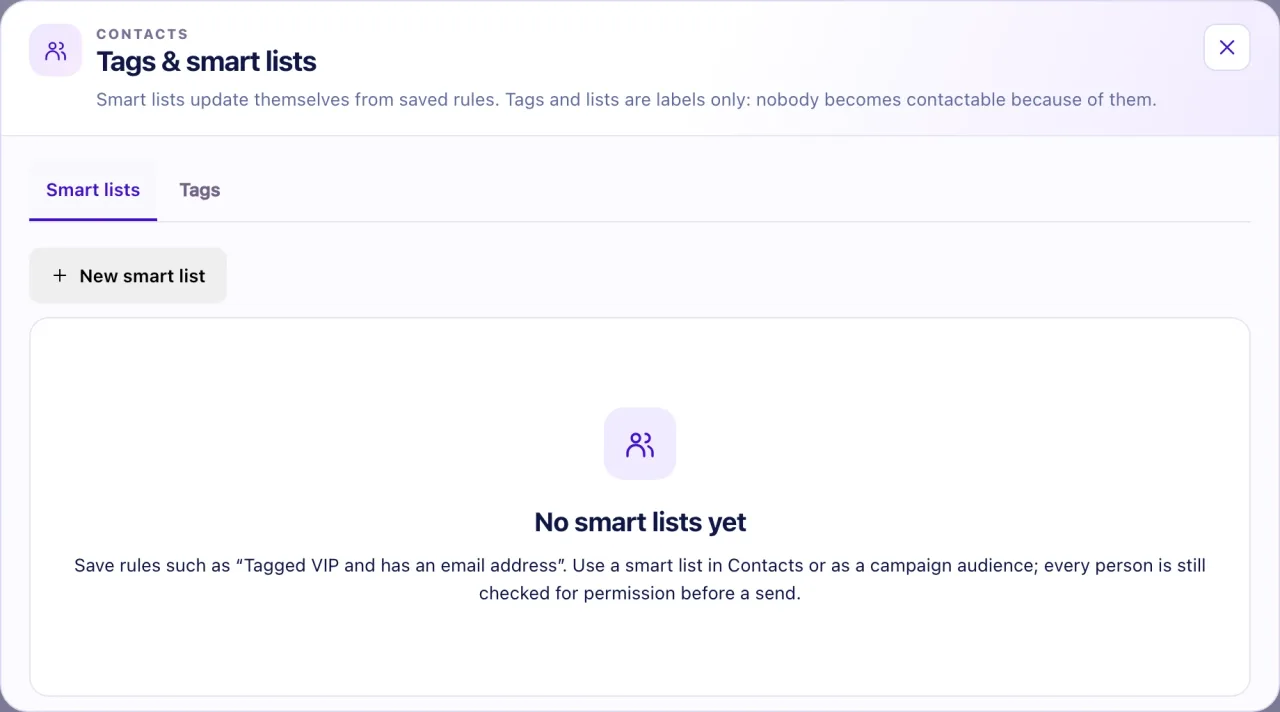
- Smart lists update themselves from saved rules, for example everyone with a lead score of 80 or more, everyone whose Lead status is Appointment set, or everyone in one zip code. A contact joins as soon as they match and leaves as soon as they no longer match.
All three can be used as a campaign audience. They are labels only: nobody becomes contactable because of them. Every person is checked for channels and permission before anything is sent.
How to use it
- In Contacts, open Lists ▾. It shows + Create new list, All contacts, then every list with its member count; a check marks the list shown. Pick a list and the table switches to it at once. The button then reads "List: name"; its × goes back to all contacts.
- To make a list, choose + Create new list, type a List name (up to 100 characters) and an optional Description, then Create list. The new list is shown straight away.
- To change a list, open its ⋯ in the menu: Edit renames it (Save list stays off until you change something), Archive hides it from every picker and filter but keeps its contacts, and Delete removes the list only, never the contacts in it. Archived lists at the bottom of the menu has Unarchive.
- To add people, tick the contacts you want (up to 100 at a time) and select Add to list in the bar that appears, then choose a Destination list and Add members. Create list from selection makes a new list from the ticked contacts.
- To tag people, tick them and select Tag. Choose Add tag or Remove tag, pick a tag or New tag… (up to 40 characters), then confirm. Remove tag lists only the tags the selected contacts have.
- Select Tags & smart lists to manage both. Each tab has Active and Archived views and a search box. Every tag or smart list is a card with its count, Show contacts, Edit and a ⋯ with Archive and Delete; archived ones have Unarchive.
- To make a smart list, open the Smart lists tab and select New smart list. Give it a Name, choose whether Contacts must match all rules or any rule, and Add rule (up to 12): Lead score (0 to 100), Lead band (is or is not), Lead status, Appointment, City, Zip / postal code, Country (from the list of countries), Tag, Static list, Contact details, Email restriction, Last customer message, Purchase, Added to QualiFlow, Source (is or is not) or Language (is or is not).
- Select Count matches to see how many people match (it saves nothing), then Save smart list.
- The list, tag or smart list you are looking at shows as a chip above the table, such as "List: VIP ×" or "Tag: Trade-in ×", next to your filters. Clear all removes them. Export CSV exports exactly that view.

What the data means
Each list in the menu shows how many contacts are in it. A smart list card shows its count and its rules as chips, such as "Has email" or "Country: US". A tag card shows how many contacts carry it. A list name must be unique in the workspace.
Archive hides a list, tag or smart list from every picker (Contacts, campaign audiences and lead score automations) and keeps its members; Unarchive brings it back. Delete removes only the list, tag or smart list and never deletes contacts. Before either one, QualiFlow names anything that uses it. Each action ends with a short green message, such as "List archived" or "Tag deleted".
A selection stays as you move between pages, and clears when you change the search, a filter, the list or Trash. When every row on a page is ticked and more match, Select all N matching selects every match, for Create Aria campaign only. Lists, export and Trash always need a selection of 100 or fewer.
Possible issues and fixes
A list, tag or smart list can't be deleted
Symptom: Delete says "'name' can't be deleted yet" and names a campaign or automation.
Why: A running or scheduled campaign, an approved Aria campaign or an active lead score automation still uses it.
Fix: Pause or change the campaign or automation first, or choose Archive instead. Archive hides it everywhere and keeps its contacts.
How to check: The list moves to Archived lists, or Delete works and shows "List deleted".
A bulk action says "N failed", or its dialog froze
Symptom: The result reads, for example, "18 contacts added; 0 already in the list; 2 failed", or the dialog stops responding.
Why: A contact changed between the moment you ticked it and the moment you confirmed (a selection is an exact snapshot), or the connection dropped.
Fix:
- Close the dialog, select Clear selection and tick the contacts again.
- If the dialog shows Check & retry exact request, select it. It checks first, so the action is never done twice.
How to check: The result line shows 0 failed, or the contacts show in the list you chose.
A smart list shows the wrong people, or 0
Symptom: The smart list's count or members are not what you expected.
Why: all rules means a contact must meet every rule; any rule means one is enough. "is" and "is not", or "in the last" and "not in the last", mean opposite things. Last customer message counts only messages the customer wrote.
Fix: Open Tags & smart lists → Smart lists, select Edit, check each rule, select Count matches, then save. A rule that appears twice is flagged so you can remove one.
How to check: The card's count is the number you expect and Show contacts lists the right people.
I can't tick more people
Symptom: Ticking another row shows "Maximum 100 Contacts per action."
Why: Bulk actions take at most 100 contacts at a time.
Fix: Finish or clear the current selection, then select the next group. For a campaign, use Select all N matching instead.
How to check: The bulk bar shows the new count.
