
What it is
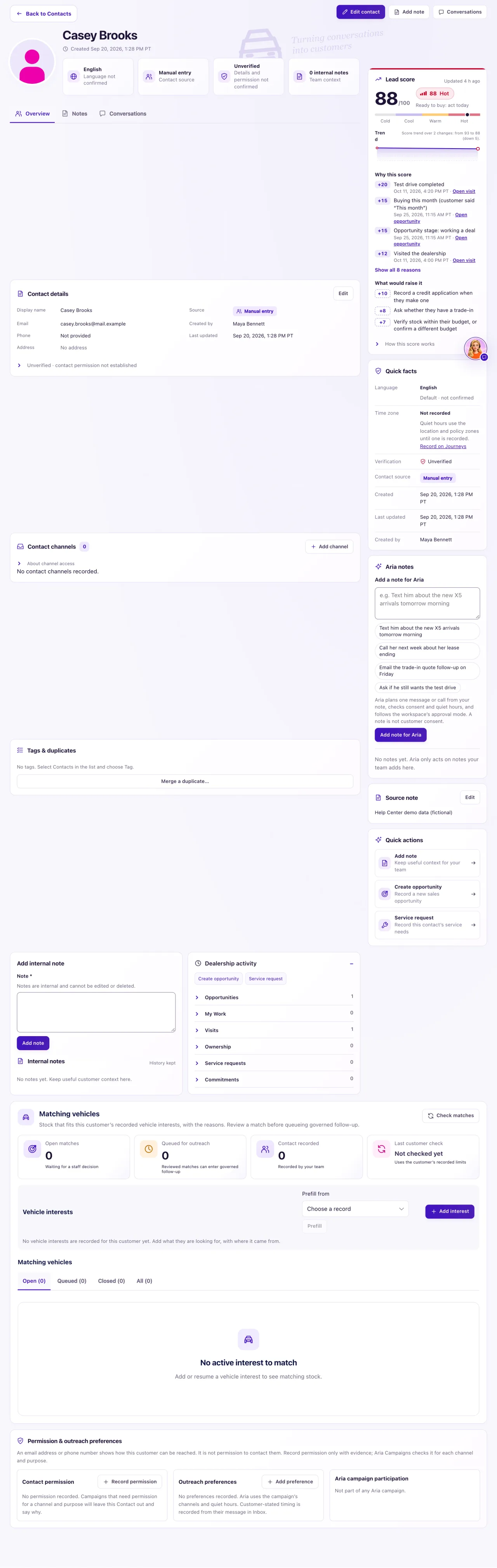
The full profile is everything about one contact on one page. Open a contact in Contacts and select Open full profile. It has the tabs Overview, Activity (one timeline of everything about the customer) and Notes, and for Owners Conversations.
Anyone who can open Contacts can read it. The Lead score, Permission & outreach preferences, Vehicle interests and matching vehicles and Connected channels cards, the time zone and contact photos show for Owners only; Staff see initials instead of photos.
How to use it
- In Contacts, select a name, then Open full profile.
- Read the banner: language, where the contact came from (for example Facebook Messenger, "Contact source · from their first message"), Unverified and the number of internal notes.
- Use Quick facts for the time zone, when the contact was last updated and who created it (language, source, verification and the created date are in the banner, shown once). To record the customer's time zone, select Record on Journeys.
- Owners: select Edit contact or Edit on a card to change details, Add note for an internal note, and Conversations to see every chat.
- Under Contact channels, read Connected channels (Owners): each channel this person wrote from, the name it shared and "Came in on" (which of your accounts). Select Open conversation to go to their messages.
- For Instagram, select "@username on Instagram" to open their profile in a new tab.
- To keep a customer's Facebook profile link, select Add channel, choose Facebook profile, paste the link from their profile and select Add Facebook profile.
- If a phone or email given in chat is already on another profile, Aria saves it here as Unverified and adds a Duplicate tag. The requested booking can continue; a review task does not replace an appointment. When a new chat safely matches the same person, it links to the existing profile and keeps the history. Different names stay separate for identity review. A stated detail never grants messaging consent.
- Use Quick actions for Add note, Create opportunity or Service request. The forms open with this contact filled in and return here.
What the data means
Verification is always Unverified: QualiFlow never treats a recorded email or phone as proof of identity or permission. Time zone is Not recorded until someone records it; it is never guessed from a phone or address, and quiet hours use the location's zone until then.
What each channel shares: Messenger shares the name and photo with your Page, never a link to the Facebook profile. Instagram shares the name, @username and photo. WhatsApp shares the name and number, never a photo. Texts and emails share only the number or address. Names and photos from a channel are marked "Provider-supplied · Unverified", and people are never matched by name or username.
Photos come only from Messenger and Instagram, when sender photos are switched on. A photo is read on the person's first message and refreshed at most every 30 days, only when there is a new message with them. A photo your team uploaded is never replaced. If the person opts out, the stored channel photo is withdrawn.
Stock watches appear when Aria recorded a back-in-stock follow-up the customer asked for; Owners can Cancel an active one.
Possible issues and fixes
A contact has no photo, or the photo is old
Symptom: The contact shows initials, or an old picture.
Why: Texts, email, WhatsApp and website chat never share a photo. For Messenger and Instagram, sender photos may be off for your workspace, Meta may have refused the lookup, or there has been no message in the last 30 days. Staff always see initials.
Fix: An Owner selects Edit contact → Upload photo and Save photo. For Messenger and Instagram, open Settings → Connections → Sender names & photos: the badge should say Names and photos. If it says Names only, Off or Waiting for setup, go to Support and ask for sender photos to be switched on.
How to check: The photo shows, labelled "From Messenger" or "From Instagram" when it came from Meta.
The Facebook profile link isn't shown
Symptom: A Messenger customer's contact has no link to their Facebook profile.
Why: Facebook gives your Page only the person's name, photo and an ID for your Page, never their profile link.
Fix: If you have the link, add it under Contact channels with Facebook profile and Add Facebook profile. Links with or without https:// work, including profile.php?id= links.
How to check: The Facebook profile shows under Contact channels and opens in a new tab.
There is no Lead score or Permission card
Symptom: The profile has no Lead score card or Permission & outreach preferences card.
Why: Those cards are for Owners only. The Lead score card is also hidden for a contact in Trash.
Fix: Sign in as an Owner, or restore the contact from Trash.
How to check: Both cards show on the profile.
The buttons are missing on the profile
Symptom: Edit contact, Add note and Conversations don't show.
Why: The contact is in Trash ("Restore before editing"), or you are signed in as Staff.
Fix: An Owner restores the contact from Contacts → Trash with Restore.
How to check: The banner shows Unverified instead of In Trash, and the buttons are back.
