
What it is
Visits, sales, ownership and service records start follow-ups for you: appointment reminders, no-show recovery, visit follow-ups, delivery and ownership check-ins, service retention and feedback requests. Each one starts only when the record holds what it needs, and a booking is on the calendar only once it is confirmed.
How to use it
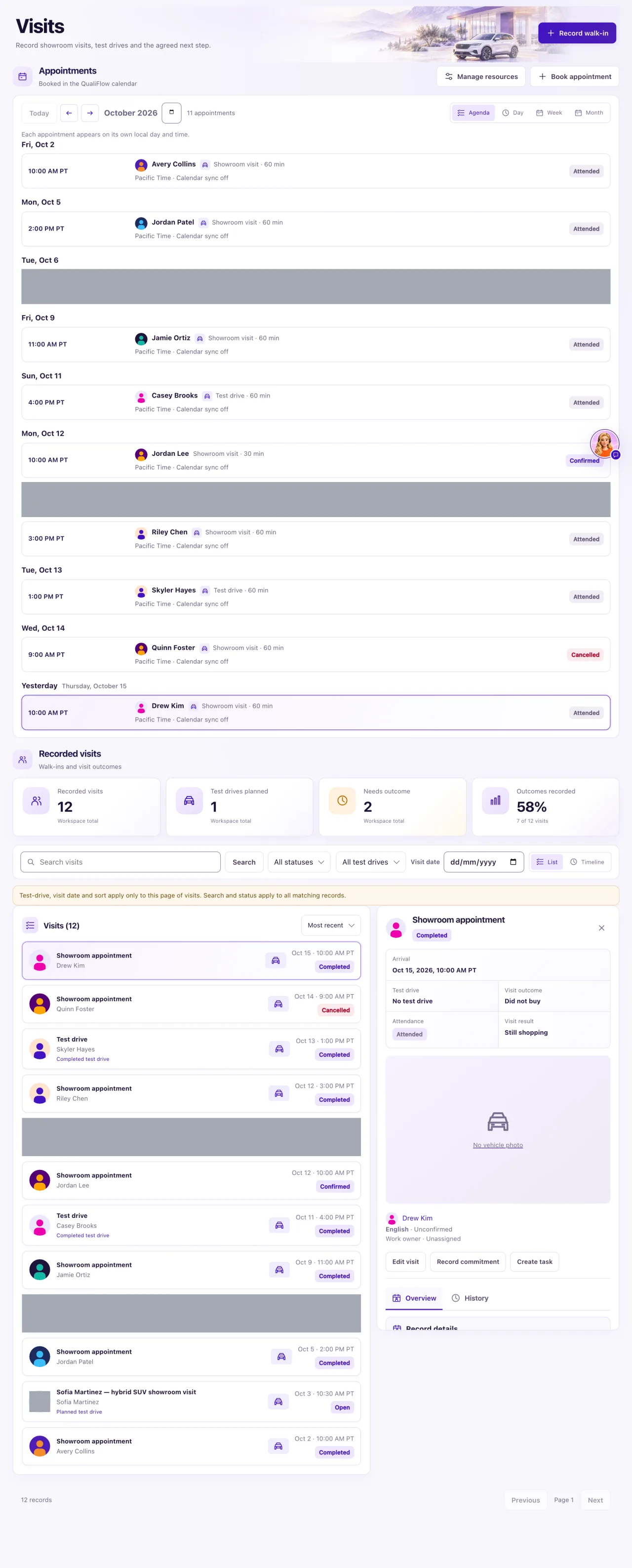
- For a booking that isn't on the calendar, open Visits and check Action review.
- For a reminder that didn't go, open the appointment and read its Calendar and confirmation panel.
- For a follow-up that didn't start after a visit, record the outcome with Record outcome.
- For a delivery, ownership, lease or service follow-up, open the record and check its Source is Verified and its evidence fields are filled in.
- For a feedback request, fill in the Review request consent section on the visit, ownership or service record.
- Then select the journey's card on Journeys and check Activity to see whether the customer started it.
What the data means
A follow-up starts from a record only when the record is complete and its Source is Verified. Unknown attendance is never treated as a no-show, and missed steps are never sent late. Service progress is never sent to customers by itself: message them from the Inbox.
Possible issues and fixes
A booking isn't on the calendar
Symptom: You or Aria booked a time, or Aria told the customer it is "awaiting staff approval", but nothing is on the calendar.
Why: On Ask first a booking waits for an approver, and it must be approved and confirmed within 30 minutes or it expires.
Fix: Open Visits → Action review, select Approve exact action, then Confirm execution. If it expired, prepare it again. Waiting requests also show in My Work → Needs attention.
How to check: The appointment shows on the calendar as Confirmed.
Appointment reminders weren't sent
Symptom: A customer with an appointment got no reminder.
Why: The appointment is only a request, not confirmed; your dealership has no text number or email connected; or, for a service request, the confirmation details or a recorded source are missing.
Fix: Confirm the appointment and check its Calendar and confirmation panel. If the reminders card reads Waiting for: a text number or dealership email, an Owner connects one in Settings → Connections; reminders pick it up by themselves.
How to check: The appointment's Reminders panel shows the next reminder.
No-show recovery or the visit follow-up didn't start
Symptom: After an appointment, no no-show message or visit follow-up went out.
Why: No-show recovery needs an Evidence-backed no-show. The visit follow-up needs the visit recorded as attended with Did not buy.
Fix: After the appointment ends, select Record outcome and choose the outcome that happened.
How to check: The customer shows in the journey's Activity tab on Journeys.
A delivery, ownership or service follow-up didn't start
Symptom: A delivery, lease, finance, cash ownership or service retention follow-up never started.
Why: The record's Source isn't Verified, Verified delivery evidence is empty, the agreement has ended, a lease lacks Verified contractual maturity evidence, or a service isn't Completed with maintenance guidance and its valid-through date.
Fix: Edit the ownership or service record and fill in what is missing.
How to check: The journey's Activity tab shows the customer with a next send.
A feedback request didn't go
Symptom: The customer wasn't asked for feedback or a review.
Why: The Review request consent fields aren't all filled in on the visit, ownership or service record.
Fix: Record the customer's consent in Review request consent if they agreed.
How to check: The next eligible event starts the feedback request.
The customer wasn't told their car is ready
Symptom: A service was finished, but the customer got no "your car is ready" message.
Why: Service progress is never sent to customers automatically.
Fix: Message the customer yourself from the Inbox.
How to check: Your message shows as sent in the conversation.
A car can't be sold again
Symptom: After a cancelled or reversed sale, the car can't be sold or booked.
Why: The car is under Needs availability review until someone confirms where it is.
Fix: Open the car in Inventory and select Confirm availability.
How to check: The car shows its normal availability again.
