
What it is
Customers who message your Facebook Page or your Instagram account can be answered from the QualiFlow Inbox, by your team or by Aria. One Meta login connects both: Instagram connects through the Facebook Page it is linked to.
You need a Facebook login that can message as the Page and manage its message settings. For Instagram, you need a professional account linked to that Page. Only an Owner can connect.
How to use it
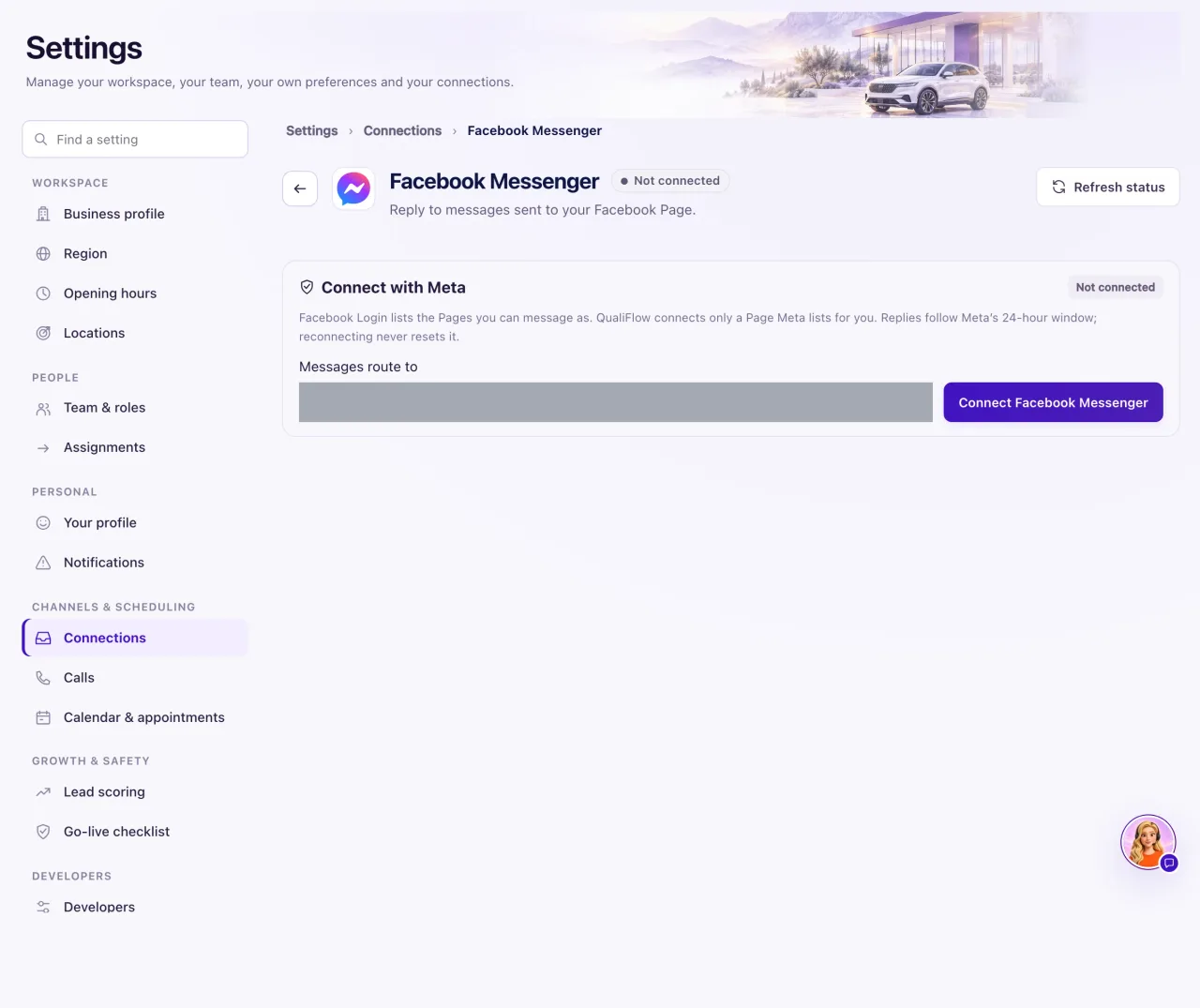
- Go to Settings → Connections and select the Facebook Messenger tile.
- In Messages route to, choose the location whose Inbox should receive the messages. It starts on your main location.
- Select Connect Facebook Messenger. Facebook opens. Sign in and keep every permission selected.
- Back in QualiFlow: if Meta lists only one Page, QualiFlow connects it by itself (with its linked Instagram account) and shows Successfully connected. If Meta lists several, choose your Page once. Pages you can't message as are greyed out with the reason. Once connected, the page shows Connected with your Page and since when, plus Reconnect and Disconnect. It never asks you to pick the Page again when you come back.
- If the Page has an Instagram account linked, leave Also connect Instagram ticked.
- Select Connect Page and Instagram (or Connect this Page).
- Read What happens next on the page. It should say new messages will appear in the Inbox.
- Send a test message from a personal Facebook or Instagram account and check the Inbox.
What the data means
Once connected, the page shows the Facebook Page (or Instagram professional account), Connected through (for Instagram), Messages route to and Access granted.
What happens next says one of three things: new messages appear in that location's Inbox; QualiFlow still needs to switch live processing on for your workspace; or Meta hasn't confirmed it will send messages, so select Reconnect.
Replies follow Meta's 24-hour reply window, and reconnecting never resets it. See "Meta's 24-hour reply window".
Possible issues and fixes
My Page isn't in the list
Symptom: After signing in, the Page you want is missing or greyed out.
Why: Your Facebook login can't message as that Page or manage its message settings, or you unticked it on Facebook's screen.
Fix: Ask the Page's admin in Facebook to give your login full access, then select Connect Facebook Messenger again and keep every permission selected.
How to check: The Page shows in the list and can be chosen.
"This connection attempt expired"
Symptom: You see "Facebook Messenger was not connected. This connection attempt expired. Start again from Connections."
Why: A connection attempt stays open for 15 minutes.
Fix: Start again from Settings → Connections and finish the steps in one go.
How to check: The tile reads Connected.
"Meta did not grant every permission messaging needs"
Symptom: You come back from Facebook to this message, and nothing was connected.
Why: A permission was unticked on Facebook's screen.
Fix: Select Connect Facebook Messenger again and leave every permission ticked.
How to check: You are asked to choose your Page.
Instagram didn't connect with the Page
Symptom: "Meta no longer lists an Instagram professional account linked to this Page. Facebook Messenger is connected; connect Instagram separately."
Why: The Instagram account isn't linked to the Page in Meta, or it isn't a professional account.
Fix: Link the Instagram professional account to the Page in Meta, then reconnect Facebook Messenger with Also connect Instagram ticked.
How to check: The Instagram tile reads Connected.
