
What it is
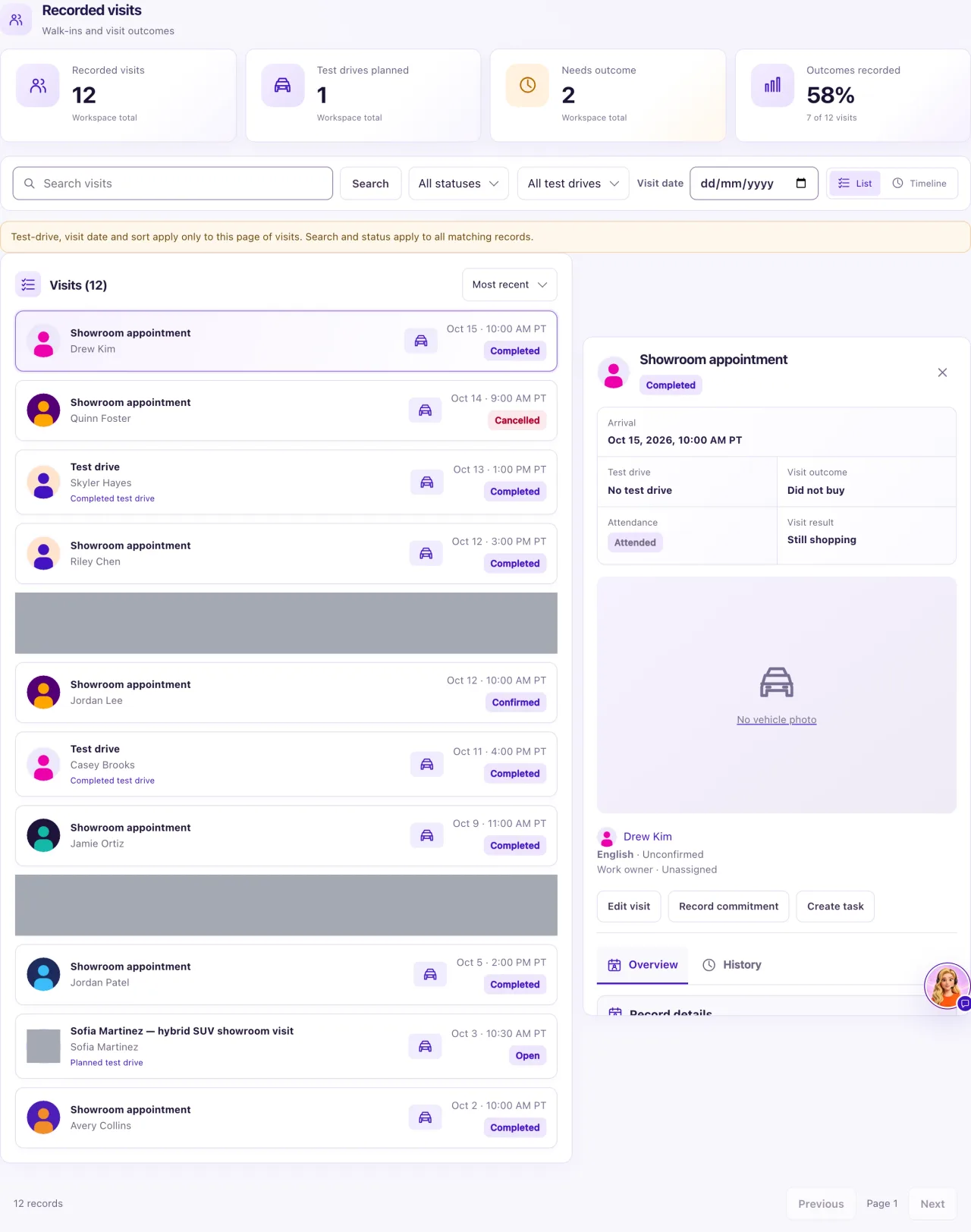
Recorded visits ("Walk-ins and visit outcomes"), below the calendar on Visits, lists every visit record: walk-ins your team recorded and appointments booked in the calendar. Here you record whether the customer came, test-drove and bought, and the agreed next step.
Owners record and change visits. Staff with Visits access can read them.
How to use it
- Open Visits and scroll to Recorded visits. Choose List or Timeline, search, or filter by status, test drive or Visit date.
- For a customer who arrives without a booking, select Record walk-in.
- The form starts filled in: the Arrival date and time is now, and the Title is made from the customer and vehicle once you choose them. Choose the Contact, check the Responsible owner and Timezone, and, if you like, the Opportunity (its shortcut appears once a customer is chosen). It's optional: left empty, saving attaches the customer's newest open opportunity, or creates a new one called "Walk-in visit" when they have none. Until the Contact is chosen, the save button stays unavailable and says "Choose the customer first." The arrival time can't be in the future: book a future visit with Book appointment.
- Under the visit outcome, choose Attendance, Test drive and Visit outcome (Unknown, Did not buy or Bought), and a Visit result if you know it.
- Open Visit context & evidence and add the evidence for each fact, any objections, the Agreed next action, and a Request manager assistance — reason if you need help.
- Fill in Review request consent only if the customer agreed to be asked for feedback, then Source & evidence, and select Record walk-in.
- Select a visit to read its Salesperson brief and its summary. Use Edit visit to change a walk-in, and Record commitment or Create task for follow-ups.
What the data means
| Card | What it counts (newest 50 visits) |
|---|---|
| Recorded visits | All visit records: walk-ins and booked appointments |
| Test drives planned | Visits whose test drive is Planned |
| Needs outcome | Open walk-ins, and booked appointments that ended without an outcome |
| Outcomes recorded | The share of visits recorded as Did not buy or Bought |
A visit is Open (planned, under way or awaiting its outcome), Completed (an outcome was recorded, including a no-show) or Cancelled. A confirmed booking reads Open here and Confirmed in the calendar; a no-show reads Completed here and No-show in the calendar.
The Salesperson brief ("From recorded facts") is built only from what QualiFlow has on record: the customer, their vehicle interest and stock status, budget and timing, objections, promises and recent history. It makes no AI call, notifies nobody, and never states anything the customer didn't say.
Possible issues and fixes
I can't record a walk-in
Symptom: Record walk-in is unavailable ("Choose the customer first."), or a field shows "The arrival time is in the future (this visit uses America/New_York time)…" or "Record explicit attendance evidence."
Why: A walk-in needs its customer (the opportunity is attached for you) and records a visit that already happened, in the visit's own Timezone. Each fact also needs evidence, such as attendance evidence for Attended.
Fix: Choose the Contact. Check the arrival time in the named time zone; for a future visit use Book appointment. Fill in the field the message names.
How to check: "Record saved." and the visit shows Open.
The Needs outcome card is high, or the "Record outcome" task keeps coming back
Symptom: Many visits wait for an outcome.
Why: The task "Record outcome: visit title" stays until an outcome is recorded for each open visit.
Fix: Record each outcome, or cancel a walk-in that never happened (Edit visit → Status Cancelled, with a reason).
How to check: The card and the My Work tasks clear.
A walk-in's planned test drive didn't reserve the car
Symptom: Someone else booked the car for the same time.
Why: A walk-in's Planned test drive is a note, not a calendar booking.
Fix: Use Book appointment with the type Test drive to hold the car and a team member.
How to check: The test drive shows Confirmed in the calendar.
The follow-up after a visit didn't start
Symptom: The showroom follow-up or the feedback request didn't start for a visit.
Why: The showroom follow-up starts only from a visit recorded as attended with Did not buy. The feedback request needs all four review-consent fields on an attended visit with an outcome.
Fix: Record the outcome, and the consent if the customer agreed.
How to check: The customer shows in the journey's Activity tab on Journeys.
